Most small businesses manage documents with a combination of cloud storage (such as Google Drive, Dropbox, or OneDrive), email attachments, and optimism. Files land wherever is fastest. Folders multiply without logic. Searches return the wrong version. Someone eventually gives up and asks a colleague where the file is.
This works until it doesn’t. The point where it stops working is usually the moment you most need it to work: before an audit, during a client dispute, at tax time.
A document management system for small business is the answer, but the term gets thrown around loosely. Google Drive is not a DMS. Neither is Dropbox. And most small business document organization problems don’t actually require an enterprise platform to fix. Here’s what the difference means in practice, and how to know what you actually need.
What a Document Management System Actually Is
A document management system is software designed to handle the full lifecycle of a document: capture, classification, storage, retrieval, version control, and (when needed) destruction. It’s not just a place to put files. It’s a system that understands what files are and acts on that understanding.
The distinction matters because the failure modes of cloud storage and a real DMS are completely different.
Cloud storage fails at the filing moment. Files arrive and get saved wherever is fastest, often with no name, no metadata, and no consistent location. The storage works perfectly. The organization is chaos.
A DMS addresses the filing moment directly. It reads documents, identifies what they are, applies naming conventions, and places them in the right location, automatically, every time, regardless of who uploaded the file.
Cloud Storage vs. Filently vs. Enterprise DMS
| Feature | Google Drive / Dropbox | Filently | Enterprise DMS |
|---|---|---|---|
| File storage | ✅ Stays in cloud | ✅ Stays in Google Drive | ✅ Yes |
| Automatic naming | ❌ Manual | ✅ AI-powered | ✅ AI-powered |
| Document classification | ❌ Manual | ✅ Reads content | ✅ Reads content |
| Consistent filing | ❌ Manual | ✅ Enforced | ✅ Enforced |
| Setup time | Minutes | Minutes | Months |
| Migration required | — | ❌ No | ✅ Yes |
| Version control | Limited | ❌ | ✅ Full history |
| Workflow automation | ❌ | ❌ | ✅ Yes |
| Pricing | Free / low | From $6/month | $$$ |
For a solo freelancer or small team, the right column is overkill. The problem isn’t that Google Drive lacks enterprise features. It’s that filing is manual, inconsistent, and error-prone. That’s what Filently fixes, without replacing anything.
When Manual Filing Stops Working
The tipping point is usually volume or complexity, and it arrives faster than most people expect.
Volume: When you have fifty documents, manual organization is manageable. When you have five thousand, it isn’t. The average small business accumulates documents faster than most owners realize: invoices, contracts, receipts, HR documents, compliance records, client correspondence. A two-year-old business with three employees can easily have tens of thousands of files.
Complexity: When multiple people file documents, consistency breaks down. One person names files one way, another names them differently. Searches fail not because the file doesn’t exist, but because it was saved under a name nobody else would use. Consistent filing can’t depend on everyone remembering the same convention.
Risk: Audits, compliance checks, and legal disputes all require producing specific documents quickly. A disorganized filing system doesn’t just cost time in these situations, it creates risk. Documents that exist but can’t be found are, practically speaking, missing.
This is the point where most small businesses start looking at document management tools. The mistake is assuming the only option is an enterprise DMS.
What to Look for in a Document Management System for Small Business
Not every DMS is built for small businesses. Enterprise systems come with enterprise complexity and enterprise pricing. Here’s what actually matters for a small business:
OCR and Automatic Classification
Optical Character Recognition reads the content of scanned documents and PDFs, turning image files into searchable text. Combined with AI classification, this means a system can read an invoice, identify that it’s an invoice, and file it correctly without manual input.
This is the feature that separates a DMS from a filing cabinet. Without it, you’re still doing the classification work yourself, just digitally instead of physically.
Consistent Naming and Filing
A good DMS applies your naming conventions automatically. Every invoice from Supplier XYZ becomes 2026-03-15_SupplierXYZ_Invoice_1052.pdf in Finance > Invoices > 2026. Every signed client contract goes to the right client folder. The logic is consistent because the software applies it, not because individual employees remember to.
Full-Text Search
Searching by filename only works if files have good names. Full-text search reads the content of every document, so you can search for a client name, an invoice number, a contract clause, or any phrase you remember from a document , regardless of what it was named.
Access Controls and Audit Trails
A DMS lets you control who can see, edit, or delete specific documents , down to the individual file level if needed. Audit trails log every action: who opened a document, who changed it, and when. For compliance purposes, this level of visibility is often required. For general operations, it prevents both accidental and intentional data loss.
Simple Setup and Maintenance
For a small business, a DMS that requires IT expertise to configure and maintain is not a viable solution. The right tool connects to your existing cloud storage, learns your existing folder structure, and starts working without a significant implementation project.
Why Enterprise DMS Tools Are the Wrong Answer for Small Business
The document management market is dominated by enterprise software: DocuWare, M-Files, SharePoint, OpenText. These tools are powerful. They’re also built for organizations with dedicated IT teams, six-figure implementation budgets, and months to spare for migration and training.
For a small business, the typical enterprise DMS experience looks like this: a lengthy sales process, a complex setup that requires consultant support, a migration project that moves thousands of existing files into a new system, and an ongoing maintenance burden that assumes someone is responsible for administering the platform.
The result is that most small businesses either avoid document management entirely (sticking with the Google Drive chaos) or overbuy, implement poorly, and end up with an expensive system that never gets used properly.
Neither outcome is acceptable. But the alternative isn’t to resign yourself to folder chaos.
You Don’t Need to Replace Your Setup. You Need to Fix It.
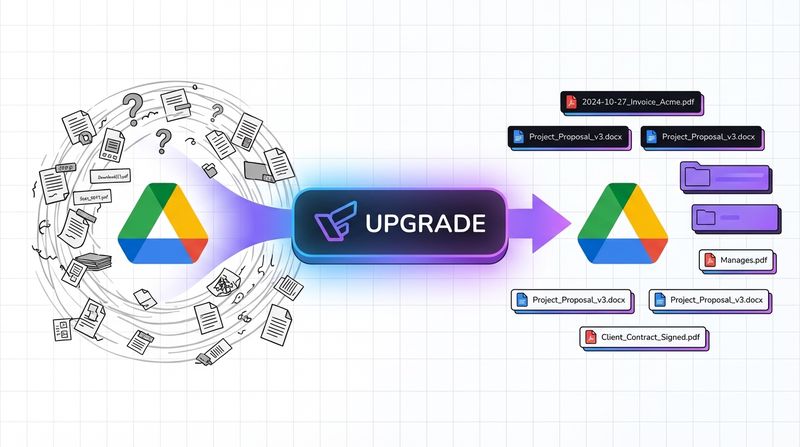
The files are already in your cloud storage (let’s say Google Drive). The folder structure exists, even if it’s imperfect. The team is already familiar with the interface. The problem isn’t the storage. It’s the filing.
Filently works with your existing Google Drive rather than replacing it. There’s no migration, no new interface to learn, no data to move. Filently reads incoming documents, applies consistent naming, and places them in your existing folder structure. Your current setup becomes significantly more capable without becoming more complex.
This is what makes it a practical option for small businesses that need document management discipline without the overhead of an enterprise system. You get automatic classification, consistent naming, full-text searchability, and audit-ready records (the features that actually matter) without changing how your team works or committing to a platform migration.
The competitive advantage of a large organization’s document management isn’t the software. It’s the consistency and discipline the software enforces. Filently brings that discipline to your existing setup, at a fraction of the cost and without the implementation project.
How Filently Works
When a document arrives in your Google Drive (via upload, email forwarding, or a designated inbox folder), Filently reads it using OCR, identifies the document type, and files it according to your naming conventions. You don’t configure rules for every document type. Filently learns from how your folders are already structured.
Every document is filed correctly the moment it arrives. Your archive stays organized without anyone actively maintaining it. Search works because the underlying data is consistent.
Filently processes documents automatically by default. When confidence is high, files are named and placed immediately. When confidence is lower, Filently asks for manual confirmation before filing. You only review the cases where it’s actually needed, not every document. For a closer look at how the OCR classification works, our guide to an AI document management system covers the mechanics.
What Smart Filing Looks Like in Practice
Two workflows, before and after.
Invoice Processing
Before: An invoice arrives by email. Someone downloads it, opens it to check the vendor name, renames it something like “Invoice_Acme_March.pdf”, and moves it to a shared folder. If they’re busy, it stays in Downloads. If someone else processes it, they name it differently. By the end of the month, the invoices folder contains thirty files with inconsistent names, some duplicates, and at least two that nobody can identify without opening them.
At audit time, finding all invoices from a specific vendor requires opening files one by one. The information exists. Getting to it doesn’t.
After: The invoice arrives by email and is forwarded to Filently. Filently reads it, identifies the document type, names it 2026-03-15_AcmeCorp_Invoice_1052.pdf, and places it in Finance > Invoices > 2026 > AcmeCorp. No manual steps. No naming decisions.
At audit time, searching “AcmeCorp invoices 2026” returns every invoice from that vendor, correctly named and in one place.
Client Onboarding
Before: A new client signs a contract. Someone saves the PDF to their desktop, emails it to the project manager, and eventually moves it to a shared folder (maybe under the client’s name, maybe under the project name). The proposal, the brief, and the invoice end up in three different locations created by three different people following no shared convention.
Six months later, when the client asks a question about project scope, finding all relevant documents requires asking the team where things were saved.
After: The signed contract is uploaded or forwarded. Filently identifies it as a contract, recognizes the client name, and files it in Clients > AcmeCorp > Contracts. When the project brief arrives, it goes to Clients > AcmeCorp > Project Files. The invoice goes to Finance > Invoices > 2026. All three are findable by searching the client name, regardless of which team member uploaded them or when.
The folder structure stays consistent because filing is automatic, not because everyone remembered the convention.
Do You Need an Enterprise DMS, or Is Smart Filing Enough?
For most small businesses, the answer is the second one.
Enterprise DMS tools were built for organizations with compliance teams, IT departments, and implementation budgets. The features they offer are real, but so is the overhead: months of setup, staff training, migration projects, and ongoing maintenance. For a team of one to twenty, that tradeoff rarely makes sense.
What small businesses actually need is consistent filing. Documents named the same way every time, stored in predictable locations, findable without opening ten tabs. That’s not a DMS problem. That’s a smart filing problem.
You probably don’t need an enterprise DMS if: You’re already using Google Drive and your core issue is inconsistent naming, a growing backlog of unsorted files, or time spent on manual organization. A lightweight filing layer solves this without touching your existing setup.
You may need a more structured DMS if: You have strict regulatory requirements (healthcare, legal, finance), complex approval workflows, or a need for deep audit trails across hundreds of users. At that scale, the implementation overhead becomes justified.
Common Questions About Document Management for Small Business
What is the difference between Google Drive and a document management system?
Google Drive stores files. It doesn’t read them, name them, or decide where they go. A document management system adds that layer: documents are identified automatically, named consistently, and placed in the right folder without manual input. You keep Google Drive. You stop doing the organizational work it was never designed to do.
How much does document management software cost for a small business?
Lightweight filing tools built for small businesses typically run $9–$79 per month depending on document volume and team size. That compares favorably with the time cost of manual filing. Filently covers your first 25 documents for free, with paid plans starting at $6/month billed annually.
Is it safe to connect a filing tool to my Google Drive?
With Filently, your original files never leave Google Drive and are never stored permanently on external servers. Documents are read temporarily for classification, then the copy is deleted. Processing happens in EU and Swiss cloud infrastructure. Your Google Drive permissions and access controls remain unchanged.
How long does setup take?
For tools built for small businesses, minutes rather than weeks. Filently connects to your existing Google Drive, reads your folder structure, and starts processing documents immediately. There’s no migration, no reconfiguration, and no training period.
What file types are supported?
Filently handles PDFs, scanned images (JPG, PNG, TIFF, HEIC), Microsoft Office documents (Word, Excel, PowerPoint), and OpenDocument formats, across 20+ languages including German, English, French, Spanish, and Italian.
Ready to see what automated document management looks like in practice? Filently connects to your Google Drive and starts filing automatically. Your first 25 documents are on us.