The core of organizing business receipts comes down to three steps: capture everything digitally, name it consistently, and file it in a logical folder structure. That’s the system. Getting it right means tax season stops being a scramble, audits stop being terrifying, and you stop losing deductions to receipts that disappeared into a coat pocket.
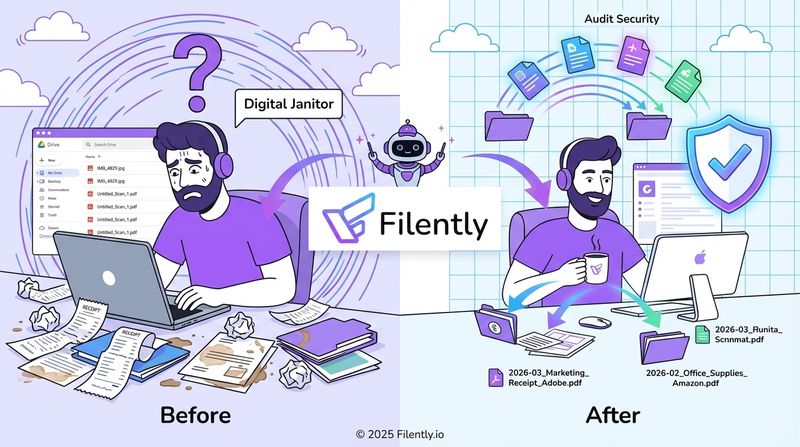
The Real Cost of That Shoebox Full of Receipts
A pile of unsorted receipts isn’t just clutter. It’s a slow drain on time and money that most people underestimate until they’re staring down a tax deadline or an audit notice.
Think about the last time you spent half an hour hunting for a single receipt from two months ago. Or the creeping realization at year-end that you definitely spent money on legitimate business expenses, but can’t prove it. Those moments have a real cost.
What Manual Receipt Management Actually Costs You
The problems run deeper than a messy desk:
- Time: Professionals waste hours every week searching for documents they know exist somewhere. That time compounds across a year.
- Missed deductions: If you can’t prove you bought it, you can’t claim it. A lost receipt is a deduction you’re handing back to the tax authorities.
- Audit risk: A disorganized, incomplete system is a liability. When an auditor asks for documentation, “I think it’s in here somewhere” is not a response that ends well.
The goal isn’t just to get organized. It’s to build a system simple enough to actually use, so staying organized stops requiring effort.
Manual vs. Digital Receipt Management at a Glance
| Aspect | Shoebox Method | Digital System |
|---|---|---|
| Time spent | Hours sorting and searching, especially at tax time | Seconds to scan and file; seconds to find anything later |
| Accuracy | High risk of lost receipts, faded ink, missed deductions | Complete digital record, no physical degradation |
| Accessibility | Stuck in one location | Accessible from any device, anywhere |
| Audit readiness | Scrambling to find documents under pressure | Everything categorized and searchable on demand |
How to Organize Business Receipts: Setting Up Your Digital System
A good receipt system has three components: a scanning habit, a naming convention, and a folder structure. Each one is simple on its own. Together, they make the whole thing work.
Step 1: Digitize at the Point of Receipt
The most important habit is the simplest: scan receipts before they have a chance to get lost. Not at the end of the week. Not during tax season. Right when you get them.
Most phones handle this fine. Google Drive, Apple Notes, and dedicated apps like Microsoft Lens all have built-in scanning that takes about 20 seconds. The receipt goes from paper to searchable digital file before it has a chance to disappear.
This one habit removes 90% of the problem.
Step 2: Establish a Consistent Naming Convention
What you name the file matters more than most people realize. “Scan_123.pdf” is useless six months from now. A name like “2026-03-22_Staples_45.99.pdf” tells you everything at a glance and sorts automatically by date.
The format that works best: YYYY-MM-DD_Vendor_Amount
For example:
- 2026-03-22_Staples_45.99.pdf (Office Supplies)
- 2026-03-20_Chevron_62.50.pdf (Vehicle Fuel)
- 2026-03-18_DeltaAirlines_349.00.pdf (Business Travel)
With this structure, finding all your March fuel receipts means typing “Chevron 2026-03” into your search bar. Done in seconds.
A consistent file name is the difference between a searchable archive and a digital version of the shoebox. The format takes two seconds to apply and saves minutes every time you need to find something.
Step 3: Build a Logical Folder Structure
Once files are named properly, they need a place to live. Keep the structure flat and predictable. Deep nesting makes things harder to find, not easier.
A structure that works for most freelancers and small businesses:
- Business Receipts (master folder)
- 2025
- Office Supplies
- Software & Subscriptions
- Travel & Meals
- Marketing & Advertising
- Utilities
- 2026
- (same categories)
- 2025
Year as the top level keeps tax years clean. Categories inside each year mirror how you actually spend money. When filing a receipt, the decision is two clicks: which year, which category.
For more on building a folder structure that holds up over time, our guide to a document folder organizer covers the full approach.
Sort Your Expenses for Smarter Business Decisions
Categorized receipts aren’t just organized. They’re useful. When every expense is sorted, you can see exactly where money is going: how much on software versus marketing, whether travel spending is generating returns, where costs are creeping up.
Common Business Expense Categories
Most businesses can run on five or six categories. More than that and the system starts requiring judgment calls every time you file something.
Categories that cover the majority of business spending:
- Software & Subscriptions: Recurring fees for project management tools, accounting software, any monthly or annual service.
- Office Supplies: Physical items needed to operate: paper, pens, equipment.
- Marketing & Advertising: Ad spend, email marketing fees, print materials.
- Travel & Meals: Flights, hotels, client dinners, coffee meetings.
- Utilities: Internet and phone, especially relevant if working from home.
When tax season comes, you’re not trying to reconstruct a year of spending from memory. You’re pulling an already-sorted folder.
Turning Organized Data into Financial Clarity
Once expenses are categorized consistently, you can actually analyze them. Are you spending more on software than on client acquisition? Is your travel budget generating returns? These questions are answerable when the data is clean.
Connecting organized receipts to an accounting platform creates a continuous flow of accurate financial data. What started as a filing habit becomes a real picture of how the business is running.
Let Automation Handle Your Receipt Management
A manual digital system works. Automation works better. AI and OCR (Optical Character Recognition) handle the naming and filing steps for you, so the only thing you do is scan.
Here’s how it works in practice: you photograph a crumpled receipt, an app reads the vendor, date, and amount, names the file correctly, and moves it to the right folder. No typing, no drag-and-drop. The receipt is filed before you put your phone away.
The market reflects how fast businesses are moving in this direction. The global cloud-based receipt management market is projected to reach $11.36 billion by 2034, with receipt capture and scanning accounting for 37.4% of that demand. (Source: Market.us, 2025) Businesses are replacing manual workflows with automated tools because the accuracy and time savings are no longer marginal.
How AI and OCR Work Together
- OCR reads the image of your receipt and converts the text into digital data: vendor name, date, amount, line items.
- AI takes that raw data and interprets it. It recognizes that “The Home Depot” is likely a business supplies expense, applies your naming convention, and files the document in the right folder.
Filently does exactly this for documents in Google Drive. You can read more about automating the full filing workflow in our guide to automating document filing .
From Chore to Background Process
The difference between a manual system and an automated one isn’t just speed. It’s that automation removes the decision-making and the discipline required to maintain consistency. The system runs whether or not you’re on top of it.
For a freelancer, that’s more time on work that generates revenue. For a growing team, it means expense reporting doesn’t become a bottleneck as headcount increases.
If you’re looking to build a complete document management system around your receipts and business files, our guide to document management for small business covers what you actually need — without the enterprise overhead.
Making the System Stick
A well-designed system that nobody uses doesn’t help. The goal is to make the new workflow take less effort than the old one.
Three Approaches That Work
- Scan as you go: The moment a receipt is in your hand, scan it. This takes under 30 seconds and means nothing ever ends up in a pile waiting to be processed.
- Daily batch: At the end of each day, spend five minutes scanning the day’s receipts. Works well if you prefer to separate the task from the moment of purchase.
- Weekly review: Block 15 minutes on Friday to clear your inbox, verify everything is filed, and review the week’s expenses. Prevents accumulation without requiring daily attention.
The best approach is the one that becomes automatic. If you already have a routine of shutting down your laptop at the end of the day, batch scanning then takes almost no additional thought.
For digital receipts arriving by email, there’s an even faster option: forward them directly to your personal Filently address. The receipt gets processed automatically, named correctly, and filed in the right folder without you touching it.
Protecting Your Digital Records
Once the system is running, protect what you’ve built:
- Backups: Cloud storage syncs automatically, but a secondary backup to an external drive or different cloud service once a month adds an extra layer.
- Retention: The IRS requires business records for at least three years from the date of filing. Most accountants recommend seven years as the safe standard. A digital system makes this straightforward since storage is inexpensive and files don’t degrade.
Common Questions About Organizing Business Receipts
How long do I need to keep business receipts?
The IRS requires records for at least three years from the date you file your taxes, which covers the standard audit window. Most accountants recommend keeping everything for seven years to cover situations that can extend the timeline, such as unreported income or amended returns. With a digital system, this costs almost nothing in storage and requires no physical space.
Are digital copies of receipts legally valid?
Yes. The IRS accepts digital or scanned copies of receipts, provided they are clear, legible, and complete replicas of the original. A good quality scan is legally equivalent to the paper version, and in practice more secure since it can be backed up and won’t fade. Once you have a solid scan showing the vendor, date, amount, and items purchased, you can discard the paper.
What is the best way to organize receipts for taxes?
The most effective approach is to organize receipts by year and then by expense category as you go, rather than doing a single large sort at tax time. Use a consistent naming convention (YYYY-MM-DD_Vendor_Amount) so files are searchable, and keep categories aligned with your tax reporting structure. If you use accounting software, connecting your receipt system directly to it means your records are always current.
How do I handle cash receipts?
Cash receipts need immediate attention since there’s no bank statement to fall back on. The rule: scan it the moment you receive it. Don’t let it sit in your wallet or get photographed but not filed. Apply your naming convention and move it to the right folder straight away. The whole process takes under a minute, and it means a cash transaction is documented just as completely as a card payment.
What’s the best app for scanning business receipts?
The best app depends on your existing setup. Google Drive and Microsoft Lens both have solid built-in scanning that integrates directly with cloud storage. For automated naming and filing, tools like Filently apply AI to handle the categorization step automatically. Your first 25 documents are free.
Stop organizing manually. Filently uses AI to automatically identify, name, and file your receipts and documents in Google Drive. Your first 25 documents are on us.