An OCR document organizer is software that uses Optical Character Recognition (OCR) to read the contents of your documents and file them automatically. It scans paper receipts, digital invoices, contracts, and other files, converts them into searchable text, and places them where they belong, without manual data entry or drag-and-drop filing.
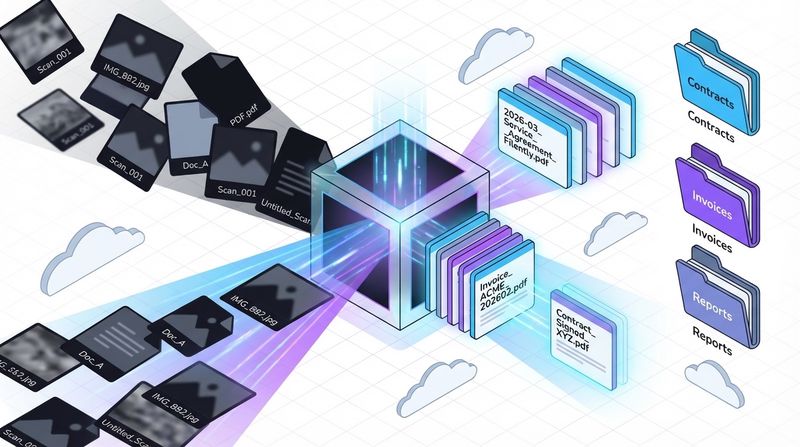
The Problem With Manual Document Filing
Most people don’t realize how much time they lose to document disorganization until they’re deep in it. Hunting for a specific invoice from two months ago. Realizing at tax time that a receipt is gone. Searching through a folder of files named “scan_001” hoping the right one is in there somewhere.
The friction is constant and low-grade, which makes it easy to underestimate. But across a month or a year, it adds up to real hours lost and real money left on the table.
What Disorganization Actually Costs
The practical consequences:
- Time: Every search through misnamed or unfiled documents is time you’re not spending on work that matters. Professionals routinely lose hours each week to document-related tasks that a system would handle automatically.
- Missed deductions: Lost receipts are lost deductions. If you can’t prove the expense, you can’t claim it.
- Audit exposure: An incomplete or inconsistent filing system is a liability when documentation is requested under pressure. Finding everything quickly matters.
The goal isn’t just to have organized files. It’s to build a system that stays organized without requiring constant attention.
How an OCR Document Organizer Works
An OCR document organizer doesn’t just store files. It reads them, understands what’s in them, and acts on that information: the software digitizes the document image, reads and converts the text using OCR, then uses the extracted data to rename and file the document automatically. For a detailed breakdown of how the technology works under the hood, see our guide to OCR technology .
What matters practically is the end result: a document that arrives as an unreadable image gets renamed consistently (e.g., “2026-03-15_Invoice_ClientCo.pdf”), placed in the right folder (e.g., Finance > Invoices > 2026), and made fully searchable by any field inside it. No manual input required.
Modern OCR systems achieve 98–99% accuracy on standard printed documents. (Source: Spark.co, OCR Accuracy Benchmarks, 2025)
To understand how this connects to broader document automation, our guide on AI document management covers the full picture.
What an OCR Organizer Actually Changes
The mechanics matter less than what changes in practice.
Finding Documents in Seconds
Without OCR, a scanned document is a locked image. You can see it, but you can’t search inside it. An OCR organizer converts every word in every document into searchable text, so finding anything is a matter of typing a keyword rather than opening files one by one.
Need all receipts from a specific vendor? Type the name. Looking for a contract clause? Search the phrase. Want every document from a particular month? Search the date. The document archive becomes as searchable as your email inbox.
Getting Time Back
Filing, renaming, and sorting documents manually takes time that most people don’t consciously track but would notice immediately if it disappeared from their schedule. An OCR organizer handles all of it automatically, which means the cognitive overhead of document management drops to near zero.
- Less clutter: Physical paper can be discarded once digitized. Filing cabinets and binders stop accumulating.
- Remote access: Documents stored in cloud-connected systems are available from any device, anywhere.
- Reduced paper costs: Less printing, less physical storage, less overhead.
More Reliable Security
Physical documents are vulnerable in ways that are easy to underestimate. Fire, water damage, theft, or simply losing something in a move can destroy records permanently. A digital system with cloud backup doesn’t have those failure modes.
Sharing also becomes more controlled. Instead of emailing documents back and forth, where copies proliferate and versions diverge, you share a link to a file that lives in one place.
Practical Uses for an OCR Document Organizer
For Personal Use
The clearest personal use case is receipts and tax documents. A shoebox of paper receipts becomes a searchable digital archive. When tax season arrives, every deductible expense is retrievable in seconds rather than requiring a physical sort through paper.
Other examples:
- Medical records: Find immunization records or test results by searching a name or date rather than opening every file in a folder.
- Household bills: Compare utility costs across months or years with a simple search rather than a manual review.
- Warranties and manuals: Find documentation for any appliance by searching the brand name.
For Freelancers and Small Businesses
For anyone managing client documents, invoices, and contracts, an OCR organizer removes a significant administrative burden:
- Invoice processing: Scan an invoice and the system reads the vendor, invoice number, due date, and amount, then files it correctly without manual input.
- Expense reporting: Photograph a receipt on a business trip and it goes straight into an expenses folder, ready to pull when needed.
- Contract retrieval: Find a specific clause in a client contract from months ago with a keyword search rather than opening the file and reading through it.
How to Choose the Right OCR Document Organizer
Not all OCR tools are built the same. A few things that actually matter when evaluating options:
- Accuracy: The system has one core job. If it misreads documents regularly, you’ll spend time correcting it rather than saving time with it. Look for tools that specify accuracy rates on standard documents.
- Cloud integration: The tool should work with storage you already use. Moving everything to a new, unfamiliar system creates friction that undermines the point of the switch.
- Security: Your documents contain sensitive information. Look for end-to-end encryption, clear data handling policies, and processing that stays within your own cloud environment if possible.
- Simplicity: A good organizer works in the background. If it requires significant setup or ongoing configuration, it’s not solving the right problem.
Before evaluating tools, it’s worth thinking about your own situation. A freelancer managing a few dozen receipts per month has different requirements than a small business processing hundreds of invoices. Volume, document types, and whether others need access all affect which tool fits best.
The right tool isn’t necessarily the one with the most features. It’s the one that handles your specific document types reliably without adding complexity to your workflow.
If you’re weighing up OCR tools as part of a broader document management decision, our guide to an AI document management system explains how OCR fits into the full picture.
Getting Started: A Simple Four-Step Plan
Starting doesn’t have to mean reorganizing everything at once. That’s a reliable way to end up with a half-finished system and a weekend lost.
Pick one starting point. This week’s incoming mail, or a folder of receipts you’ve been meaning to sort. One small, completable task builds momentum without requiring a weekend project.
Choose a tool that fits your needs. Use the criteria above: accuracy, cloud integration, security, simplicity. For most freelancers and small businesses, something that connects directly to Google Drive and requires minimal setup is the right starting point.
Build a scanning habit. Scan documents when they arrive, not in batches later. It takes under a minute and prevents new piles from forming.
Set up a basic folder structure. Start simple: a few top-level categories that match how you actually spend and work. The system can grow from there. Let the OCR tool handle the filing details.
You can read more about setting up the full workflow in our guide on automating document filing .
Common Questions About OCR Document Organizers
How accurate is OCR technology?
Modern OCR systems achieve 98–99% accuracy on standard printed documents under good scan conditions. Accuracy drops with handwriting, unusual fonts, and low-quality images. For most standard business documents (invoices, receipts, contracts) the accuracy is high enough to trust without manual verification of every file. (Source: Spark.co, OCR Accuracy Benchmarks, 2025)
Is my data secure with an OCR document organizer?
It depends on the provider. With a tool like Filently , your original documents stay in your Google Drive and are never stored on external servers. Documents are temporarily downloaded for processing, then the extracted text is deleted from Filently’s systems after filing. All processing happens in Switzerland or the EU. Always check the privacy policy and data handling documentation before connecting sensitive documents.
Do I need a dedicated scanner?
No. The camera on a modern smartphone produces images clear enough for high-accuracy OCR. Apps like Google Drive and Microsoft Lens have built-in scanning that converts photos to clean PDFs. Dedicated scanners produce better results for high-volume or archival work, but for everyday use a phone is sufficient.
What types of documents can an OCR organizer handle?
Most modern OCR tools handle PDFs, images (JPG, PNG, TIFF), and scanned documents. Some also support Office formats (Word, Excel) and OpenDocument files. Coverage for handwriting varies by tool. Filently, for example, supports PDF, Office documents, OpenDocument formats, and common image formats including HEIC.
How is an OCR document organizer different from a basic cloud folder?
A cloud folder stores files. An OCR organizer reads them. The difference is searchability and automation: a cloud folder can find a file by its name, while an OCR organizer can find a file by any word inside it, and can name and file new documents automatically without manual input.
Ready to stop filing manually? Filently uses OCR and AI to automatically identify, rename, and file your documents in Google Drive. Your first 25 documents are on us.