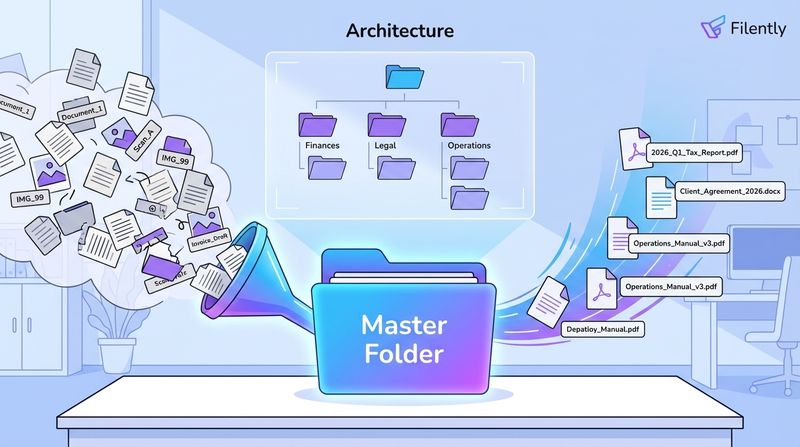
Document organization for a small business isn’t about having a tidy desktop. It’s about being able to find the right file at the right moment without interrupting what you’re actually doing. Every client contract, supplier invoice, and tax document should have exactly one place to live, and getting there shouldn’t require willpower.
The Real Cost of a Messy Filing System
The lost invoice that turns into a late payment. The contract you can’t find before a client call. The hour before a tax deadline spent reconstructing records that should have been filed months ago. These aren’t dramatic failures. They’re the steady friction of a system that doesn’t work.
For small business owners, document disorganization has real costs that are easy to underestimate when they’re happening:
- Time: Every manual search through misnamed or unfiled documents pulls you out of actual work. Across a week, these interruptions add up.
- Compliance risk: Missing documentation for taxes, licensing, or contracts creates exposure that’s hard to see coming and expensive to fix.
- Errors: When files aren’t organized consistently, the wrong version gets sent, invoices get duplicated, and information gets lost.
None of this is inevitable. It’s the result of not having a system, and that’s fixable.
How to Organize Business Documents: Folder Structure and Naming
A good filing system has two parts: a folder structure that makes sense, and a naming convention everyone follows. Get both right and finding any document becomes a search, not a hunt.
Start With High-Level Categories
The starting point is four or five top-level folders that cover how your business actually operates. Don’t over-engineer this. The simpler the structure, the more likely it gets used.
For most small businesses, these work well:
- Clients: Everything related to the people you serve: proposals, contracts, invoices, project files.
- Finance: Bank statements, tax documents, receipts, payroll records.
- Marketing: Ad campaigns, social media assets, email templates, website content.
- Admin & Operations: Insurance policies, supplier contracts, HR documents, internal processes.
This structure gives every incoming document a clear starting point without requiring judgment calls about where it belongs.
Add Subfolders for Precision
Inside each top-level folder, create subfolders that reflect how you actually work. The goal is a path that’s predictable enough that anyone on your team could file something correctly without asking.
Using the Clients folder as an example:
Clients > ABC Corp > ContractsClients > ABC Corp > InvoicesClients > ABC Corp > Project Files
An invoice for ABC Corp now has exactly one place to live. No guesswork. For more on building a folder structure that holds up as your business grows, our guide to an AI document management system covers the full approach.
Sample Folder Structure
| Main Folder | Subfolder 1 | Subfolder 2 |
|---|---|---|
| 01_Clients | Client A | Client B |
| 02_Finance | 2026 | Invoices |
| 03_Marketing | Social Media | Website Content |
| 04_Admin | Legal & Insurance | Supplier Contracts |
File Naming Convention for Small Business
A good folder structure only works if the files inside it have names that mean something. A folder full of files named Final_Contract_v2_USE THIS ONE.docx is still a search problem. You just have a neater place to be confused.
A standardized naming convention solves this. The format needs to be simple enough that everyone follows it without thinking:
YYYY-MM-DD_ClientOrProjectName_DocumentType_VersionNumber.ext
Breaking it down:
- YYYY-MM-DD: Date first. This automatically sorts files chronologically and makes searching by period straightforward.
- ClientOrProjectName: Links the file to a specific client, project, or department. Use consistent abbreviations for long names.
- DocumentType: A short description of what it is:
Invoice,Contract,Proposal,MeetingNotes. - VersionNumber (optional): Add
_v1,_v2for drafts. The final approved version gets no version number. That signals it’s the one to use.
Real-world examples:
2026-03-15_ClientABC_Invoice-1052.pdf2026-03-20_CompanyXYZ_SocialGraphic.png2026-02-10_ProjectSunrise_Proposal_v2.docx
The same format works equally well for receipts and expense documents . For teams dealing with high volumes of invoices and PDFs, our roundup of tools to rename PDF invoices automatically covers what’s available.
Let Automation Handle the Repetitive Work
Manual filing works until it doesn’t. When things are quiet, the discipline holds. When things get busy (a big project, a hiring push, tax season) the filing slips, and that’s exactly when having everything organized matters most.
AI-powered tools like Filently read your documents, apply your naming conventions, and file them in the right folder automatically. A supplier invoice arrives, the system reads it, names it correctly, and moves it to the right subfolder. You don’t touch it.
The practical result:
- Consistency: Every file follows the same naming format, regardless of who processed it or how busy the week was.
- Speed: Information reaches the right place immediately, which makes bookkeeping, project handovers, and audits significantly faster.
- Less mental overhead: The background anxiety of knowing your Downloads folder needs sorting disappears when the system handles it automatically.
For a detailed look at how to set this up, our guide on automating document filing walks through the process.
Keeping the System Working Long-Term
Setting up the system is the hard part. Keeping it working takes a fraction of that effort.
Quarterly Review
Once every three months, spend an hour scanning your main folders. The goal is to archive anything that’s no longer active. A client project you wrapped up six months ago doesn’t need to sit in your active workspace. Move it to Archive > 2025_Clients. This keeps your day-to-day folders lean and makes searches faster.
Onboarding Guide
As your team grows, the system only works if everyone uses it the same way. A one-page guide with a screenshot of the folder structure, the naming formula, and two or three examples is enough to get new hires filing correctly from day one. Save it somewhere obvious: 00_Filing_System_Guide.pdf in a top-level Admin folder.
Backups
Cloud storage like Google Drive, Dropbox, or OneDrive syncs automatically, which covers most failure scenarios. For an extra layer, follow the 3-2-1 rule: keep three copies of critical data, on two different media types, with one stored off-site. Your cloud provider is the off-site copy. Add a monthly backup to an external drive and you’re covered against anything short of catastrophic scenarios.
Common Questions About Small Business Document Organization
How should I handle paper documents alongside digital files?
Adopt a scan-first policy. When a paper document arrives (a signed contract, a printed invoice), scan it immediately using a phone scanning app and file it digitally using your naming convention. Most modern scanning apps produce clean, OCR-readable PDFs that are fully searchable. Then ask one question: do I legally need to keep the original? For standard receipts, the digital copy is sufficient and the paper can be shredded. For deeds, major legal agreements, and official certificates, keep the physical version in a clearly labelled archive box.
How do I get my team to actually use the new system?
Involve them in building it. People follow systems they helped design. Bring key team members into the conversation when you’re mapping out the folder structure and naming rules. Their input will improve the system and give them a stake in using it. Once it’s ready, a 15-minute walkthrough at a team meeting and a one-page reference guide covers the onboarding. Lead by example and keep the system simple enough that the right thing to do is also the easy thing to do.
What is the best folder structure for a small business?
Start with four or five top-level folders that reflect your core business functions (Clients, Finance, Marketing, Admin). Add subfolders as needed, but keep the structure as flat as possible. Deep nesting makes things harder to find, not easier. The best structure is the one that’s intuitive enough that anyone on your team could file something correctly without guidance.
How often should I back up business documents?
Continuously, through automatic cloud sync. Cloud storage services sync as you work, so you always have a current backup without manual effort. For a second layer, a monthly backup to an external drive covers hardware failures and other local risks. Critical legal and financial records should follow the 7-year retention guideline that most accountants and tax authorities recommend.
How can I organize documents faster without hiring someone?
Automation is the most effective answer. Tools like Filently read incoming documents, apply your naming conventions, and file them automatically in Google Drive. Once configured, the system runs without manual input. Your first 25 documents are free.
Stop filing manually. Filently uses AI to automatically name and file your business documents in Google Drive. Your first 25 documents are on us.