Most people discover OCR the same way: staring at a scanned PDF, realizing they need the data inside it, and then spending the next hour typing it out by hand.
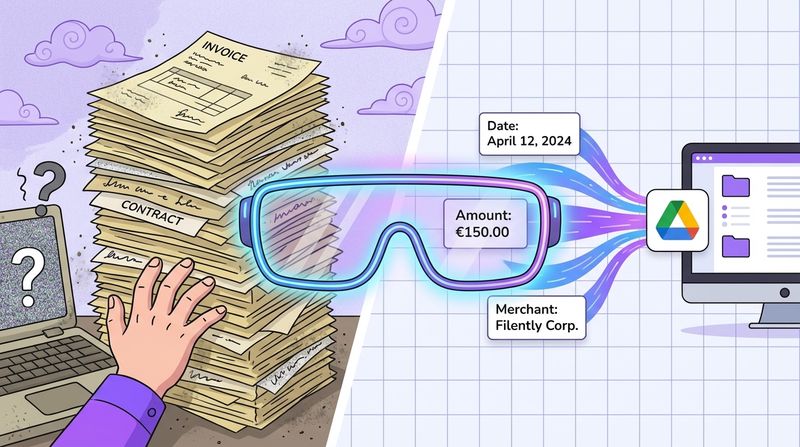
There’s a better way. OCR technology (short for Optical Character Recognition) reads text directly from images and scanned documents and turns it into data your computer can actually use: searchable, editable, ready to work with.
That’s the short version. Here’s the rest.
What Is OCR and Why Does It Matter?
When you scan a document or snap a photo of a receipt, your computer stores it as an image. To your software, that image is just pixels. The words you can read on the page? Invisible to any tool trying to process them. Nothing can search, sort, or extract anything from it.
Optical Character Recognition (OCR) changes that. It reads the image, identifies every character, and outputs real text that software can actually work with.
The Problem With Paper and Scans
If you’ve ever managed a pile of scanned documents, you know the friction. Manual data entry is one of those tasks that looks manageable until it isn’t:
- Time: One invoice might take a few minutes to retype. Scale that across a week of paperwork and the hours disappear fast.
- Errors: A wrong digit in an invoice number or a misread total rarely announces itself right away. It surfaces later, usually in the middle of something more important.
- Searchability: A folder of scanned PDFs with no OCR is essentially a dead archive. Finding anything specific means opening files one by one and hoping for the best.
Without OCR, your digital documents are read-only in the worst sense. You can look at them, but your software can’t touch them.
What OCR Actually Changes
Once a document has been processed by OCR, the text inside it is live. You can search across a hundred files in seconds, copy a specific field into a spreadsheet, or pipe the output straight into another tool. The document stops being a static image and becomes something useful.
How Does OCR Technology Work?
The process runs through three stages. Each one builds on the last, and understanding them makes it easier to see why scan quality matters so much.
Step 1: Image Preprocessing
Before the software tries to read anything, it cleans up what it’s looking at. This is the unglamorous part that nobody talks about, but it has the biggest effect on accuracy.
A few things that happen in this stage:
- Deskewing: Pages that went into the scanner at a slight angle get straightened out digitally.
- Noise Reduction: Random specks, shadows, and compression artifacts get filtered out so they don’t confuse the recognition engine.
- Binarization: The image gets converted to pure black and white, which makes characters stand out clearly against the background.
A well-prepared image at this stage means far fewer errors downstream. It’s the reason a clean flatbed scan almost always outperforms a phone photo taken in bad lighting.
Step 2: Character Recognition
With a clean image ready, the OCR engine gets to work. It breaks the page into lines, then words, then individual characters, and compares each shape against a library of known fonts and patterns.
Modern systems use machine learning for this, which is why they handle unusual fonts and layouts so much better than older software. Rather than looking for an exact match, the engine assigns probabilities across possible characters and picks the most likely one given the surrounding context.
For more on preparing your documents before processing, see our guide on how to scan a double-sided document.
Step 3: Post-Processing
The final stage is essentially a proofread. The engine checks its own output against language models and dictionaries, looking for characters that don’t make sense in context.
A classic example: if the engine isn’t sure whether it saw an “S” or a “5,” it looks at the word around it. “5eptember” gets corrected because the engine knows that’s a month. That kind of contextual reasoning is what makes modern OCR reliable rather than just fast.
The output you get at the end isn’t a raw character dump. It’s text that’s been checked and corrected, ready to use without another round of manual cleanup.
How OCR Fits Into the Bigger Picture
OCR is built for machine-printed text, which covers most business documents. But not everything is machine-printed, and not every document is pure text. That’s where a broader set of recognition technologies comes in.
OCR is the foundation layer — but a complete system does more than read text. Our guide to an AI document management system shows how OCR, classification, and filing work together end to end. For a deeper look at how AI takes extracted text and acts on it, see our guide on automating document filing .
The core pipeline is the same across all of them: clean the image, recognize the content, verify the output. What changes is what each technology is trained to read.
OCR vs. ICR vs. OMR: A Quick Comparison
OCR isn’t the only recognition technology out there. Each handles a specific type of content, and picking the right one matters.
| Technology | What It Reads | Best Use Case |
|---|---|---|
| OCR (Optical Character Recognition) | Machine-printed text (books, invoices, contracts) | Making a scanned contract fully searchable. |
| ICR (Intelligent Character Recognition) | Cursive or handwritten text | Pulling data from handwritten notes on a customer feedback form. |
| OMR (Optical Mark Recognition) | Marks, bubbles, or checkboxes | Grading a multiple-choice exam or processing survey responses automatically. |
These aren’t interchangeable. Each has a specific job.
Why This Distinction Matters
Point a standard OCR engine at a handwritten form and you won’t get a partial result. You’ll get gibberish, and you’ll be back to typing things in manually. Using the right tool for the document type is what determines whether automation actually works.
Most advanced platforms combine all three. An invoice processing tool might use OCR for the printed line items and ICR to capture any handwritten notes in the margins, giving you a complete record without gaps.
In short: OCR handles printed text, ICR handles handwriting, OMR handles checkboxes. Match the tool to the document type.
How OCR Can Transform Your Workflow
The mechanics are worth understanding, but the practical impact is what makes OCR worth caring about.
Escaping the Manual Grind
Every document-heavy workflow has the same bottleneck: someone has to get the data out of the document before anyone can use it. Whether you’re a freelancer tracking expenses or a small team processing a stack of supplier invoices, the pattern repeats. A document arrives. Work pauses. Data gets typed.
OCR breaks that cycle. Some examples of where the difference is most obvious:
- Invoice Processing: OCR pulls vendor names, amounts, and due dates directly from the invoice and can push that data into accounting software. Fewer keystrokes, fewer typos.
- Receipt Management: Scan a receipt and the software grabs the merchant, date, and total automatically. Expense reports that used to take an hour take minutes.
- Contract Review: A 50-page legal document becomes keyword-searchable in seconds. You can find a specific clause without reading the whole thing.
The Power of Zero-Touch Filing
Some tools take this further with zero-touch filing: not just reading a document, but automatically naming it, categorizing it, and filing it in the right folder with no input from you.
You scan the document. The system handles the rest. That’s the line between digitization and actual automation.
Want to see it in action? Filently gets you started in minutes. Your first 25 documents are on us.
From Industrial Roots to Your Desktop
This isn’t new technology. The U.S. Postal Service started deploying OCR systems in the mid-1960s, and by 1970 machines running a program called “Line Find” could read and route 42,000 addresses per hour without a single human reading an envelope. (Source: Hackaday, “You’ve Got Mail: Reading Addresses With OCR,” 2023)
The same underlying capability now runs in your browser. What once needed a room full of industrial hardware fits in a cloud API.
Why OCR Isn’t Always Perfect
OCR has gotten significantly better over the past decade, but it’s not flawless. Knowing where it tends to fail makes it easier to get consistent results.
It Starts With Image Quality
The scan quality sets the ceiling for everything that follows. If the text is hard for you to read, it’s harder still for software.
The most common culprits:
- Low Resolution: Blurry or pixelated scans blur the edges that distinguish similar characters, such as a “c” from an “o” or a “1” from an “l.”
- Poor Lighting and Shadows: A shadow across part of a page can hide text entirely. The engine guesses, and guesses wrong.
- Physical Damage: Faded ink, heavy creases, and coffee stains all create visual noise the recognition engine has to work around.
“Garbage in, garbage out” applies here more than almost anywhere. A few extra seconds to get a clean, well-lit scan is almost always worth it.
Fonts and Layout Complexity
The design of the document itself also affects results. OCR works best on standard layouts with common fonts. The more unusual the formatting, the more room for error.
A few things that cause problems:
- Decorative or script fonts: Highly stylized letterforms are harder for pattern-matching to classify reliably.
- Complex layouts: Multi-column text, overlapping text boxes, and embedded images can throw off the reading order the engine follows.
- Mixed content: A page with both printed text and handwritten annotations often trips up a basic OCR tool. This is where combining OCR with ICR makes a real difference.
The Future of Intelligent Document Processing
OCR is the foundation. But where the field is headed is toward something with more scope: Intelligent Document Processing (IDP). The shift is from reading characters to understanding what a document actually means.
An IDP system doesn’t just extract text. It classifies the document type, identifies specific data fields, validates values against other sources, and can trigger actions based on what it finds. The document stops being an endpoint and becomes the start of a process.
Beyond Reading to Understanding
Natural Language Processing (NLP) is what makes this possible. It gives software the ability to interpret meaning rather than just pattern-match characters.
A few practical applications already in use or close to it:
- Automated Summarization: A dense contract or research paper gets distilled into the key points automatically.
- Sentiment Analysis: Large volumes of customer feedback get processed and scored without manual review.
- Data Validation: Extracted values get cross-checked across multiple documents to catch inconsistencies before they cause problems.
In 1974, Ray Kurzweil developed an omni-font OCR system that could read text in virtually any printed typeface, the first time machines could handle fonts they hadn’t been specifically trained on. (Source: IBM, “What Is Optical Character Recognition,” 2024) Decades later, deep learning and large language models have pushed accuracy and flexibility well past what anyone working on those early systems would have thought possible.
Documents become data, and data drives action. That’s the direction everything is moving.
Common Questions About OCR
Is OCR Secure Enough for Sensitive Documents?
Yes, if you choose carefully. Look for providers that encrypt data in transit and at rest, and that are upfront about where processing happens. For sensitive material (legal files, financial records, contracts) the safest option is a solution that works within your existing cloud environment rather than uploading files to a third-party server. Check the privacy policy before you upload anything you wouldn’t want to lose control of.
Can OCR Read Handwriting?
Standard OCR is not built for handwriting. The variation between individual writing styles is too wide for a system trained on printed fonts to handle reliably. Point it at cursive and you’ll get noise.
Intelligent Character Recognition (ICR) is designed specifically for handwritten content. Many modern document tools bundle both technologies, so the system can handle typed and handwritten text on the same page.
If handwriting recognition matters for your workflow, confirm the tool explicitly supports ICR and not just OCR.
What’s the Easiest Way to Get Started?
You likely already have OCR access on devices you use every day:
- Mobile apps: Google Drive and Microsoft Lens both have OCR built in. Take a photo of a document and the text becomes selectable and searchable immediately.
- Desktop software: Adobe Acrobat can run OCR on any PDF in a few clicks, turning a static scan into something fully searchable.
- Automated filing tools: For ongoing document volume, platforms like Filently use OCR as part of a broader system that reads, renames, and organizes files automatically with no manual steps required.
Stop organizing. Start working. Filently uses OCR and AI to automatically name and file your documents in Google Drive, so your storage stays clean without you touching it.