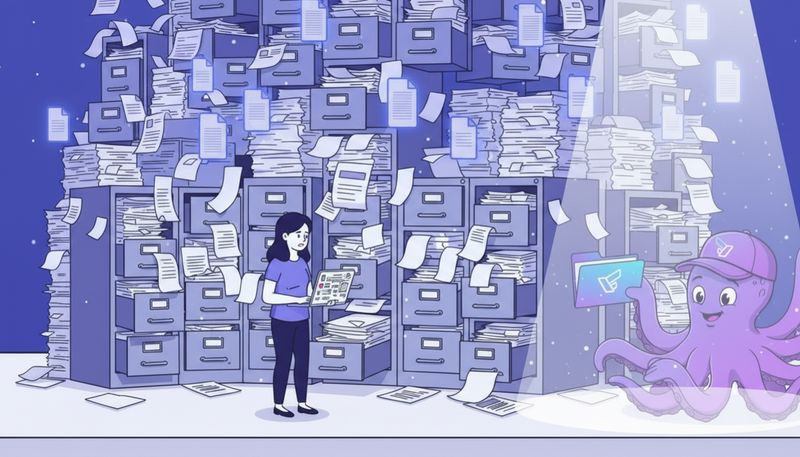
You open Google Drive to grab a file.
The screen loads. Hundreds of documents stare back at you — scattered across folders with names like “Untitled folder (3)” and “New Folder.” Files named “Copy of Copy of Final_DRAFT.pdf” sit next to “download (47).xlsx.”
You close the tab.
Whatever you needed wasn’t that important anyway.
This is avoidance behavior, and if you’re doing it, you’re not alone.
The Overwhelm is Real
Here’s the truth: most of us don’t have messy Google Drives because we’re lazy or disorganized people. We have them because we’re busy, and filing things properly feels like a task we’ll get to “later.”
Except later never comes.
According to research from Happeo, 62% of people report feeling stressed or overwhelmed specifically because of digital clutter. Not physical clutter on their desk — digital mess in places like Google Drive.
And here’s the thing: that stress isn’t just in your head. Neuroscience research shows that visual clutter (like a screen full of unorganized files) increases cognitive load. Your brain has to work harder just to process what you’re looking at, which makes you feel tired and overwhelmed before you’ve even started working.
IDC found that workers waste up to 50% of their time searching for documents due to poor organization. But that stat misses something important.
It’s not just the time you spend searching. It’s the time you spend avoiding searching altogether because you know your Drive is a mess.
You don’t open it. You ask a colleague to send the file again. You recreate work you’ve already done because finding the original would mean diving into chaos.
Why Google Drives Get Messy
Here’s how it happens:
You save files fast.
You’re in the middle of something. A client sends you a contract via email. You save it to Google Drive because you know you should keep it somewhere safe.
But you don’t have time to figure out where to save it or what to name it right now. So it goes into “My Drive” with whatever name it came with.
Repeat this 200 times and suddenly your Drive is full of files with names like “Agreement_v2_final_REVIEWED.pdf” and you have no idea which client they’re for.
You create folders on the fly.
You start a new project. You think, “I should make a folder for this.” So you create one. Maybe you call it “Project Files” or “Client Work.”
Three months later, you have seven folders that could all logically contain the same type of file. Was that invoice in “Finances” or “Client Invoices” or “2026 Business”?
You’re not sure, so you check all three. Or give up and ask for the file again.
You duplicate instead of organizing.
Someone shares a file with you. You make a copy to edit it. Then another copy because you’re not sure if the first edit was the right direction. Now you have “Copy of Proposal,” “Copy of Proposal (1),” and “Final Proposal Draft” all sitting in different folders.
Which one is actually final? Who knows.
You accumulate “just in case” files.
That PDF you downloaded from a webinar six months ago. The screenshot you took of something you thought you’d need later. The zip file you extracted but never deleted the original.
You don’t need any of it. But deleting feels risky. What if you need it someday?
So it stays. And your Drive gets messier.
The Hidden Cost: Avoidance
The real problem isn’t just clutter. It’s what the clutter makes you do.
You avoid opening your Drive because you know what you’ll see. You put off tasks that require finding files. You feel a low-level anxiety whenever someone asks you to share a document because you’re not sure you can actually find it quickly.
According to a study cited by Stanford researchers, this kind of digital disorganization creates what’s called “attention residue.” Even when you’re not actively looking at your messy Drive, your brain knows it’s there. That incomplete task (organizing your files) keeps running in the background, draining mental energy.
The shame doesn’t help either.
You know your Drive is a mess. You feel like you should have it together. Every time you open it and see the chaos, it’s a little reminder that you’re behind on something.
So you stop opening it.
What Doesn’t Work (And Why)
People usually try one of these approaches to fix a messy Drive:
The Big Cleanup Weekend
You block out Saturday afternoon. You’re going to sort through everything. Every file will get a proper name and folder.
Two hours in, you’ve organized maybe 10% of your files and you’re exhausted. You still have 90% to go, and you’ve lost your will to continue.
The problem: you’re trying to solve a systemic issue with a one-time effort. Even if you finish (most people don’t), new files start piling up again immediately because you haven’t changed how files get saved in the first place.
The Complex Folder System
You decide to create the perfect folder structure. Main folders for categories. Subfolders for projects. Sub-subfolders for file types.
For the first week, you’re diligent. Then you save one file to the wrong place because you’re in a hurry. Then another. Then you’re back where you started, except now you have an elaborate folder structure that you’re not actually using.
The problem: the more complex your system, the more decisions you have to make every time you save a file. And when you’re busy, you default to the easiest option — which is usually just dumping it somewhere and dealing with it later.
Relying on Search
Google Drive has great search. You figure you’ll just search for files when you need them instead of organizing.
This works until you can’t remember the file name. Or until you’re searching for “invoice” and get 200 results. Or until you need to share an entire project folder with someone and you realize all the related files are scattered across your Drive.
The problem: search is a tool for finding organized information, not a replacement for organization itself.
A Better Approach: Fresh Start, Smart Systems
Here’s what actually works — and it’s simpler than you think.
Instead of trying to organize everything you already have, you start fresh with new files and let the old stuff fade away naturally.
Step 1: Create a Dated Archive
Make a new folder. Call it “Archive - Before [Today’s Date].”
Move everything currently in your Drive into this folder. All of it.
Now your Drive looks empty except for one folder.
You’re not deleting anything. It’s all still there if you need it. But you’ve created a clean slate.
Step 2: Build a Simple Structure
Create three to five top-level folders based on how you actually work.
For example:
- Clients
- Internal/Admin
- Projects
- Archive
That’s it. No complicated hierarchies. No sub-sub-subfolders.
If you need more organization within those folders, you can add it later. But start simple.
Step 3: Handle New Files Automatically
This is the key part. You need a system that organizes new files without you thinking about it.
If you’re still manually dragging and dropping every file into folders and renaming things, you’ll eventually stop doing it. You’ll get busy. The mess will come back.
This is where automation makes the difference.
Tools like Filently connect to your Google Drive and automatically:
- Recognize what type of document you’ve saved (invoice, contract, receipt, project file)
- Give it a proper name that follows a consistent format
- File it in the right folder
You save a file. It gets organized. You never think about it.
And because it happens automatically, it keeps working even when you’re busy, stressed, or just don’t feel like organizing files right now.
The Difference Between Clean and Organized
A clean Drive looks empty. You’ve deleted or archived everything.
An organized Drive might have thousands of files, but you can find any of them in seconds because they’re consistently named and logically filed.
The goal isn’t to have fewer files. It’s to have files you can actually use without the mental overhead of hunting through chaos.
Research shows that employees spend a quarter of their workday searching for information — largely because of poor filing strategies and missing folder structures. That’s not a filing problem. That’s a work problem.
When your Drive is organized, you stop avoiding it. You stop feeling guilty about the mess. You stop wasting time searching or recreating work you’ve already done.
You just… work.
Why Filently for Messy Drives
Filently was built specifically for people whose Google Drives are already a mess.
Here’s how it’s different:
You Don’t Have to Organize the Past
Filently focuses on new files going forward. You’re not forced to spend hours sorting through years of accumulated clutter.
Create your archive folder. Move the old mess into it. Then Filently keeps everything new organized automatically.
It Works With Your Existing Folders
You don’t have to adopt some new system. Filently can work with the folder structure you already have (if it makes sense) or help you create a simple one that fits how you work.
Zero-Touch Organization
This is important. You don’t set rules. You don’t configure workflows. You don’t “train” anything.
You just connect Filently to your Google Drive. From that point on, files get recognized, renamed, and filed automatically.
No decisions. No manual work. No falling back into old habits because you got busy.
Privacy-First Design
Everything stays in your Google Drive. Filently doesn’t store copies of your files. All processing happens within your own cloud storage, GDPR-compliant and under your control.
Start Fresh Tomorrow
Your Google Drive doesn’t have to stay messy.
The solution isn’t spending a weekend organizing the past. It’s setting up a system that keeps the future organized without you having to think about it.
Join the Filently waitlist and stop avoiding your Google Drive.
Because the work you need to do shouldn’t be blocked by files you can’t find.