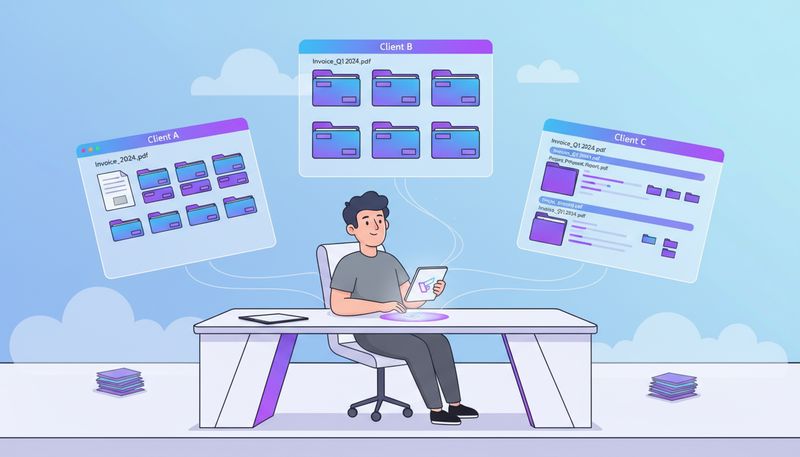
You’re about to send a proposal to Client A.
You attach the file. Hit send.
Ten seconds later, you realize: that was Client B’s proposal. With Client B’s pricing. And Client B’s company name all over it.
If you’ve ever felt that stomach-drop moment (or even come close), you know why organizing client files matters.
The Multi-Client Juggling Act
Here’s what happens when you freelance:
According to Freelancermap’s 2025 Freelancer Report, 58% of freelancers work with multiple clients simultaneously. That’s more than half of all freelancers juggling different projects, deadlines, and file systems at the same time.
And here’s what nobody tells you when you start freelancing: each client brings their own chaos.
Client A wants everything in Google Drive. Client B uses Dropbox. Client C emails attachments with subjects like “Updated version” (which version? nobody knows).
You end up with:
- Files scattered across three cloud services
- Folders named things like “Client Work” and “Projects 2026”
- Five versions of the same deliverable and zero idea which one is final
- That constant low-level anxiety that you’re going to mix something up
It’s not your fault. You weren’t handed a “Client File Organization 101” guide when you started freelancing. You figured it out as you went, and now you’re stuck with a system (if you can call it that) built on improvisation and hope.
What Goes Wrong (The Horror Stories)
The Wrong File to the Wrong Client
This is the nightmare scenario. You’re working on similar projects for two clients. The files live in different folders, but the names are almost identical.
“Final_Proposal_v3.pdf” for Client A.
“Final_Proposal_v3.pdf” for Client B.
You grab one. Send it. Realize your mistake when Client A replies asking why their proposal mentions Client B’s product.
Now you’re doing damage control, apologizing, and questioning every file you’ve ever sent.
The “Which Version is Final?” Problem
You deliver a design to the client. They request changes. You make them. They request more changes. You make those too.
Now you have:
- Design_v1.psd
- Design_v2_REVISED.psd
- Design_v2_REVISED_FINAL.psd
- Design_v3_USE_THIS_ONE.psd
- Design_FINAL_FINAL_Feb10.psd
Which one did you actually send them? Which one has their latest feedback incorporated? You’re not sure. So you open all five files to compare them manually.
The Lost Deliverable
A client emails: “Can you send me that report you did in November?”
You remember doing the report. You have zero idea where you saved it.
Was it in the “November Projects” folder? The “Client Reports” folder? Their specific client folder? Your Downloads? Your Desktop?
You spend 20 minutes searching. You don’t find it. You consider just redoing the work because that might be faster.
The Onboarding Nightmare
You bring on a new team member or hand off a client to someone else.
“Where are the files for Client X?”
You think for a moment. “Uh, some are in Dropbox. Some are in Google Drive. The latest versions might be on my desktop. Or in email attachments. I’m not totally sure.”
Your new team member looks at you. You look at them. Neither of you is confident this is going to work.
Why Generic Folder Systems Fail for Client Work
You’ve probably tried the standard advice: create folders, name files consistently, stay organized.
Here’s the truth: it doesn’t work. Not for client files.
Here’s why:
Clients Don’t Follow Your System
You set up a beautiful folder structure. Then Client C sends you a file called “doc.pdf” via email instead of uploading it to the shared Drive folder.
Now you have to decide: do you rename it properly and file it yourself (adding manual work to your plate)? Or do you just drop it somewhere quick and deal with it later (spoiler: later never comes)?
You’re Managing Multiple Workflows
Some clients want everything shared. Some want nothing shared. Some want weekly file dumps. Some want real-time collaboration.
Your folder system was built for one workflow. It breaks when you try to force five different client preferences into it.
Projects Have Lifecycles
A client project isn’t static. It starts with a brief, moves through drafts and revisions, ends with final deliverables, and then sits in archive.
Most folder systems don’t account for this. So you end up with “Active Projects” and “Old Projects” folders where files go to die and be forgotten.
You’re Busy
You know you should file that invoice properly. But you’re in the middle of three other deadlines and it’s faster to just save it to Desktop and deal with it “later.”
Later becomes never. Your desktop becomes a graveyard of unfiled client documents.
A Better Approach: Client-Centric Organization
Instead of fighting reality, you build a system that works with how you actually work.
Rule 1: One Folder Per Client
Not “one folder for all proposals” or “one folder for all designs.” One folder per client, with everything for that client inside.
Example:
Clients/
├── ClientA/
├── ClientB/
└── ClientC/
When you need anything related to Client A, you know exactly where to look. You don’t have to remember which project it was or what category of file it is.
Rule 2: Subfolders by Project or Phase
Inside each client folder, break things down by project or by phase (depending on how you work).
By project:
ClientA/
├── Website_Redesign/
├── Social_Media_Campaign/
└── Brand_Guidelines/
By phase:
ClientB/
├── 1_Brief_and_Research/
├── 2_Drafts/
├── 3_Final_Deliverables/
└── 4_Archive/
This mirrors how work actually happens. You’re not arbitrarily sorting files — you’re organizing them the way they flow through your process.
Rule 3: Consistent File Naming Within Each Client
You don’t need a universal naming system that works for every client. You need consistency within each client’s folder.
For Client A, all proposals might be:
ClientA_Proposal_YYYY-MM-DD_v#.pdf
For Client B, all designs might be:
ClientB_ProjectName_Description_Date.psd
The exact format matters less than using the same format every time for that client.
Rule 4: Keep Active Work Separate from Archive
You don’t want old projects cluttering up your view when you’re looking for current work.
Some freelancers use an Archive subfolder inside each client folder. Others have a separate “Archive” top-level folder for completed projects.
Either works. The key is: active projects stay visible. Completed projects get moved out of the way but remain accessible if you need them.
The Part Nobody Talks About: Clients Who Don’t Organize
Here’s the uncomfortable truth: your beautiful system falls apart the moment a client dumps files on you with zero organization.
You get an email. Subject: “Files.” Attachment: 15 documents with names like “Final.docx” and “New Document (3).pdf.”
What do you do?
Option 1: Manually Rename and File Everything
This is the “right” thing to do. It’s also time-consuming and not billable work.
If you have the bandwidth, great. If you don’t, this becomes a backlog that grows every week.
Option 2: Create a “From Client” Holding Folder
Some freelancers keep a “From_Client” subfolder inside each client folder. When the client sends messy files, they go there temporarily.
Then, during your admin time (you do have admin time blocked out, right?), you sort through it and file things properly.
This prevents the chaos from spreading to your organized structure while buying you time to process it.
Option 3: Automate the Cleanup
The ideal solution: files get recognized, renamed, and filed automatically without you touching them.
This is where AI-powered tools like Filently come in. You receive a client file. The system identifies what it is (invoice, deliverable, contract), renames it according to your conventions, and files it in the right client folder.
You don’t do anything. The file just ends up where it belongs.
When It All Falls Apart: The Archive Problem
You finish a project. You deliver the final files. The client is happy.
What do you do with all the drafts, notes, reference materials, and random files that built up during the project?
Most freelancers do one of two things:
Leave it all where it is. The project folder just sits there, cluttering your active work view forever.
Delete everything except the final deliverables. Fast, clean, but risky. What if the client comes back six months later asking for a revision to Draft 5?
There’s a better option:
Archive the full project folder, but keep it accessible.
Create a clear archive structure. Maybe it’s by year:
Archive/
├── 2024/
└── 2025/
Maybe it’s by client:
ClientA/
├── ACTIVE/
└── ARCHIVE/
Either way, the rule is: completed project folders get moved out of active view but don’t get deleted. You keep the full history, just in case.
And “just in case” happens more often than you’d think.
How Filently Solves the Client File Problem
Filently was built for exactly this situation: managing files across multiple clients without the manual overhead.
Here’s how it works differently:
Client-Aware Filing
Tell Filently your client names. It recognizes files related to each client (based on file names, email addresses, or project keywords) and automatically routes them to the right client folder.
No manual sorting. No accidentally filing Client A’s files in Client B’s folder.
Smart Naming Without the Work
Filently applies consistent naming conventions to all your client files. Not a universal system — your system, adapted per client.
So even when Client C sends you “doc.pdf,” it gets renamed to “ClientC_Contract_2026-02-11.pdf” automatically.
Client-Specific Organization
Filently recognizes which files belong to which client and routes them to the correct folder automatically. You can set up client-specific naming rules so every client’s files follow their own consistent format — without you having to remember or apply those rules manually.
Works With Your Existing Setup
Filently connects directly to Google Drive (with Dropbox, OneDrive, and iCloud coming soon). Your files stay where they are. You’re not migrating to a new platform or changing how you work.
You’re just adding intelligence to the filing process.
Stop Losing Files, Start Working
The worst part about disorganized client files isn’t the time you waste searching.
It’s the mental load. The constant low-level stress of knowing your system is held together with duct tape. The worry that you’ll send the wrong thing to the wrong person. The embarrassment of admitting to a client that you can’t find their file.
You don’t have to work like that.
Join the Filently waitlist and let your client files organize themselves.
Because your job is delivering great work for your clients — not playing detective with your own files.