
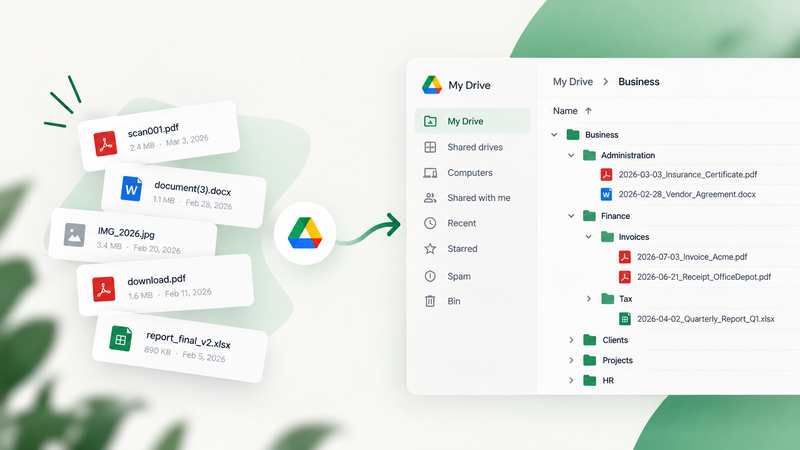
📌 TL;DR: You can organize Google Drive automatically in three ways. Google’s own Organize My Files, a Gemini feature, suggests folders for loose files in My Drive, and you approve each move. Google’s Workspace Studio (on work accounts), Zapier, Make or Apps Script move files by rules you build and maintain. An AI filing tool like Filently identifies each new document by its content, gives it a clear name and files it into your existing folders on its own, in My Drive and Shared Drives.
Most advice on organizing Google Drive ends with the same habit: keep an inbox folder and sort it by hand once a week. Filently is that inbox, sorted for you. We build Filently, so read this as our comparison; every method below gets its honest trade-offs.
For over a year I’ve been building a tool for automatic document organization in Google Drive, using the official Google Drive API for a seamless integration. Before I built anything, I went through every option that already existed – naming conventions, Zapier, n8n, Apps Script, various AI tools. I tried them all. Some worked. Most had a catch.
This guide is the result of that process. For each approach, I’ll tell you what it actually does, where it breaks down, and who it’s for. And at the end, I’ll show you what my team and I built when none of the existing Google Drive organizer tools fully solved my problem.
If you want to skip straight to the solution: that’s fine, jump to Section 7. But the earlier sections might save you time if you’re not sure what you actually need.
1. Clean Up Google Drive Before You Automate
This sounds obvious, but most people skip it. Automating a messy Drive just creates organized mess.
When I started, I used Filerev to get an overview of what I was dealing with. It scans your Google Drive and shows you duplicates, large files, hidden files, and empty folders. Free tier covers most cleanup jobs. It’s good at what it does.
But here’s what I noticed: Filerev showed me the mess and let me delete things. What it couldn’t do was rename anything, move files into the right folders, or understand what a document actually contained. After the cleanup, I still had hundreds of files with names like scan001.pdf sitting in the wrong place.
That gap, between “I deleted the junk” and “everything is actually organized”, is exactly what most Google Drive organizer tools miss. It’s what I eventually built Filently to solve: organizing an existing Google Drive, not just cleaning it up.
If you’re starting from a backlog today, the most practical approach is:
- Use Filerev to find and delete genuine duplicates and files you no longer need.
- Check your folder structure: does it still fit how you work, or does it need a rebuild? That decides the next step.
- With Filently you can both create a new folder structure and have your documents renamed and organized. Filently offers two products for this: (1) Deep Clean, which reorganizes your whole Drive (folder structure, file names and where each file goes), and (2) automatic document management on a subscription, which also identifies, names and files new documents into the right Google Drive folder as they arrive.
Deep Clean is launching soon, and a first beta is running now. You can get notified when it’s live.
Filerev handles the deletion. Filently handles the organizing, naming and filing. Together they cover the full cleanup.
2. Organize Google Drive Without Extra Tools
Before adding any tools, squeeze more out of native Google Drive features. Most people use maybe 20% of what’s available.
Search operators are underrated. They are short commands like type:pdf that you type straight into the search box to filter. Instead of scrolling through folders:
type:pdf owner:me modified:last-week– PDFs you edited recently"invoice" type:pdf– Find invoices specificallybefore:2025-01-01 type:document– Old docs for cleanup
Stars and the Home page: Drive’s Home page uses machine learning to suggest files and folders you probably need, based on what you’ve recently opened, edited or shared. It’s not perfect, but it learns from your behavior. Star important files so they’re always one click away.
Folder colors: Simple but effective. I color-code by status: green for active projects, yellow for pending, gray for archive. Visual scanning beats reading folder names.
Shortcuts instead of copies: If a file belongs in multiple places conceptually, don’t duplicate it. Create shortcuts. One source of truth, multiple access points.
Organize My Files: Google’s newest native AI feature, a Gemini tool launched in June 2026, suggests folders for loose files in My Drive and proposes new ones for related groups. You approve every suggested move yourself, it never renames anything, and it doesn’t cover Shared Drives. As of October 2026 it works, per Google, only in English and on paid plans (Google AI Pro or Ultra, Workspace Business Standard and up). Our look at Google’s Organize My Files covers where it helps and where it stops, and our comparison of Filently and Google Drive’s AI shows how the two differ.
Workspace Studio: Since September 2026, Google’s built-in automation for work and school accounts can move Drive files. A flow can watch a folder, have Gemini extract what each document is, and move it to a matching folder, in Shared Drives too, at no extra cost on top of your Workspace plan. Two catches: every rule is a chain of about five steps you build and maintain yourself, and there’s no rename step, so a correctly filed receipt still ends up called IMG_9762.pdf. We built and tested exactly that flow.
Apart from a Studio flow you build yourself, none of this runs on its own, but most of it takes 10 minutes to set up and costs nothing.
3. Set Consistent File Names (The Unsexy Foundation)
I spent years manually naming files before building any automation. The pattern that works:
YYYY-MM-DD_Category_Description_Version.ext
Examples:
2026-01-15_Invoice_Acme-Corp_Final.pdf2026-02-03_Contract_ClientName_v2.pdf2026-03-15_Receipt_Office-Supplies.pdf
Why ISO dates first (YYYY-MM-DD)? They sort chronologically by default. 15-01-2026 looks right to humans but sorts terribly.
Why underscores? Mostly habit. Older systems couldn’t handle spaces; Windows, macOS, OneDrive and Google Drive all can today. Underscores still pay off where files leave your Drive for stricter systems: some court and government upload portals reject spaces, and scripts and web addresses trip over them. If none of that applies to you, spaces are fine. What matters is picking one separator and sticking to it.
The discipline of consistent naming pays off even without automation. When you do automate later, you’ll have a convention you can hand to any tool as its naming rule. Our file naming conventions guide covers edge cases and team setups if you want to go deeper, and the right file naming software can apply that convention for you automatically. Need to rename files that are already in your Drive? Our guide to renaming multiple files in Google Drive covers five ways. On the structure side, a folder system built from your own files is what holds up long-term. And if you want a proven framework to build that structure on, our PARA method guide shows how to set up Projects, Areas, Resources and Archives in Drive and keep it organized automatically.
The honest truth: I did this manually for years. It works. It’s also tedious and I regularly fell behind. Which is why I eventually looked for automation.
Tired of being the one who renames every file? Filently names every document the way you want it. Automatically.
First 25 documents free. 2-minute setup. No credit card needed.
4. Automate Google Drive with Zapier or Make
Zapier is the entry point for most people looking to automate Google Drive organization. No coding required, and the Google Drive integration is solid. Make does the same job with a visual builder; more on it below.
What actually works well:
- Save Gmail attachments to specific folders based on sender or subject
- Copy files between folders when they’re added somewhere
- Get notified when files are added to shared folders
- Create folders automatically based on triggers from other apps
Example Zap I used: “When I receive an email from [email protected], save the PDF attachment to Finance/Invoices/2026/”
What Zapier and Make can’t do on their own:
- Recognize what a document is. Both offer AI steps that extract details, but you write the prompt and wire the result into your rules yourself
- Give a file a clean name based on what’s inside, without that extra AI step
- Use your existing folder structure without you mapping every folder to a rule
Both move files based on rules you define. If the rules are simple (“emails from X go to folder Y”), it works great. If you want intelligence (“figure out what this document is and file it appropriately”), you need something else — like automatic Google Drive file management that identifies documents by their content, not just the filename. What is actually possible today is narrower than the marketing suggests, and worth knowing before you pick.
Pricing reality (October 2026): Zapier’s free tier gives you 100 tasks/month. That’s roughly 3 attachments per day. Most people need the Professional plan for practical use: $19.99/month billed annually, $29.99 billed monthly.
Make is the best-known Zapier alternative. It builds the same automations as visual “scenarios”, which makes branching flows easier to follow, and it is usually cheaper at volume: the free plan includes 1,000 credits a month, and Core starts at $12/month for 10,000. The limits are the same as Zapier’s: rules you build, and no understanding of a document unless you add and maintain an AI step.
5. Automate Google Drive with n8n (For the Technical)
If you’re comfortable with self-hosting and want more control than Zapier offers, n8n is worth considering.
Why n8n over Zapier or Make:
- Self-hostable (your data stays on your server)
- No per-task pricing – unlimited executions
- More complex logic possible (branching, loops, error handling)
- Open source, active community
Example workflow I built:
- Watch a “To Process” folder in Google Drive
- When a new PDF arrives, extract text with an OCR node
- Send text to an LLM to classify document type
- Rename based on classification
- Move to appropriate subfolder
The catch: You need to build this yourself. There’s no “click here for AI organization.” You’re assembling pieces: Google Drive nodes, HTTP requests to OCR APIs, connections to OpenAI or Claude, custom JavaScript for logic.
If you enjoy tinkering, n8n is powerful. If you want something that just works, this isn’t it.
Hosting options:
- Self-host free on your own server
- n8n Cloud has a free trial; paid plans start at around €20/month, billed annually
6. Google Apps Script: Free, But You Code
For developers (or the brave), Google Apps Script lets you build automation directly inside Google’s ecosystem. No external tools, no monthly fees.
What’s possible:
function organizeNewFiles() {
  const folder = DriveApp.getFolderById('your-folder-id');
  const files = folder.getFiles();

  while (files.hasNext()) {
    const file = files.next();
    const name = file.getName();

    if (name.toLowerCase().includes('invoice')) {
      file.moveTo(DriveApp.getFolderById('invoices-folder-id'));
    }
    // Add more rules...
  }
}
The example moves files by their name. It can’t tell whether a document actually is an invoice: a scan001.pdf stays put, whatever is inside.
You can trigger this on a schedule (daily, hourly) or when files are added.
Advanced: Add AI with Gemini
Google’s Gemini API works natively with Apps Script. You can:
- Get file content or thumbnail
- Send to Gemini for analysis
- Rename/move based on response
Amit Agarwal has written a detailed tutorial on using Apps Script with Gemini to automatically rename files based on image content. The same approach works for PDFs.
The trade-off: You’re maintaining code. When something breaks at 2am, that’s on you. And building something reliable takes significant time.
7. Organize Google Drive Automatically with AI: Filently
After going through all the options above for organizing Google Drive automatically, I realized what I actually wanted:
- Drop a file, it gets named correctly and filed – without me defining rules
- The system uses my existing folder structure and my naming convention
- Works with PDFs, scans, any document type
- No coding, no complex setup
- My files stay in my Google Drive (not some new storage silo)
That’s why I built Filently – and it’s live now. It’s built for freelancers, small businesses and households who need their Drive to work without spending time on it. Setup takes about two minutes, and there are no rules to write.
How it works:
- Connect your Google Drive, select a root folder
- Filently maps your existing folder structure. You decide whether Filently adopts your existing naming convention or you set a new standard: configure a convention, or describe in plain words how your files should be named
- When a new document arrives – forwarded by email, dropped into your Filently inbox folder or uploaded directly – Filently identifies the document type from its content, scans and photos included
- It names the file to your convention and picks the right subfolder
- File gets renamed and moved – you can review or let it run automatically
For the files already in your Drive: if your folder structure is in good shape, move them into the inbox folder Filently creates in your Google Drive. If the whole Drive is a mess, Deep Clean reorganizes it in one pass, folder structure included. Deep Clean is launching soon, and a first beta is running now.
The “Convention over Configuration” approach: Instead of writing rules, you keep Filently’s default naming (like 2026-01-15_Invoice_CompanyName.pdf) or describe once how you want files named, and it files into the folders you already have. You can configure it freely – include the invoice amount, use a different date format, whatever fits your system. And if your Drive already follows a naming convention, Filently can adopt it.
I built this because I got frustrated with the options above. Zapier requires too much rule-maintenance. Apps Script requires too much coding. And the tools that could understand a document still left the naming and the rule-building to me.
Start for free – first 25 documents free, no credit card needed.
Ready to stop organizing Google Drive by hand? Connect Filently once and every document gets a clean name and the right folder. Automatically. Forever.
First 25 documents free. No credit card needed.
The Honest Summary
| Approach | Effort | Cost | Intelligence | Renames files? |
|---|---|---|---|---|
| Cleanup (Filerev) | Low | Free/paid | None | No |
| Drive basics (search, colors) | Low | Free | None | No |
| Organize My Files (Gemini) | Low | Paid Google plan | Suggests, you approve | No |
| Workspace Studio | High | Workspace plan | Rules + AI | No |
| Naming conventions | Medium | Free | None (manual) | By hand |
| Zapier | Medium | Free/$20+ | Rule-based | Only with an AI step |
| Make | Medium | Free/$12+ | Rule-based | Only with an AI step |
| n8n | High | Free/€20+ | What you build | If you build it |
| Apps Script | High | Free | What you code | If you code it |
| Filently | Low | From $6/month | AI-driven | Yes, automatically |
My honest recommendation:
- Start with cleanup (Filerev) and native features (2 hours investment)
- If you only want suggestions for loose files in My Drive and you’re on an eligible paid Google plan → Organize My Files
- Establish naming conventions going forward (discipline, not tools)
- If you have simple, predictable workflows → Zapier or Make, or Workspace Studio on a work account
- If you’re technical and want control → n8n or Apps Script
- If you want true “drop and forget” AI → Filently is available now
The tools that promise “AI organization” often just mean “we have an API connection to GPT.” Filently is different: it works with your existing folders and your naming convention instead of keyword rules, and works directly in your Google Drive without you changing how you work.
If you’re tired of the manual work and the half-solutions, try Filently free – first 25 documents free, no credit card needed.
Common Questions About Organizing Google Drive Automatically
How can I automatically organize my Google Drive?
Google Drive can be organized automatically in three ways. Google’s Organize My Files, a Gemini feature, suggests folders for loose files in My Drive, and you approve each move. Google’s Workspace Studio (on work accounts), Zapier, Make or Apps Script move files by rules you build and maintain. An AI filing tool like Filently identifies each new document by its content, gives it a clear name and files it into your existing folders automatically, in My Drive and Shared Drives.Can Gemini organize my Google Drive automatically?
Gemini can only partly organize Google Drive automatically. Gemini’s Organize My Files suggests folders for loose files in My Drive, and you approve each move yourself. It doesn’t rename files, doesn’t cover Shared Drives, and as of October 2026 works only in English and on paid Google plans. It also doesn’t act when a new file arrives. For that you need a flow you build (Workspace Studio, Zapier or Make) or an AI filing tool like Filently. Our comparison of Filently and Google Drive’s AI goes through the differences.Can AI organize and classify files in Google Drive automatically?
Yes, AI can organize and classify files in Google Drive automatically. Tools like Filently identify each document by its content, scans included, classify it by type (invoice, contract, receipt, etc.), apply your naming convention, and move it to the correct folder automatically – without you defining rules. Unlike Zapier or Make, which move files based on rules you write, Filently figures out what each document is from its content. For a detailed breakdown of how AI organizers work and what to look for, our complete AI Google Drive organizer guide covers it end to end.What is the best free way to organize Google Drive?
The best free way to organize Google Drive is with its built-in features: search operators liketype:pdf, the Home page, folder colors, and shortcuts. These are free, require no setup, and cover most basic organization needs. Gemini’s Organize My Files is not part of that free set; it needs a paid Google plan. If you need to clean up duplicates and old files, Filerev has a free tier. For ongoing automation, Filently’s first 25 documents are free with no credit card needed.How do I automatically move files to folders in Google Drive?
You can move files to folders in Google Drive automatically in four main ways, depending on your technical comfort. Zapier or Make can move files based on simple rules (sender, subject line, file name). On a work account, Workspace Studio can do the same inside Google, with an AI step that extracts details from the document. n8n gives you more control if you’re comfortable self-hosting. Filently identifies each file by its content, with no rules to write, and files it into your existing folder structure automatically.How do I rename files in Google Drive automatically?
Google Drive doesn’t rename files automatically, and neither do Organize My Files or Workspace Studio. With Apps Script you can program rules, for example based on file name or date. Zapier, Make and n8n can use an AI step to extract details from a document and build a file name from them, but you set up and maintain that workflow yourself. Filently identifies each document by its content and renames it automatically to your naming convention. Our comparison of file naming software gives an overview of the tools.What are the best practices for organizing Google Drive in 2026?
The best practice for organizing Google Drive combines three things: a consistent file naming convention (YYYY-MM-DD_Category_Description), a logical folder structure based on clients or projects, and automation for incoming files. Use ISO date format so files sort chronologically. Pick one separator (spaces, hyphens or underscores) and use it consistently. Archive completed projects rather than deleting them. For ongoing organization, connect a tool like Filently so new files are named and filed automatically as they arrive – no manual sorting needed.Is there a tool that automatically organizes Google Drive?
Yes, Filently organizes Google Drive automatically. It connects to your Google Drive and automatically renames and files documents as they arrive, using each file’s content to identify the document type, extract dates and relevant details, and apply your naming convention. Unlike Zapier, Make or Apps Script, no rules or code required. For files already in your Drive, see the next question.How do I clean up a messy Google Drive?
You clean up a messy Google Drive in three steps: first delete duplicates and files you no longer need, then check whether your folder structure still fits, and finally have the remaining files named and filed. For the first step, Filerev’s free tier finds duplicates, large files and empty folders. The second step decides the third. If your folder structure is in good shape, move the loose files into your Filently inbox folder: Filently identifies each document by its content, gives it a clear name and files it into the right folder. If the whole Drive is a mess, Filently’s Deep Clean reorganizes it in one pass, folder structure included. Deep Clean is launching soon, and a first beta is running now.Is it safe to organize Google Drive with an AI tool?
An AI tool for Google Drive is safe when it asks only for the access it needs, discloses where it processes your documents, and doesn’t store copies of your files on its own servers. Check those three points before you connect a tool. With Filently, your files stay in your Google Drive, and Filently doesn’t store copies of them on its servers. We use modern encryption to keep your personal data secure. Document content is processed only in Switzerland and the EU, and Filently is CASA Tier 2 certified.Still organizing your Google Drive by hand after all this? Filently handles it from here. Every file named and filed, automatically.
First 25 documents free. No credit card needed.
Have questions about any of these approaches? I’m happy to go deeper on the technical details. Find us on Twitter/X, LinkedIn or Instagram.