
If you work with more than two or three clients, you already know the problem. The invoice that landed in Downloads three weeks ago. The brief somewhere in your inbox. The final deliverable that exists in four versions because you were not sure which one was approved.
Organizing client files as a freelancer is not complicated, but it does require a system. Without one, files pile up faster than you can sort them. This guide gives you a folder structure, a naming convention, and an automation layer that keeps everything in order without you having to think about it.
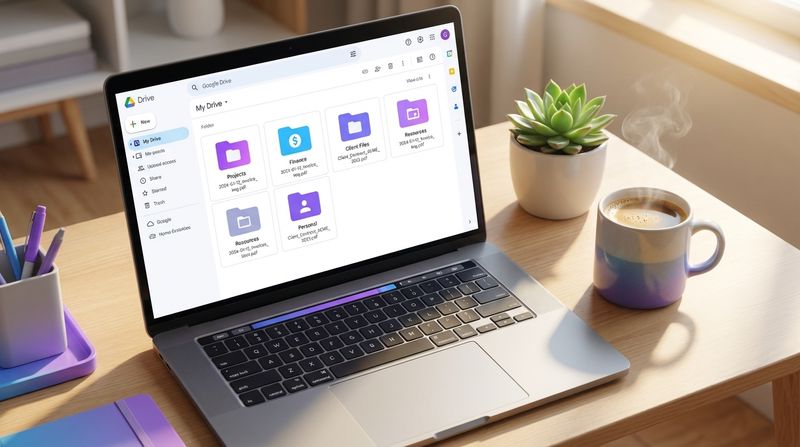
The whole system runs on Google Drive (soon also available for Dropbox and OneDrive). No new tools to learn, no migration, no enterprise software.
Why Most Freelancers Never Fix Their File Organization
The usual advice is to do a big cleanup. Rename everything, build a perfect folder tree, start fresh. It never sticks because it ignores the real problem: the system breaks down when you are busy. And freelancers are always busiest when the most files are coming in.
A freelancer file management system that works only when you have time to maintain it is not a system. What you need is one that runs in the background, where files end up in the right place whether you are on top of things or not.
That is what this guide builds.
Step 1: Build a Folder Structure for Client Files
The goal is a structure that is predictable enough that you always know where to look, and simple enough that you actually use it. If you would rather not design one from a blank page, Filently can propose a structure from the documents you already have.
Start with four top-level folders in Google Drive:
- Clients, everything related to the people you work for
- Finance, invoices, receipts, tax documents
- Admin, contracts, insurance, business paperwork
- Archive, completed projects and old files
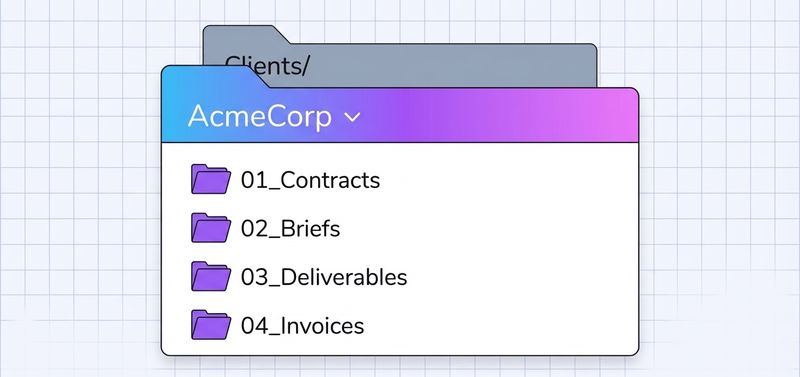
Inside Clients, create one subfolder per client. Inside each client folder, use the same structure every time:
Clients/
  AcmeCorp/
    01_Contracts
    02_Briefs
    03_Deliverables
    04_Invoices
  RivermontStudio/
    01_Contracts
    02_Briefs
    03_Deliverables
    04_Invoices
The numbered prefixes keep the folders in a consistent order regardless of alphabetical sorting. The structure is the same for every client, that predictability is what makes it fast to use under pressure.
When a project wraps up, move the entire client folder into Archive. Your active workspace stays lean. Folder systems that scale as you take on more clients tend to split by client first and by year second.
Step 2: Apply a Consistent File Naming Convention
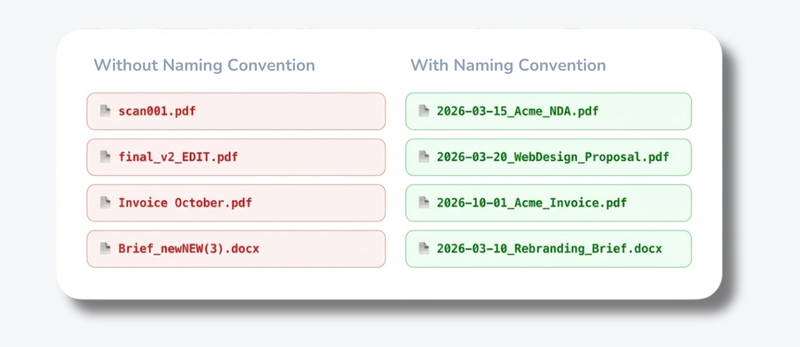
A folder structure tells you where a file lives. A naming convention tells you what it is before you open it.
The format that works best for client files:
YYYY-MM-DD_ClientName_DocumentType_v01.ext
Real examples:
2026-03-15_AcmeCorp_Invoice-1052.pdf2026-02-28_RivermontStudio_Proposal_v02.docx2026-03-01_AcmeCorp_Contract-Signed.pdf
Why this format works:
- Date first, files sort chronologically by default. No more hunting for “the March invoice.”
- Client name, you can search for any client and find every file instantly
- Document type, tells you what it is without opening it
- Version number, ends the
final_FINAL_v3_usethisoneproblem
For drafts, add _v01, _v02 as you iterate. The approved final version drops the version number, that signals it is the one to use.
The full guide to file naming conventions covers edge cases like team files, photos, and recurring documents if you need more detail.
Step 3: Automate the Parts That Always Slip
The folder structure and naming convention solve the organization problem in theory. In practice, files still pile up in Downloads when you are in the middle of a project. A client sends a PDF at 11pm. You download it, tell yourself you will rename it later, and three weeks later you are searching for “that invoice from AcmeCorp.”
This is the weak point of any manual file management system, and it is where automation makes the biggest difference.
Filently connects to your Google Drive and handles the naming and filing automatically. When a document arrives, it understands the content, not just the filename, extracts the date, client name, and document type, applies your naming convention, and moves the file to the right folder. No patterns to configure, no rules to maintain.
What that looks like in practice: a client emails you an invoice. You forward it to your Filently address. Within seconds it appears in Clients > AcmeCorp > 04_Invoices as 2026-03-15_AcmeCorp_Invoice-1052.pdf. You never touched it.
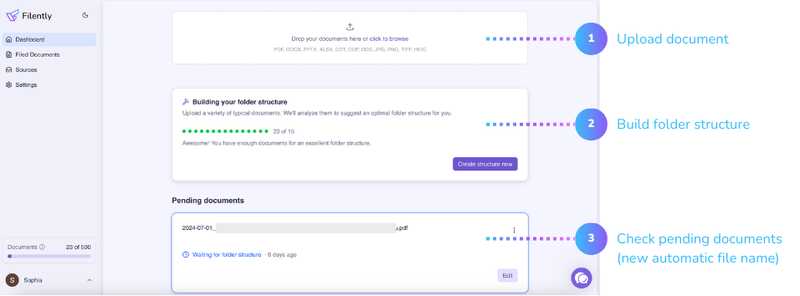
The system works the same at 11pm on a deadline day as it does on a quiet Tuesday morning. The tools that do this differ mostly in how much you have to configure before they work.
Step 3 is the one that always slips. Filently is the part that doesn't.
One convention per client, applied automatically.
How to Handle the Backlog
You now have a system for new files. What about everything that already exists?
Do not try to organize it all at once. That is the cleanup trap. It takes hours, kills momentum, and usually does not get finished.
Instead: create a single folder called _Archive_Old and move everything into it. Your active workspace is now empty and clean. Start using the new system for everything going forward. Touch old files only when you actually need them. Rename and refile them then, not before.
Within a few weeks, the files you actually use will be organized. The rest can stay in the archive indefinitely.
If that approach does not work for you and you want to tackle the backlog properly, Filently’s Deep Clean will rebuild your existing Google Drive, folder structure included. It is launching soon, and a first beta is starting now. To join it, sign up at app.filently.com and reach out to the team via the chat inside the app.
Organizing Client Finances for Tax Season
The Finance folder deserves its own structure. Every freelancer has had the experience of reconstructing six months of expenses the week before a tax deadline.
A structure that prevents this:
Finance/
  2026/
    Income/
    Expenses/
    Receipts/
    Tax-Documents/
  2025/
    ...
The naming convention is the same as for client files. For invoices: 2026-03-15_AcmeCorp_Invoice-1052.pdf. For receipts: 2026-03-15_AdobeCC_Subscription.pdf.
If you handle a high volume of PDFs, Filently renames and files them automatically in Google Drive. Your first 25 documents are free, no credit card needed.
How to Share Client Files Without Creating a Mess
Google Drive adds one useful layer: shared drives and permissions. If you ever need to share deliverables with a client or collaborate with a subcontractor, Drive handles this without creating a mess.
A few rules that keep shared access clean:
- Share at the subfolder level, not the top-level client folder. Give a client access to
04_Deliverablesonly, not their entire folder. - Use “Viewer” access by default. Upgrade to “Commenter” for feedback rounds, “Editor” only when someone needs to make changes.
- Never work directly in a shared folder. Keep your working files in a private folder and move the final version to the shared location when it is ready.
Beyond the freelancer setup, seven routes to an automatically organized Drive run from free scripts to full automation.
Common Questions About Freelancer File Organization
How should I organize files when I work with the same client on multiple projects?
Add a project layer inside the client folder:
Clients/
  AcmeCorp/
    2026-Website-Redesign/
      01_Contracts
      02_Briefs
      03_Deliverables
      04_Invoices
    2025-Brand-Identity/
      ...
This keeps projects distinct without duplicating the top-level structure. Archive completed projects inside the client folder so all of that client’s history stays in one place.
What is the best way to handle files a client sends me?
Create a00_Incoming folder inside each client folder. Everything a client sends lands there first. Process it into the right subfolder when you have a moment, or let Filently do it automatically. The key is having a designated landing spot so files never end up in Downloads indefinitely.How do I get a client to use a shared folder properly?
Keep it simple for them. Share one folder, give it a clear name (AcmeCorp_Deliverables), and put only finished files there. Do not give clients access to your working folder, the revision history and draft files create confusion. A shared folder should be a delivery mechanism, not a collaboration space.How long should I keep client files?
Most accountants recommend keeping financial documents for at least seven years. For project files, keep them for the duration of any warranty or ongoing relationship, then archive. The Archive folder solves this, you are not deleting anything, just moving files out of your active workspace.How does Filently fit into this system?
Filently handles the naming and filing automatically so the system runs without manual effort. It is the automation layer of a complete client file management system: the folder structure and naming convention you set up manually, Filently keeps running in the background. When a document arrives in Google Drive, Filently goes through the content, applies your naming convention, and moves it to the right folder. It works with the structure you have already built, no migration, no new interface to learn. Your first 25 documents are free at app.filently.com.The system in this guide takes about an hour to set up manually. If you use Filently, the folder structure is set up automatically during onboarding, in under 60 seconds. Either way, the foundation is the same: a consistent folder structure and naming convention that is predictable enough to use under pressure. Automation removes the part that always breaks down: the manual effort of actually filing things when you are busy.