
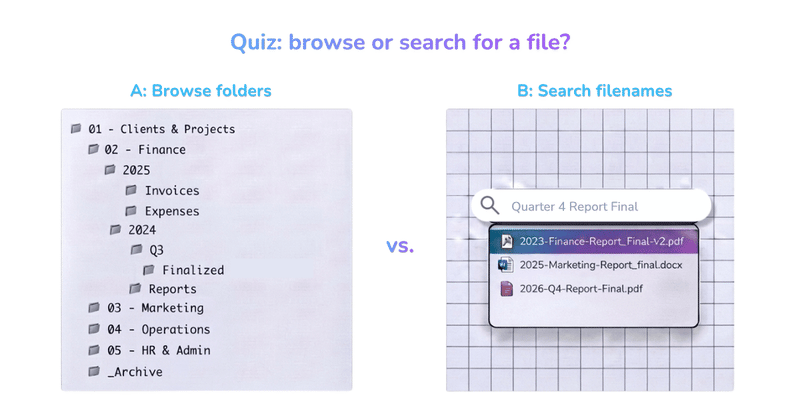
You have probably tried more than one system for your files. Neat nested folders. A flat dump you rely on search to comb through. Somebody’s method from a productivity video. And one by one, each of them quietly stopped working, and you drifted back to saving things wherever and hoping you could find them later.
That pattern has less to do with discipline than most people assume. Most filing advice answers a question you never actually asked. The question underneath “how should I organize my files” is smaller and more personal: when you go looking for something later, how does your brain try to find it? Some people mentally retrace where they put it. Others type a word and let search do the work. Those are two different instincts, and they call for two different systems. Build the one that fights your instinct, and no amount of willpower keeps it running.
So before we talk folders or naming or any template, let’s find your type. It turns out there’s forty years of research on this, and it maps cleanly onto four decisions.
Start with the root question: do you browse or search?
When a file has gone missing, watch what you do first. Do you navigate toward where you think it lives, opening folders until you spot it? Or do you go straight to the search bar and type a word from it? That single reflex predicts most of the rest.
Researchers Deborah Barreau and Bonnie Nardi studied this back in 1995, in a paper called Finding and Reminding, and their finding still holds up: given a structure that supports it, most people prefer to browse to a file rather than search for it. The reason is subtle and worth sitting with. Where you put something reminds you of it. An invoice sitting in Q3 – Unpaid nudges you every time you pass it that the quarter isn’t closed. Search can pull that file back when you ask for it, but it can’t remind you the file exists in the first place. Location does a job that search cannot.
That gives you two working profiles:
- Browse-first. You think in places. You remember that the contract is “in the Acme folder, under signed.” For you, a clear folder structure with real categories is worth the upkeep, and a good structure quietly reminds you of open loops.
- Search-first. You think in keywords. You don’t care where a file lives as long as typing “acme invoice march” surfaces it. For you, elaborate folders are overhead, and the payoff comes from naming files well and keeping the tree flat.
Most people lean one way. The mistake is building a browse-first labyrinth when you’re really a search-first person who will never maintain it, or trusting search alone when you’re a browser who needs the reminding a location gives.
Filer or piler, and why neither is broken
The browse-versus-search split has an older cousin. In 1983, Thomas Malone published a study with the wonderfully plain title How Do People Organize Their Desks? He watched office workers handle paper and saw two camps. Filers sorted documents into labeled categories as they arrived and kept clean desks. Pilers let things accumulate in stacks and dealt with them in passes, using the stack itself as a to-do list they could see.
The instinct is to call the filer virtuous and the piler a mess. The research disagrees. Malone noticed that piles do real work: a document left in view reminds you of the action still attached to it, which a closed folder never will. Later studies of email went further and found that heavy filers often remember less about their own messages than pilers do. Filing something can be a way of pushing it out of your mind. There’s even a trap the research calls premature filing: you tuck something into a folder to clear your space, and it turns out to be low value that you now feel obligated to keep.
None of that means piling is superior. It means the two styles trade different things. Filers pay upfront to keep a clean surface and a searchable archive. Pilers keep things in reach and in mind, at the cost of a workspace that looks chaotic to everyone else. Knowing which one you are tells you whether to design for tidy storage or for visible, in-reach reminders, so you stop apologizing for a style that actually works for you.
Lumper or splitter: how fine should your folders go?
Say you’ve decided folders earn their keep for you. The next fork is granularity, and it’s where a lot of systems quietly die.
Lumpers want a few broad buckets. One folder called Finance holds everything money-related, and they’ll find the specific file inside it later. Splitters want a folder for each sub-type: Finance becomes Invoices, Receipts, Statements, Taxes 2026, and on down. The trade-off is real and symmetrical. Lumping is fast to file and slower to retrieve, since you’re scanning a big pile at the end. Splitting is slow to file and fast to retrieve, as long as you can remember which of your many folders you chose.
The failure mode for splitters is a tree so deep that filing becomes a decision every single time, and the failure mode for lumpers is a Finance folder with four hundred loose files that search has to rescue. A workable middle for most people is three levels: a broad area, a subcategory, then a project or a year. If you’re a natural splitter, cap the depth on purpose and push your precision into filenames instead, which our file naming guide covers in detail. You get the specificity without the maze.
Know your type, but tired of doing the filing? Filently learns the folder structure and naming you already use, then files every new document to match, automatically.
First 25 documents free. 2-minute setup. No credit card needed.
The “Misc” folder question
Every filing system eventually meets a file that doesn’t fit anywhere, and how you feel about that file says a lot about your type.
If you’re search-first, an honest Unsorted folder is a feature. You’re going to find things by typing a keyword regardless, so forcing every stray file into a perfect category is effort with no payoff. Let the catch-all exist, name the files well, and move on. If you’re browse-first, a Misc folder that keeps growing is a warning light. It means your categories aren’t matching the reality of what actually lands on you, and every file in there is one you won’t stumble on later by browsing.
The move that works for both types is to treat the catch-all as an inbox, not an address. A file can pause there, but the folder gets emptied on a schedule, weekly or so, rather than becoming a permanent junk drawer. That keeps the honesty of a landing zone without letting it swallow the system. If your version of Misc is a years-deep backlog, clear it in one session rather than sorting as you go.
What you group by: entity, type, life-area, or time
There’s one more axis, and it’s the one people argue about without realizing they’re arguing about taste. When you make your top-level folders, what do they represent?
- By entity: one folder per client, per property, per person. Natural for anyone whose work revolves around relationships or accounts.
- By type: all invoices together, all contracts together, all reports together. Natural for search-first people and for document-heavy work.
- By life-area: Work, Health, Finance, Home. The default for personal setups, and the backbone of systems like PARA.
- By time: by year or quarter, with everything from that period together. Works when recency is how you actually remember things.
None of these is correct in the abstract. A freelancer juggling accounts is usually happiest grouping by client; an accountant swimming in one document type is usually happiest grouping by type and year. The reason so many downloaded folder templates feel wrong is that they were built around someone else’s grouping axis. Pick the one that matches how you already ask for your own files, and the whole structure suddenly feels obvious instead of imposed. If most of your work is client-based, one folder per client beats one per project.
Build for the person you are, not the one you keep meaning to be
Put the four decisions together and you have a portrait: browse-first or search-first, filer or piler, lumper or splitter, and the axis you group by. That portrait is your system. A search-first lumper who groups by type wants a flat tree of broad, well-named folders and a trusty search bar. A browse-first splitter who groups by client wants a deeper, per-account structure with reminding built into the layout. Both are correct. They’re just correct for different people.
Here’s why this matters more than picking the “best” method. The research on why organizing systems fail keeps landing on the same two culprits, and neither is laziness. The first is a mismatch: people adopt an ideal system built for who they wish they were, and abandon it the first busy week because it never fit how they work. The second is decision fatigue. In any manual system, every single file you save is a small decision about where it goes, and those decisions pile up until you stop making them and start dumping things on the desktop again.
The first problem you solve by matching the structure to your type, which is what this whole guide is about. The second problem is harder, because even a perfectly-fitted system still asks you to file every incoming document by hand. That’s the chore that outlasts your motivation.
Where automation actually fits
This is the part I care about, because it’s why we built Filently. The goal was never to hand you one more template to force yourself into. It was to take whatever system already fits you and keep it running without the manual filing.
So Filently doesn’t impose a structure. It goes through the folders you already have, learns your naming patterns and your grouping axis from them, and then files each new document to match. A browse-first splitter keeps their deep per-client tree, and new files land in the right branch. A search-first lumper keeps their flat setup and their catch-all, and every file arrives with a clean, consistent name that makes search actually work. It understands what’s inside each document and routes on that plus your existing folders, so you’re not writing rules for every category. Your files stay in your Google Drive the entire time.
A couple of honest limits, because they matter. Filently organizes documents. It is not an accounting or tax tool, so it won’t track what’s paid or total anything up. And it can only route on what a document actually says and what your folders already tell it, so a genuinely ambiguous file lands in Pending Documents on your Filently dashboard for you to review rather than getting a wrong guess. That line, between what the system can know and what only you know, is exactly the human judgment worth keeping. For the bigger picture on setting up a digital system end to end, our guide to organizing digital files goes deeper.
Folders or search was always the wrong debate to have in the abstract. The right version is: which one is yours, and how do you build around it so staying organized stops depending on a good week. Figure out your type, shape the structure to fit, and let the filing take care of itself.
Common Questions About Folders, Search, and File Organization
Should I use folders or search to organize my files?
Both, but which one you lean on depends on how you naturally look for things. If you find files by mentally retracing where you put them, you’re browse-first and should invest in a clear folder structure. If you go straight to the search bar and type a keyword, you’re search-first and should invest in consistent, descriptive filenames and keep your folders flat. Most people are stronger on one side than the other, and the research going back to the 1990s shows that people tend to prefer browsing to search when the structure supports it.What's the difference between a filer and a piler?
The terms come from Thomas Malone’s 1983 study of how office workers handled paper. Filers sort documents into categories as they go and keep a clean workspace. Pilers leave things in stacks and deal with them later, using the pile itself as a reminder of what’s unfinished. Neither is wrong. Later research on email even found that pilers often remember more about their own documents than heavy filers do, because the act of filing something can push it out of mind.How many levels of folders should I use?
Three levels is a good default for most people: a broad area (Work, Finance, Clients), a subcategory inside it, and then specific projects or years. Going deeper than that makes filing slower and burying more likely. If you’re a natural splitter who wants a folder for every sub-type, cap the depth and lean on filenames instead, so you get the precision without the maze.Is it bad to have a Misc or Unsorted folder?
Not necessarily. For a search-first person, an honest Unsorted folder is a feature, because you’ll find things by searching anyway and forcing every file into a perfect category is wasted effort. For a browse-first person, a growing Misc folder is a warning sign that your categories aren’t matching reality. The trick is to treat it as a temporary inbox you clear on a schedule, rather than a permanent home.Why do my file organization systems never last?
Usually because the system was built for an ideal version of you rather than the way you actually work, and because every save became a decision you had to make by hand. Systems that fight your natural retrieval style collapse under decision fatigue the first busy week. The fix is to match the structure to how you already find things, keep it as shallow as you can stand, and automate the filing so staying organized doesn’t depend on willpower.Want a system that matches how you already work? Filently runs inside your Google Drive, learns the structure and naming you already use, and files every new document to fit, so the way you organize finally stays organized.
Try Filently free → First 25 documents free. No credit card needed.