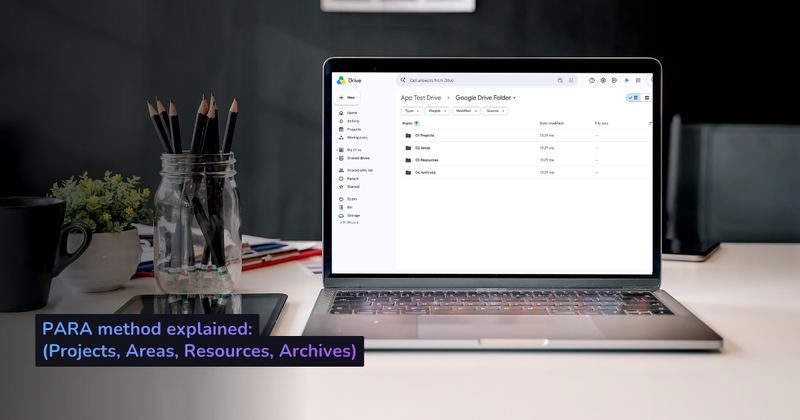
I’ve set up a lot of folder systems over the years. Most of them looked beautiful on day one and were a mess again within a month. I always fell behind on the same thing: filing. Every system I built needed me to sort files by hand, and eventually I stopped keeping up.
PARA is the one that survived, because it’s simpler than the rest, and simple is what you can actually maintain. In this guide I’ll show you exactly how to set it up in Google Drive, how to decide where each file goes, and how to keep it organized without turning into a full-time librarian. That last part is what most PARA guides skip.
What PARA Actually Is (in One Minute)
PARA comes from Tiago Forte, who introduced it in his book Building a Second Brain. Instead of organizing files by topic (which sounds neat and falls apart fast, because most files belong to three topics at once), PARA organizes by how soon you’ll need something. Everything you save goes into one of four folders:
- P — Projects: Active work with a goal and a deadline. “Launch the new website.” “File 2025 taxes.” “Onboard Acme Corp.” When it’s finished, it leaves.
- A — Areas: Ongoing responsibilities with no end date. “Finances.” “Health.” “Client: Acme (retainer).” You maintain these indefinitely.
- R — Resources: Reference material and topics you care about. “Design inspiration.” “Contract templates.” “Recipes.” Stuff you might use, but aren’t actively working on.
- A — Archives: Anything inactive from the other three. Finished projects, former clients, resources you no longer need. Not deleted, just out of the way.
That’s the whole system. Four folders, ordered from most to least actionable. What makes it work is the hard limit: only four categories, ever.
Why PARA Fits Google Drive So Well
I’ve tried to force more elaborate systems onto Drive and they never stuck. PARA works here for concrete reasons:
It’s shallow. Google Drive’s folder tree gets painful to navigate past three or four levels deep. PARA needs exactly two levels to start: four top-level folders, then one subfolder per project or area. You can always go deeper later, but you rarely need to.
It makes search better, not just browsing. Drive’s search is genuinely good, but it’s noisy when half your results are three-year-old files. Because PARA continuously pushes inactive work into Archives, a search for “invoice” surfaces your current invoices first, not a decade of them.
It survives sharing. Projects and Areas map naturally onto shared folders: a client gets an Area, a launch gets a Project. Collaborators only ever see the folder relevant to them.
The one thing PARA does not fix on Google Drive is naming. Your files still land as Scan_0042.pdf and Copy of Untitled document. We’ll deal with that below, because a PARA folder full of badly named files is only half-organized. (If folder structure is what you’re wrestling with more broadly, our Google Drive folder structure guide goes deeper on the trade-offs.)
Setting Up PARA in Google Drive: Step by Step
Here’s the exact setup. It takes about 15 minutes.
Step 1: Create your top-level folders
In My Drive, create five folders: the four PARA folders plus a 0 Inbox I’ll explain in a moment. Prefix them with numbers so they sort in the right order (Drive sorts alphabetically, and you want most-actionable at the top):
0 Inbox
1 Projects
2 Areas
3 Resources
4 Archives
The numbers aren’t decoration. Without them, “Archives” sorts to the top and “Projects” ends up in the middle, which is backwards from how you think.
Why the 0 Inbox? It’s the one folder classic PARA guides argue about, and it’s the one I’d never drop. The Inbox is a deliberately messy landing zone: when a file arrives and you don’t have three seconds to decide where it belongs, it goes here, not the root of My Drive. Then you empty it during your weekly review, or you let an automation empty it for you (more on that below). Without an Inbox, “I’ll file it later” means files pile up in the root and the whole system falls apart.
Tip: use folder colors. Google Drive lets you assign one of 24 colors to any folder. Right-click a folder → Organize → Folder color. A simple scheme most people stick with: red for the 1–2 most urgent Projects, one color for all of Areas, another for Resources. A glance at the color tells you the bucket before you’ve read a single folder name.
Step 2: Fill Projects with your current active work
Under 1 Projects, add one folder per active project. Be strict about the word “active”: if you’re not working on it this month, it’s not a project.
1 Projects/
├── Website Relaunch Q3
├── Acme Corp Onboarding
├── 2025 Tax Filing
└── Conference Talk – October
Most people have fewer active projects than they think, usually five to fifteen. If your Projects folder has forty subfolders, most of them are actually Archives.
Step 3: List your Areas of responsibility
Under 2 Areas, add the ongoing parts of your life or business that never “finish.”
2 Areas/
├── Finances
├── Client – Acme (Retainer)
├── Marketing
├── Legal & Contracts
└── Team & Hiring
The test: if you can imagine ever ticking it off as done, it belongs in Projects. If you’ll still be tending it a year from now, it’s an Area.
Step 4: Set up Resources as a reference shelf
Under 3 Resources, group reference material by topic. This is the one folder where organizing by subject is correct, because you’re not acting on any of it.
3 Resources/
├── Templates
├── Brand Assets
├── Industry Research
└── Swipe File
Step 5: Move everything else to Archives
This is the cathartic step. Anything that isn’t an active project, a live area, or genuinely useful reference goes into 4 Archives. Old projects, former clients, that folder from 2021 you’re scared to delete — all of it. You’re not deleting anything, just clearing the runway.
A good structure for Archives mirrors the others:
4 Archives/
├── Completed Projects/
├── Past Clients/
└── Old Resources/
Set up the folders, but dreading the filing? Filently learns your PARA structure and files every new document into the right folder automatically — with a clean name.
Built once, then kept that way without you.
The Decision Rule: Where Does This File Go?
The moment PARA breaks is the moment you hesitate over where to save something. Keep this in your head. It resolves 95% of cases in about two seconds:
- Is it part of active work with a deadline? → Projects
- Is it part of an ongoing responsibility? → Areas
- Might I want this for reference someday? → Resources
- Is it done, dead, or irrelevant? → Archives
Work top to bottom and stop at the first “yes.” When in doubt between Projects and Areas, ask whether the thing can be completed. When in doubt between Resources and Archives, ask whether you’d genuinely miss it. If not, Archives (or the trash).
What about files you’re not sure about?
You will hit files that don’t obviously fit — a PDF a client sent, a form you half-filled, a screenshot you might need. Don’t stall on them, and don’t dump them in the root. Drop them in 0 Inbox and move on. The Inbox exists precisely so that indecision never becomes clutter. The only rule is that the Inbox gets emptied regularly: by you during your weekly review, or automatically, which is the part we’ll get to next.
Naming Files Inside PARA (the Missing Half)
PARA tells you which folder a file lives in. It says nothing about what the file is called. A folder of Scan_0042.pdf, IMG_2213.jpg, and Untitled document (3) is not organized, no matter how tidy the folder tree looks.
Pair PARA with a consistent naming convention. The one I use:
YYYY-MM-DD_Category_Description.ext
Examples:
2026-01-15_Invoice_Acme-Corp.pdf2026-03-02_Contract_Website-Relaunch.pdf2026-06-20_Receipt_Office-Supplies.pdf
ISO dates first so everything sorts chronologically, one consistent separator throughout. I won’t re-derive the rules here. Software can apply the same convention, so PARA stays intact without manual sorting. For PARA the point is narrower: the folder is only half the job, and a bucket full of Scan_0042.pdf still isn’t organized. (Automating it later? Filently lets you pick underscore, hyphen, or space to match whatever you choose.)
Here’s the honest catch: naming files by hand is the single most tedious part of any system, PARA included, and the first chore you abandon the week work gets busy. Which brings us to the real problem.
The Problem Nobody Warns You About: PARA Decays
Every PARA guide ends at setup. Mine won’t, because setup was never the hard part.
Two or three weeks after you build a beautiful PARA structure, this happens: a PDF lands in Downloads, you’re busy, you drag it to the root of My Drive “just for now.” Then another. Then you save a Doc without thinking about which folder it’s in. Within a month, you’ve got a fresh pile of unfiled, badly-named files sitting on top of your neat four folders, and the whole thing feels messy again.
PARA works exactly as designed. Like every manual system, it just assumes you’ll do the filing, and the filing is exactly the work you don’t have time for.
There are three ways to fight the decay:
1. The weekly review. Once a week, spend ten minutes: move finished projects to Archives, file anything that landed in the root, promote any Area work that’s become a real Project. This genuinely works, if you actually do it. Most people don’t, past the first month.
2. Never touch the root. Make a rule that nothing gets saved to My Drive’s root, ever. Everything goes straight into a Projects or Areas subfolder. Good discipline, hard to sustain when you’re moving fast.
3. Automate the filing entirely. Have incoming files named and sorted into the right PARA folder the moment they arrive, so there’s no pile to review in the first place.
The first two rely on willpower. The third is the only one that survived contact with my actual working life, which is why I ended up building it.
Keeping PARA Organized Automatically with Filently
After falling off the manual-maintenance wagon one too many times, I wanted something specific: I’d define the PARA structure myself (that’s a human judgment nobody can automate), but the filing of every incoming document should just happen.
That’s what Filently does, and it’s live now. It’s built precisely for the maintenance gap that kills most PARA systems.
How it fits PARA:
- You keep your PARA folders (Projects, Areas, Resources, Archives) exactly as you set them up.
- Filently goes through your existing files and learns your structure and naming patterns. If your
2 Areas/Financesfolder holds files named2026-01-15_Invoice_Acme.pdf, it picks up that convention. - Send documents in whatever way fits — drop them into your Filently Inbox in Drive, forward them by email, or upload directly. Each one gets read via OCR, identified (invoice, contract, receipt, and so on), named to your convention, and filed into the matching PARA subfolder.
- You review the results, or let it run on its own, so nothing piles up waiting for your weekly review.
That last point is the whole game. Clearing the pile of unfiled documents is exactly what manual PARA relies on you to do, and the thing you stop doing after a few weeks. Hand it to Filently and the decay problem disappears at its source.
The point is that it works the way PARA works: organizing by content and structure, not by rules you have to write. You’re not building Zapier flows for every folder. Filently learns from the PARA system you already have. If you want the full picture of how AI organizers work, our complete AI Google Drive organizer guide covers it end to end.
PARA started life as a personal knowledge system, and that’s still where it shines, but it’s used just as much by freelancers and small businesses who set up PARA once and then need it to stay that way without babysitting.
What Automates Cleanly in PARA — and What Doesn’t
I want to be straight with you about this, because it’s where most “AI organizes everything!” claims fall apart. An automated organizer can only route on signals it can actually see: what’s inside the document, and what your existing folder names already say. It can’t read what’s in your head. Once you accept that one limit, each PARA bucket sorts itself neatly into “runs on autopilot” or “stays with you.” And the split is better than you’d expect.
Areas → automatic. Your ongoing responsibilities are tied to document types, and types are exactly what an organizer detects well. Invoices, receipts, and bank statements are Finance. Contracts and deliverables are Clients. Insurance and legal are Admin. Filently goes through the document, recognizes the type, files it. No input from you.
Resources → automatic. Reference material announces what it is: guides, templates, whitepapers, research PDFs. Sorted by topic, hands-off.
Projects → automatic when the document names the project. A file called Invoice – Website Relaunch obviously belongs in 1 Projects/Website Relaunch. It matches the folder and files itself. The nice part: your existing project folders already are your project list. If the folder exists and the document points to it, it just works. The only hard case is a generic document whose project link lives only in your memory, like a plain design-tool invoice that could be the Website Relaunch or just this month’s overhead. The document doesn’t say, so the organizer shouldn’t guess. That’s what the review step below is for.
Archives → manual, on purpose. No tool can know when a project is done. That’s a decision, not a signal in a file. When a project wraps, you drag its folder into 4 Archives yourself. Two seconds, once per project.
Look at what just happened to the workload. The maintenance cost of PARA drops from per document to per project change: from something you owe every single day to something you do a handful of times a month. That’s the difference between a system that survives and one that doesn’t.
Keeping it from turning back into a mess
The way an automated PARA setup does fail is folder sprawl: an organizer that invents a fresh 1 Projects/ folder for every unmatched vendor, sometimes spelling the same project three different ways. The fix is a firm rule: new folders only get created along hard facts the document states outright (a client name, a topic), never on a guess about intent. Anything genuinely ambiguous goes back to your 0 Inbox for you to place with one drag. A review step like that draws an honest line between “the AI is confident” and “you know something it doesn’t.”
Here’s the important part: you don’t have to tell Filently that invoices belong in Finance. It scans your existing folder structure and, from the content of each document, suggests the right folder on its own — the automatic behavior I described above. So the Custom Filing Instructions field isn’t where you re-list the obvious stuff. It’s only for the special PARA rules Filently can’t infer from your folders: a single plain-language box (up to 2,000 characters) where you write normal English and type @ to reference a real folder in your Drive. Optional, and usually short.
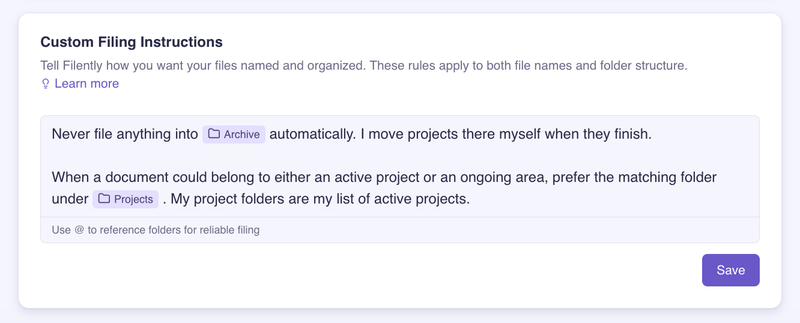
For a PARA Drive, I add only the handful of rules Filently wouldn’t guess on its own:
Never file anything into @4 Archives automatically. I move projects there myself
when they finish.

When a document could belong to either an active project or an ongoing area,
prefer the matching folder under @1 Projects. My project folders are my list of
active projects.

Don't create a new project folder unless a document explicitly names one. If it
names no clear project and matches nothing existing, leave it in @0 Inbox for me
to sort.
Two notes. First, when you paste this in, retype each @folder with the @ picker so it links to the real folder in your Drive — that’s what makes the reference reliable. Second, notice how short the list is: everything not on it (invoices, receipts, contracts, reference PDFs) Filently already files by reading your folders. Custom rules are for the exceptions, not the routine. The one they earn their keep on is the overlap case — a client can be both an active project and an ongoing area, so the same Acme invoice could go either way, and the “prefer Projects” line keeps that consistent.
Naming is just as flexible. You can set the date, separator (underscore, hyphen, or space), and capitalization in Filently’s Filename Format settings, or simply describe the format in this same instructions field. Both feed the same AI. The team’s own advice for the field: be specific but concise, spell out the exceptions, and start simple, then iterate.
Start for free — first 25 documents free, no credit card needed.
Common PARA Mistakes (I’ve Made All of These)
Too many Projects. If everything is a project, nothing is. Projects are what you’re working on now. Everything else is an Area or an Archive.
Over-nesting. PARA is meant to be shallow. If you’re five folders deep, you’ve rebuilt the topic-based system PARA was designed to replace.
Treating Archives as a graveyard you fear. Archives is the pressure valve that keeps your other three folders clean. Move things there generously.
Skipping the naming half. Perfect folders full of Scan_0042.pdf are not organized. Pair PARA with a naming convention, or automate it.
Relying on willpower for maintenance. Your last system failed for one reason: upkeep depended on you having a good week, every week. Automate the filing and you remove the dependency.
The Short Version
- Create the four PARA folders (
1 Projects,2 Areas,3 Resources,4 Archives), plus a0 Inboxfor anything you can’t file on the spot. - Sort by actionability, not topic. When in doubt, work down the four in order.
- Pair PARA with a naming convention so files are findable inside the folders.
- Fight decay with a weekly review, a no-root rule, and ideally by automating the filing so there’s nothing to clean up in the first place.
PARA is the best folder system I’ve used, but no folder system organizes itself. Get the structure right, then take the maintenance off your plate. That’s the combination that actually lasts.
Set up PARA once. Keep it that way forever. Filently files every new document into the right PARA folder, named your way, automatically.
Built once, then kept that way without you.
Common Questions About the PARA Method in Google Drive
What is the PARA method?
PARA is a file organization system created by Tiago Forte. It sorts everything you save into four top-level folders: Projects (active work with a deadline), Areas (ongoing responsibilities with no end date), Resources (reference material and topics of interest), and Archives (anything inactive from the other three). The core idea is that you organize by actionability (how soon you’ll need something) rather than by topic. That’s what keeps it simple enough to actually maintain.Is PARA good for Google Drive specifically?
Yes. PARA only needs four folders and a handful of subfolders, which maps cleanly onto Google Drive’s folder tree. It also plays well with Drive’s search: because active work lives in Projects and Areas, and everything old is pushed into Archives, your day-to-day searches return far fewer stale results. The one thing PARA doesn’t solve on Google Drive is naming: files still arrive asScan_0042.pdf, which is where a naming convention (or an automated organizer) comes in.What's the difference between Projects and Areas in PARA?
A Project has a goal and an end date — “Launch Q3 website,” “Onboard Acme Corp,” “File 2025 taxes.” When it’s done, it’s done, and it moves to Archives. An Area is an ongoing responsibility you maintain indefinitely with no finish line — “Finances,” “Health,” “Client: Acme (retainer),” “Car.” If you can picture crossing it off a list, it’s a Project. If you’ll still be tending it next year, it’s an Area.How do I keep my Google Drive organized after setting up PARA?
The setup is the easy part; maintenance is where PARA usually breaks. Three habits keep it alive: (1) do a 10-minute weekly review to move finished projects into Archives, (2) never save into the root — always drop into a Projects or Areas subfolder, and (3) automate incoming files so they’re named and filed the moment they arrive. Tools like Filently read each new document, name it to your convention, and drop it into the right PARA subfolder — which removes the manual filing step that causes most PARA systems to collapse.Does the PARA method work with a naming convention?
They’re complementary, and you want both. PARA decides which folder a file lives in; a naming convention (likeYYYY-MM-DD_Category_Description.pdf) decides what the file is called so you can find it inside that folder. PARA without naming gives you tidy folders full of Untitled document (3). Naming without PARA gives you well-named files with nowhere sensible to put them. The pattern we recommend puts the ISO date first, then the type.Where do I put files I'm not sure about in PARA?
Create a0 Inbox folder as a fifth top-level folder above Projects. When a file arrives and you can’t decide where it belongs in three seconds, drop it there instead of the root of My Drive — then empty the Inbox during your weekly review. The Inbox is what stops indecision from turning into clutter. If you’d rather not clear it by hand, point Filently at the Inbox and it files everything into the right PARA folder automatically.Can I automate the PARA method in Google Drive?
Partially, and the part that matters most. You still decide your Projects and Areas yourself — that’s a human judgment. But the tedious part, filing every incoming document into the right subfolder with a clean name, can be automated. Filently learns your existing PARA folder structure and naming patterns, then files new documents automatically — no rules to write. That’s what keeps the system from decaying between your weekly reviews.Setting up PARA for a team, or wondering how it handles a specific kind of document? I’m happy to go deeper. Find us on Twitter/X, LinkedIn or Instagram.