I was 30 years old when I found out I didn’t need CamScanner anymore.
For years, my document scanning routine looked like this: open the scanning app, scan the document, airdrop the file to my MacBook, rename it, and move it to the right folder in Google Drive. Every single time. For every single document. It felt normal because I’d been doing it that way for so long.
Turns out Google Drive has a built-in scanner. Google Drive’s built-in document scanner detects the edges of your document automatically, scans it, and saves it as a PDF directly to your Drive. No extra app. No airdrop. No detour through your desktop.
If you’ve been doing the same thing I was, this post is for you. Here’s how to scan documents to Google Drive in four steps.
Quick answer: Open the Google Drive app — tap "+" — select “Scan document” — hold your camera over the document — name the file — choose a folder — tap Upload. No extra app needed. Details below.
You only need one app
Before going through the steps: no, you do not need CamScanner, Adobe Scan, Microsoft Lens, or any other dedicated scanning app. The Google Drive app includes a built-in document scanner on both iOS and Android — the Google Drive scanner handles everything natively. If you have Google Drive on your phone, you already have everything you need.
How to scan documents to Google Drive: step by step
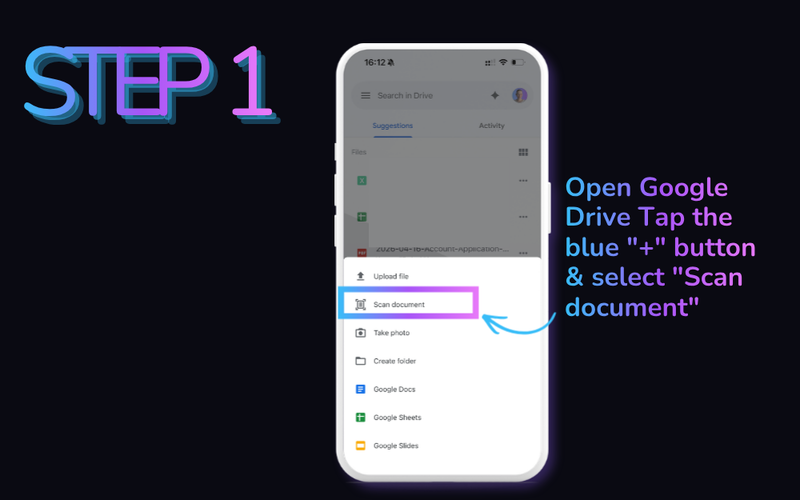
Step 1: Open Google Drive and tap the “+” button
Open the Google Drive app on your phone. In the bottom right corner, tap the blue "+" button to open the upload menu. Select “Scan document” from the list of options.
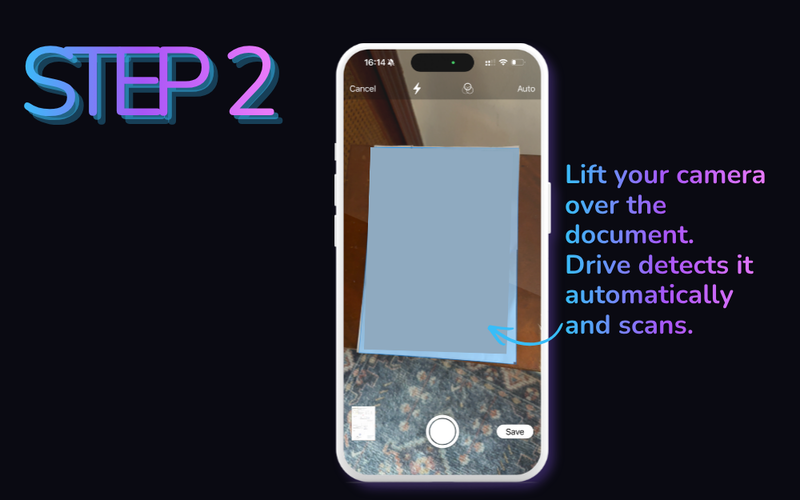
Step 2: Hold your camera over the document
Point your camera at the document you want to scan. Google Drive detects the edges of the document automatically and scans it without you needing to tap the shutter. If you want to scan multiple pages, you can keep adding pages before saving.
Step 3: Name the file and choose a location
After scanning, Google Drive prompts you to set a file name and choose where in your Drive to save it. By default, it will suggest a name like Scanned 4. May 2026 at 16:14:07.pdf. That name is not useful to anyone. Change it to something meaningful before you save, or read on for a faster way to handle this.
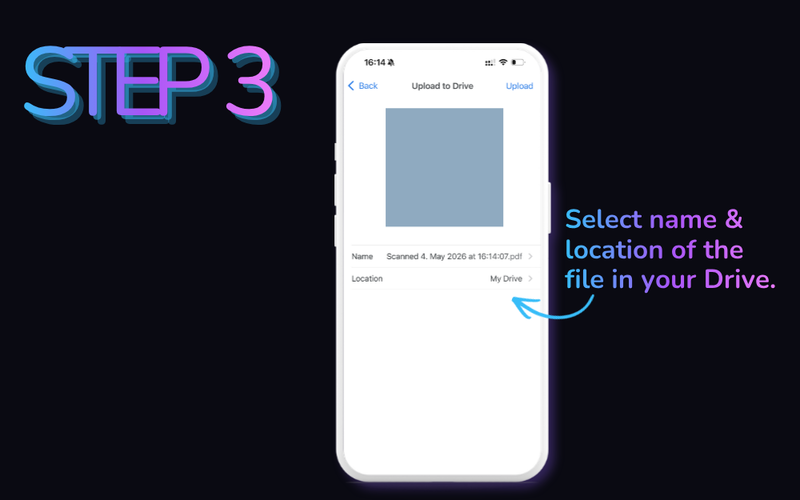
Step 4: Choose a location and save
Tap the location field to choose which folder in your Drive the scan should go into. Then tap Upload. The document lands in your Drive as a PDF, ready to use.
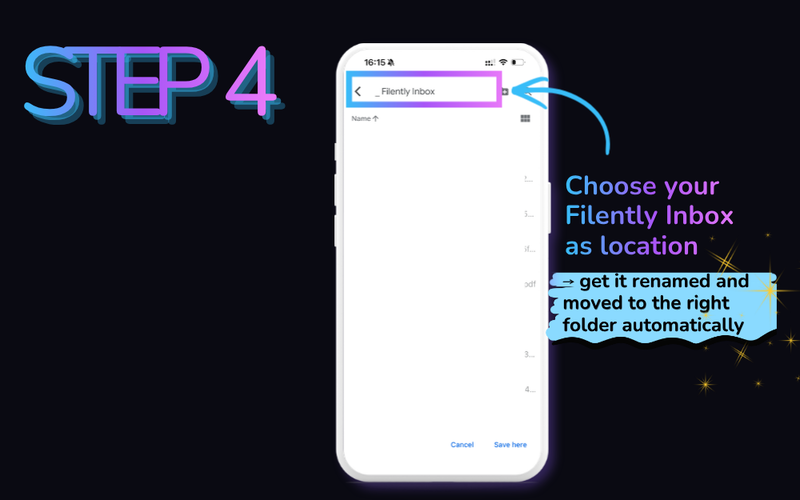
That’s the full process for how to save a scanned document to Google Drive. Four steps, no extra app, no airdrop, no laptop in the middle.
What changed in the 2026 scanner update (Android only)
If you scan on a recent Android phone, your viewfinder may not match the screenshots above. Google rebuilt the scanner in May 2026, and the changes are mostly about what happens to a bad capture rather than how you capture:
- Auto-Best Frame replaces a blurry page with the sharpest frame the camera saw.
- Duplicate detection skips a sheet you already captured, so a stack does not end up with the same page twice.
- A pause button stops the automatic capture when you need a moment between pages.
- On-device processing means the scanner works with no connection at all, and nothing leaves your phone.
The automatic edge detection and the multi-page capture described above are not part of that update — they already worked this way, and they still do. What is new is that the scanner is more forgiving of a shaky hand and a messy stack.
It is delivered through Google Play services, which is also why it shows up in Files by Google. Because everything runs on-device it needs at least 8 GB of RAM, so not every Android phone gets it. On iPhone and iPad the scanner works exactly as described in the four steps above.
Already have a scanned file? Upload it directly
If you’ve already scanned a document elsewhere — or received one as a PDF — you can get it into Google Drive without scanning again.
On mobile: Open Google Drive, tap the "+" button, and select Upload instead of Scan. Find the file on your device and select it.
On desktop: Go to drive.google.com, click New → File upload, and select the file from your computer. Or drag it directly from your desktop into the Drive window. It lands in whichever folder you currently have open.
From a photo you already took: You do not have to re-shoot a document you have already photographed. Open the scanner and tap the file picker to the left of the shutter, then pick the image from your gallery. Google Drive crops and straightens it into a proper scanned page rather than leaving it as a photo.
Moving off CamScanner or Adobe Scan: Export your documents from the old app as PDFs, then use the upload route above. There is no direct migration path between the apps, so a bulk export is the quickest way to bring years of scans across at once.
Either way: if you save to your Filently Inbox folder, the file gets named and filed automatically — same as any newly scanned document.
Scanning a stack you have to submit somewhere, like medical bills for an insurance claim, is worth setting up a little differently: one staging folder, the amount in every filename, and a separate folder per submission.
Scanning from a computer or a dedicated scanner
The four steps above are a phone workflow, and that is not an oversight: Google Drive has no scan function on desktop. Google’s own help page offers a “Computer” tab and then lists no scanning steps under it. At drive.google.com you can upload, not scan.
If your documents come off a real scanner or an all-in-one printer, you have two routes.
Route 1: scan into a synced folder. Install Google Drive for desktop, then point your scanner software at a folder inside it. Brother’s iPrint&Scan, Epson’s ScanSmart, and Canon’s CaptureOnTouch all let you set the save destination, and whatever lands there syncs up to Drive on its own. This is also the standard workaround for older ScanSnap hardware, since ScanSnap Manager lost its Google Drive connection in July 2024 and went out of support that November.
Route 2: scan straight to the cloud. Newer network scanners skip the computer entirely. ScanSnap Cloud, for one, delivers to Google Drive directly and works with Shared Drives.
Then comes the catch nobody warns you about, and it is usually what sends people looking for help: your scanner decides where the file lands, and it is rarely where you want it. ScanSnap Cloud sorts by category — documents, receipts, business cards, photos — into a service, not into your folder tree. Cheaper all-in-ones write to one fixed folder and offer nothing else. And when a manufacturer walks away, that path can vanish altogether: Raven wound down its scanner business, and in August 2026 its cloud stopped delivering scans.
So you get the file into Drive, and land right back at the problem the phone workflow has — a PDF named Scan_0043.pdf, sitting in whichever folder the hardware chose.
What about scanning to Google Docs?
This one trips up a lot of people, so plainly: Google Docs has no scanner. The scan feature lives in the Google Drive app, and everything it produces is a PDF. There is no “scan to Google Docs” button on any platform.
What you are usually after is the step after scanning. Once the PDF is in your Drive, right-click it and choose Open with → Google Docs. Drive runs OCR on the file and hands back a Google Doc with the text extracted and editable. It works on PDFs as well as JPEG, PNG, GIF, and TIFF files.
It is genuinely useful and genuinely limited:
- Only the first 10 pages of a PDF are converted.
- The layout does not survive. You get the text, not the formatting.
- Google advises keeping the file at 2 MB or under, with horizontal, high-contrast text.
Scan in Drive, convert in Docs when you need editable text, and expect to redo the formatting yourself.
The one problem that remains (and how to fix it)
The scanning part is solved. The naming and filing part is not.
That default filename, Scanned 4. May 2026 at 16:14:07.pdf, tells you nothing about what the document is. If you rename it manually every time, you’re adding a step back in. If you skip it, your Drive slowly fills up with unsearchable scan files. Either way, the problem just shifted from the scanning app to the filing step.
That’s exactly why we built Filently. Save the scan into your Filently Inbox folder in Google Drive and Filently takes it from there: it identifies what the document is (invoice, contract, receipt, ID, whatever), applies your naming convention, and moves it to the right folder. You drop it in as-is. It comes out correctly named and filed on the other side.
Every scan lands with a garbage name. Filently fixes that. Drop scans into your Filently Inbox and they come out correctly named and filed. Automatically.
A scan lands, gets a real name, ends up in the right folder.

The full workflow:
- Open Google Drive, tap “+”, scan the document
- Save to your Filently Inbox folder
- Filently names and files it automatically
Scan with Drive. File with Filently.
For anyone doing this regularly with client documents or transaction files, a consistent file naming convention makes a significant difference in how findable those scans are six months later.
Why this matters more than it sounds
The scanning step is small. But it happens dozens of times a month for freelancers and anyone running a business with physical paperwork: signed contracts, receipts, invoices, IDs, inspection reports. Every one of those is a file that needs a name and a home. If you handle ten scans a week and spend ninety seconds on each one (scan, rename, file), that’s over an hour a month on a task that should take seconds.
Automating the intake doesn’t just save time on each individual file. It removes the mental overhead of deciding where something goes every time a new document arrives. If your Drive is already messy from years of inconsistently named scans, our guide on why files get lost in Google Drive covers how to fix the root problem.
Frequently Asked Questions
Does the Google Drive scanner work on both iPhone and Android?
Yes. The built-in document scanner is available in the Google Drive app on both iOS and Android. Open the app, tap the “+” button, and select “Scan document.”What format does Google Drive save scanned documents as?
Google Drive saves scanned documents as PDF files by default. The scan quality is generally good enough for most business documents: contracts, invoices, receipts, and forms.How do I scan multiple pages into one PDF in Google Drive?
After scanning the first page, just hold the next document in front of your camera. Google Drive detects it automatically and scans it without any extra tapping. All pages are combined into a single PDF file.Can I scan directly to a specific folder in Google Drive?
Yes. In the upload step after scanning, you can choose any folder in your Drive as the save location. If you use Filently, choose your Filently Inbox folder and Filently will handle the naming and routing from there.Do I need a Google One subscription to use the scanner?
No. The document scanner in the Google Drive app is available on the free plan. You do not need a Google One or Google Workspace subscription to use it.How do I upload an existing scanned document to Google Drive?
If you already have a scanned file on your phone or computer, open Google Drive, tap or click the "+" button, and select Upload (not Scan). On desktop, you can also drag the file directly into the Drive window. The file lands in whatever folder you currently have open.Can I scan from a printer directly to Google Drive?
Not through the Google Drive app directly — the built-in scanner uses your phone’s camera, not a connected printer. For printer scans, you have two options: save the scan to your computer first using your printer’s software, then upload it to Drive via drag and drop. Or, if you use Filently, scan directly to your Filently email address — the document lands in your Google Drive automatically, already named and filed.Can I scan a document to Google Docs?
No. Google Docs has no built-in scanner — the scan feature lives in the Google Drive app and always produces a PDF. If you need editable text, scan to Drive first, then right-click the PDF and choose Open with → Google Docs. Drive runs OCR and returns the text in a Doc. Only the first 10 pages are converted, and the original layout is not preserved.Does Google Drive have a scanner on desktop?
No. Scanning is mobile-only — Google’s help pages list no scanning steps for the Computer version, and drive.google.com offers upload rather than scan. To get documents from a desktop scanner or all-in-one printer into Drive, either save them into a Google Drive for desktop synced folder, or use a network scanner that uploads to Drive directly.What is new in the 2026 Google Drive scanner update?
Google rebuilt the scanner on Android in May 2026. Automatic edge detection and multi-page capture are not new — those already worked. What the update adds is Auto-Best Frame, which swaps a blurry page for the sharpest frame available, duplicate detection that skips a sheet you already captured, a pause button, and fully on-device processing that works offline. It needs an Android phone with at least 8 GB of RAM, and it has not come to iPhone or iPad.Can I turn a photo I already took into a scan?
Yes. Open the scanner in the Google Drive app and tap the file picker next to the shutter button, then choose the image from your gallery. Google Drive crops and straightens it into a proper scanned page instead of leaving it as a photo.How do I move my scans from CamScanner to Google Drive?
Export them from CamScanner as PDFs, then upload them to Drive — tap "+" and select Upload on mobile, or drag them into the Drive window on desktop. There is no direct migration between the two apps, so a bulk export is the fastest route.I was 30 when I figured this out. You don’t have to wait that long.
Scan with Drive. File with Filently. Every scan gets a real name and the right folder — automatically. No renaming. No dragging.
A scan lands, gets a real name, ends up in the right folder.