Almost every invoice, contract, and signed PDF that matters to your business shows up the same way: as an email attachment. Leave it sitting there and it quietly disappears into your inbox. Then three months later you need it, and you’re scrolling through 4,000 emails trying to remember who sent it.
Saving those attachments to Google Drive automatically is the obvious fix. But “automatically” hides a catch most guides gloss over. Getting the file into Drive is the easy part. Naming it properly and dropping it in the right folder is what makes it findable later. This guide covers both.
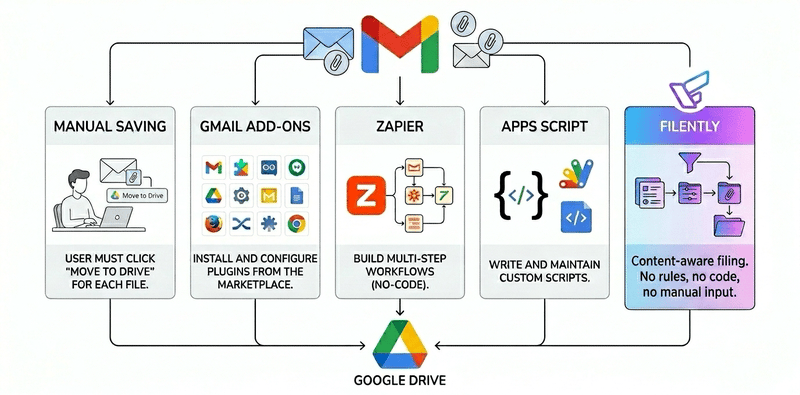
Quick answer: You can save Gmail attachments to Google Drive automatically four ways — the manual “Add to Drive” button (not really automatic), a Gmail add-on like cloudHQ or Save Emails, a no-code automation like Zapier or Make, or a Google Apps Script. All of them drop the file into a folder. None of them rename it based on what’s inside or file it by client. For that last step, you forward the email to a tool like Filently, which identifies the document, renames it, and files it in the right folder automatically.
Method 1: The Manual “Add to Drive” Button
Gmail has this built in. Open an email, hover over the attachment, and click the Google Drive icon. The file saves to your Drive.
What it’s good for: A one-off file, right now, with zero setup.
Where it breaks down: It’s manual, every single time. The file lands in the root of “My Drive” with whatever name it arrived with: invoice.pdf, scan_0042.pdf, document (3).pdf. You’re still left renaming and moving it by hand. If you get more than a couple of attachments a week, this isn’t a system. It’s a chore you’ll abandon by Thursday.
Method 2: A Gmail Add-on (No Code)
Add-ons like Save Emails and Attachments (Digital Inspiration) or Save Emails to Drive by cloudHQ run in the background and pull attachments into Drive automatically. You can target emails by label, sender, or subject keyword, and route them to custom folders.
What it’s good for: Hands-off saving without touching code. Rule-based routing (e.g. everything labeled “Receipts” goes to a Receipts folder) is genuinely useful.
Where it breaks down: Free tiers are capped. cloudHQ’s free plan covers roughly 50 emails a month, and the Save Emails add-on works in limited batches before you re-run it or upgrade. The bigger problem is that the file keeps its original name. The add-on moves invoice.pdf into a folder. It doesn’t turn it into 2026-06-15_AcmeCorp_Invoice-1052.pdf. You’ve automated the moving, not the organizing.
The main Gmail attachment add-ons compared:
| Add-on | Type | Routing by sender/label | Free tier | Renames by content |
|---|---|---|---|---|
| Save Emails and Attachments | Workspace add-on | ✓ label, sender, subject | Limited, then paid | ✗ |
| Save Emails to Drive (cloudHQ) | Chrome extension | ✓ by label | 50 emails/mo (150 MB cap) | ✗ |
| Save Bulk Gmail Attachments | Chrome extension | Bulk + auto Year/Month folders | Limited | ✗ |
| Quicktion | No-code workflow | ✓ + builds a folder structure | 25 emails/mo, then $12/mo | ✗ |
Look at the last column. Every one of them saves and routes attachments, and not one renames the file based on what’s inside or works out what the document actually is. That’s the same ceiling every method in this guide runs into, and it’s exactly what the naming and filing section below is about.
Method 3: No-Code Automation (Zapier, Make)
Tools like Zapier and Make let you build a rule: “when a new email arrives matching X, save its attachment to folder Y.” You can filter by sender, label, or subject, and send different senders to different folders.
What it’s good for: Flexible routing rules and connecting Gmail to the rest of your stack (Sheets, Slack, accounting tools).
Where it breaks down: Free tiers are tight. Zapier’s free plan gives you 100 tasks a month, and a busy inbox burns through that quickly; after that you’re on a paid plan. The rules are also only as smart as you make them. Zapier moves files based on conditions you define. It can’t open a PDF and work out whether it’s an invoice or a contract, and it won’t rename anything based on what’s inside. So you end up maintaining rules and still staring at scan_0042.pdf, just in a tidier folder. And anything that doesn’t match a rule slips through: an invoice from a new client, or one with a subject like “Please find attached,” never gets caught unless you’ve already built a rule for it.
Method 4: Google Apps Script (Free, But You Code)
If you’re technical, a Google Apps Script can search Gmail for attachments and save them to Drive on a schedule. It’s free and fully customizable.
What it’s good for: Total control, no per-task fees, runs inside Google’s own ecosystem.
Where it breaks down: You’re writing and maintaining code. Free Google accounts can only use time-based triggers (the script runs every hour, say), not the instant event-based kind, which need a paid Workspace plan. And when it breaks at 11pm the night before a deadline, debugging is on you. Like every method above, it saves the file. It doesn’t name or classify it for you.
How to Set It Up: Step by Step
The manual way (for a one-off file):
- Open the email in Gmail and hover over the attachment.
- Click the Google Drive icon that appears on it.
- Choose a destination folder (or let it default to “My Drive”) and confirm.
Done in seconds for a single file. For anything that arrives regularly, automate it instead.
Automatic saving by label (no code):
- Create the destination folder in Google Drive first, e.g.
Finance > Invoices > 2026. - Auto-label the emails. In Gmail, go to Settings → Filters and Blocked Addresses → Create a new filter. Match on sender, subject, or
has:attachment, then choose “Apply the label” and create a label likeInvoices. - Connect an add-on or automation. In a tool like Save Emails and Attachments or Zapier, create a rule: when an email gets the
Invoiceslabel, save its attachment to the folder from step 1. - Send yourself a test email with an attachment, apply the label (or let the filter do it), and check the file lands in the right place.
From then on, anything matching your filter saves automatically. Two catches remain, and they’re the ones this guide keeps circling back to: the file keeps its original name, and anything your filter doesn’t match still slips through.
Saving the file is half the job. Filently does the other half. Forward an email and Filently identifies the attachment, renames it, and files it in the right folder. Automatically.
First 25 documents free. 2-minute setup. No credit card needed.
The Step Every Method Skips: Naming and Filing
Here’s what every guide above misses. Saving an attachment to Drive solves storage. It does nothing for retrieval.
Three months from now, you won’t remember that the Q2 retainer agreement came in as contract_final_v2.pdf. Drive search can’t help you if the filename is meaningless and the file is sitting in a generic “Email Attachments” folder alongside 400 others. You’ve moved the mess from your inbox to your Drive.
What actually makes a document findable is the step these tools skip:
- Naming by content.
invoice.pdfshould become2026-06-15_AcmeCorp_Invoice-1052.pdf, a name you can search, sort, and recognize. A consistent naming convention is what makes a Drive searchable. The catch is applying it to every file by hand. - Filing in the right folder. Not one catch-all folder, but the actual destination:
Clients > Acme Corp > Invoices > 2026. That means knowing what the document is and who it’s for, which a keyword rule can’t work out. - Understanding the document. Telling an invoice from a contract from a receipt means reading the content, not matching the sender. This is the AI Google Drive organizer difference.
This is exactly why we built Filently. You forward a client email to your personal Filently address (or save the attachment to your Filently Inbox folder). Filently identifies what the attachment is, renames it to your convention, and moves it to the correct folder in your Google Drive. No rules to maintain, no code, no catch-all folder. The same approach works for scanned documents and downloads, so every document ends up named and filed the same way regardless of how it arrived.
The Methods Compared
| Method | Hands-off | Files in the right folder | Renames by content | Setup | Cost |
|---|---|---|---|---|---|
| Manual “Add to Drive” | ✗ | ✗ | ✗ | None | Free |
| Gmail add-on (cloudHQ, Save Emails) | ✓ | By rule | ✗ | Low | Free tier, then paid |
| Zapier / Make | ✓ | By rule | ✗ | Medium | Free tier (100 tasks/mo), then paid |
| Google Apps Script | ✓ | Only if you code it | ✗ | High (code) | Free |
| Filently (forward email) | ✓ | ✓ by content | ✓ | Very low | 25 docs free, then from $6/mo |
For organizing files already sitting in your Drive (not just incoming ones), automatic Google Drive file management handles the existing backlog too. For client documents specifically, one folder per client survives longer than one per project.
Frequently Asked Questions
Can I automatically save Gmail attachments to Google Drive?
Yes. The main options are a Gmail add-on (cloudHQ, Save Emails), a no-code automation (Zapier, Make), or a Google Apps Script. Each saves new attachments to Drive without manual clicking. If you also want each file renamed and filed in the right folder automatically — not just dropped into one catch-all folder — forward the email to a tool like Filently, which reads the attachment and files it by content.How do I save Gmail attachments to a specific folder by sender or label?
Add-ons and automation tools both support this. In Zapier or a Gmail add-on, you set a rule: emails from a specific sender, or carrying a specific label, save their attachments to a chosen Drive folder. Apply a Gmail label automatically with a Gmail filter, then point the rule at that label. The limitation is that routing is rule-based — one rule per folder — and the files keep their original names.What if an invoice arrives without the right label or keyword?
Then a rule-based setup misses it. Add-ons and automations only act on what matches your rules: a specific label, sender, or subject keyword. An invoice from a first-time client, or one with a vague subject like “Please find attached,” won’t be caught unless you’ve already built a rule for it. You can cast a wider net by saving every PDF attachment, but then everything lands in one folder, unsorted and still nameddocument.pdf. A content-based tool like Filently avoids this: it goes through each attachment and recognizes an invoice as an invoice regardless of label, sender, or filename.Where do saved attachments go in Google Drive by default?
The manual “Add to Drive” button saves files to the root of “My Drive” unless you move them. Add-ons and automation tools save to whatever folder you specify when you set up the rule. If you don’t specify one, most create a dedicated folder like “Email Attachments.”Is there a free way to do it?
Yes, with limits. Google Apps Script is fully free if you can write it. cloudHQ’s free plan covers around 50 emails per month; Zapier’s free plan gives 100 tasks per month; the Save Emails add-on processes in limited batches. Filently’s first 25 documents are free with no credit card. Beyond those caps, every option moves to a paid plan.Is there a file size limit?
Gmail itself caps outgoing messages at 25 MB, so very large attachments may arrive as Drive links rather than files. On the Drive side, a single file can be up to 2 TB. In practice, most business documents (PDFs, invoices, contracts) are well under any limit; very large files just take a little longer to process.Do I need Zapier or code to do this?
No. A Gmail add-on like cloudHQ or Save Emails handles automatic saving with no code and no Zapier. For automatic renaming and filing by content (not just saving), forwarding emails to Filently needs neither code nor a Zap — you set it up once and forward the email.Why do I get duplicate files, and how do I avoid them?
Duplicates usually happen when the same email is forwarded or processed more than once, or when an automation re-runs over emails it already handled. Avoid it by scoping rules tightly (a specific label applied once) and turning off “overwrite/reprocess” options. Tools that track what they’ve already filed don’t re-save the same attachment twice.The attachments save but still have useless names — how do I fix that?
That’s the core limitation of saving alone:invoice.pdf stays invoice.pdf. To fix it, you need a tool that reads the document and renames it by content, turning invoice.pdf into 2026-06-15_AcmeCorp_Invoice-1052.pdf and filing it in the right folder. That’s what Filently does after the attachment reaches your Drive.Stop saving attachments into a folder you'll never search. Filently identifies every emailed document, applies your naming convention, and files it in the right folder. Inside your existing Google Drive.
First 25 documents free. 2-minute setup. No credit card needed.