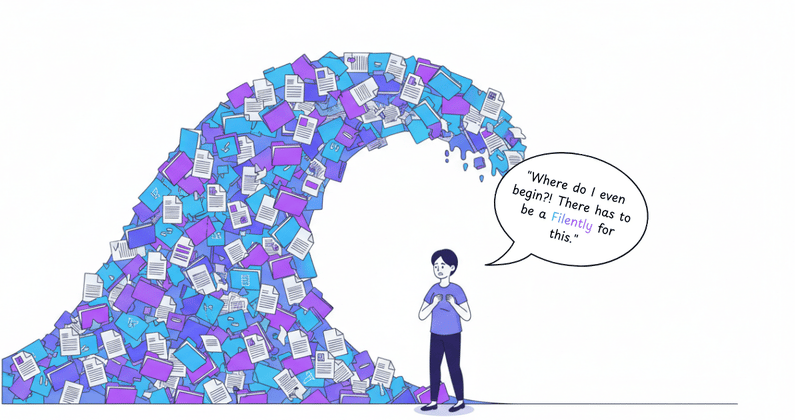
Your Google Drive has 47,000 files. You actively use maybe 200 of them. The rest? Downloads from three years ago, duplicate exports, old client projects, screenshots you took “just in case,” and PDFs you swore you’d read later.
It’s not that your Drive is messy. It’s that there’s just too much.
Quick answer: Too many files in Google Drive is a volume problem, not a deletion problem. Trying to delete everything leads to paralysis — most people can’t make the judgment call on each file, so nothing gets done. The fix is organizing your backlog in one pass (Filently’s Deep Clean, launching soon, will handle this automatically; CleanName works for smaller batches) and preventing new accumulation with automatic filing going forward. The goal isn’t fewer files. It’s files you can actually find.
The Volume Problem
This isn’t about finding files (though that’s hard too). It’s about the sheer accumulation. Every email attachment you save. Every export you download. Every duplicate copy “just to be safe.” They all pile up.
Before you know it, you’re at 10,000 files and rising. The thought of organizing it feels impossible. So you don’t. And the pile grows.
The real issue: It’s not the disorder. It’s being overwhelmed by volume you can’t mentally process.
Why Deleting Doesn’t Work
Your first instinct is to delete files. Clean slate. Start fresh.
But you can’t.
The paralysis: “What if I need this contract from 2022? What if this screenshot becomes relevant? What if I delete the wrong version?”
So you leave it all. The pile stays. The guilt of not dealing with it grows. You tell yourself you’ll sort it “this weekend,” but weekends come and go, and nothing changes.
Here’s the truth: Deletion requires perfect judgment. Organization just requires structure.
The Real Solution: Organize, Don’t Delete
You don’t need to delete 40,000 files. You need them organized so well that their volume stops mattering.
When files are properly named and filed:
- Old contracts live in a dated archive folder (you’ll never look at them, but you know where they are)
- Current client work stays accessible
- Random downloads get categorized automatically
- Duplicates become obvious (same name, same folder)
The volume doesn’t shrink. But it stops being overwhelming because everything has a place.
The shift: From “I need to delete all this” to “I need this organized once, then kept organized forever.”
Two-Part Strategy: Backlog + Prevention
Fixing too many files requires tackling both problems:
Problem 1: The existing backlog (10,000+ files already there)
Problem 2: New files constantly arriving (adding to the pile)
Most people try to solve Problem 1 (organize the backlog) but ignore Problem 2 (new files keep arriving). A month later, the mess is back.
You need both:
- Clean up the backlog (one-time effort)
- Automate ongoing filing (prevent new accumulation)
Seven automation routes compared show which ones hold up past the first week.
Start Small: CleanName for Quick Cleanup
If your backlog feels insurmountable, start with a small batch.
CleanName is a free web tool that renames files using AI. Upload 20-30 of your worst-named files (“document.pdf”, “IMG_4782.jpg”, “download (3).xlsx”) and see them get intelligent names.
Why this helps: Organizing 47,000 files is paralyzing. Organizing 30 files takes 2 minutes. Do that a few times and you start seeing progress.
The limitation: It’s manual. You’re still uploading batches and renaming one group at a time. For ongoing filing or massive backlogs, you need automation.
Filently: Clean the Backlog + Automate Forever
Filently solves both the backlog and the ongoing accumulation.
For your backlog: Filently’s Drive Cleanup processes your entire Drive in one pass, identifying each file, applying proper names, and filing everything correctly. Your 10,000-file chaos becomes a structured archive without you touching a single file.
For ongoing files: Every new document that arrives gets automatically renamed and filed in the correct folder via automatic Google Drive file management. No manual work. No pile-up.
One-time cleanup, then automation keeps it organized forever.
What Makes This Different
Works in your existing Google Drive. Files stay where you already work. No migration to a new system.
Learns your naming style. Filently analyzes your existing well-named files and matches that pattern. Or you define custom rules for different file types.
Privacy-first processing. GDPR-compliant, CASA Tier 2 certified. Files processed in EU cloud infrastructure. No permanent copies stored.
Handles everything. PDFs, Word docs, spreadsheets, images, invoices, contracts, receipts. Extracts dates, company names, amounts automatically.
10,000 files and rising? Filently stops the pile-up. Filently identifies every new document and files it automatically. Inside your existing Google Drive.
Nothing gets deleted, and your files stay in your Drive.
When Volume Actually Becomes a Problem
Not everyone needs to organize 47,000 files. Small accumulation is fine if you can still find what you need.
Volume becomes a problem when:
You spend more than 5 minutes searching for a file you know exists. You’ve stopped saving new files properly because “it’s already a mess anyway.” You avoid Google Drive entirely and keep everything in email or desktop folders. You’ve missed deadlines because you couldn’t find the right document version.
If any of these apply, your volume crossed the threshold from “a lot of files” to “overwhelming chaos.”
The Psychology of Too Many Files
The guilt is real. Every time you open Google Drive and see thousands of poorly named files, you feel it.
“I should organize this.”
“I’m so behind on filing.”
“I’ll clean this up this weekend.”
That mental weight — the constant low-level stress of unfinished digital housekeeping — is exhausting.
The relief comes from knowing it’s handled. Not from deleting everything (you can’t), but from having a system that keeps it organized without you thinking about it.
You don’t need fewer files. You need to stop thinking about file organization entirely.
Your Google Drive Doesn’t Need to Shrink
The goal isn’t 1,000 files instead of 10,000. The goal is finding what you need in 10 seconds instead of 10 minutes.
Organized volume is manageable. Files properly named, correctly filed, and structured logically don’t create stress — even if there are thousands of them.
Disorganized volume is paralyzing. 500 files with bad names in random folders feels worse than 5,000 files with clear structure.
The number doesn’t matter. The system does.
Frequently Asked Questions
Should I delete files or organize them?
Organize them. Deleting requires making a judgment call on every file (“will I ever need this?”), which leads to paralysis. Most people can’t bring themselves to delete anything, so nothing gets done. Organizing just requires structure: give every file a meaningful name and a logical home. Old files disappear into an archive folder you’ll probably never open, but you’ll know they’re there if you ever need them.Does Google Drive have a file limit?
Yes. Google Drive caps the total number of items (files and folders) you can store per account. Most users never hit the hard limit, but high file volumes noticeably slow down Drive search and performance long before that. The practical answer is that you don’t need to delete to solve a volume problem. You need organization that makes high volumes manageable.What's the fastest way to clean up a large Google Drive?
The fastest complete solution is a one-time AI cleanup: Filently processes an entire Drive backlog in a single pass, identifying and filing everything based on content. For smaller batches without a subscription, CleanName handles 20-30 files at a time for free. Manual sorting, folder by folder, works but is rarely realistic at 10,000+ files.How do I stop files from piling up again after I clean up?
Automate the incoming flow. Every new file that arrives without automatic filing is another chance for the pile to start again. Filently watches your Drive and handles every new document as it arrives: identifies it, renames it, and files it in the right folder. One cleanup pass plus ongoing automation means the problem doesn’t come back.Is it normal to have too many files in Google Drive?
Very common. Most people accumulate files over years of emailing, downloading, and syncing without a consistent filing system. By the time it feels urgent, tens of thousands of files is not unusual. The issue isn’t that you saved too much. It’s that nothing was organized as it arrived.Get it organized once. Never deal with this again. Filently identifies your documents, applies your naming convention, and files everything automatically. Inside your existing Google Drive.
Nothing gets deleted, and your files stay in your Drive.