Last updated: September 2026 · based on hands-on tests
renamed.to vs. Filently

A file renamer is nice. Automatic filing saves you time.

renamed.to lets you configure a filing system. Filently understands the one you already have — and files into it. Drop a receipt in, and it lands where it already belongs.

Get started, free Get a demo 25 documents free, no card. Files into your real Drive, so you judge the real outcome.
renamed.to answers

“What is this called?”

Renaming is renamed.to’s core job, and it does it very well, very cheaply, across three clouds and an API.

Filing is a configuration on top: you pick one destination folder, and it generates new subfolders inside it — by date, by company, by type. What it can’t do is file into the folder structure you already have. Asked to use ours, it built a copy of it — see the test.

Filently also answers

“Where does this belong?

Filently renames just as well — and then files smartly. Your existing folders are the destinations: each document is routed to its own right folder — invoices here, receipts there, contracts per client — no rules to configure, no destination to pick, no subfolders invented.

Both will name your files beautifully — call that a tie. What you’re really choosing is where your documents end up, and what you pay for it: renamed.to costs less per document, Filently puts each one where you’d have put it yourself. Why we think that’s worth it
What we tested — and what you should try yourself

Same Drive, same documents, both tools. Here’s what each one did.

The test. We used a Google Drive with an existing folder structure, including Supplier Bills/2026 and Card Receipts/2026. Both tools got documents from the same set and the same instruction: file them into the existing structure.

renamed.to

renamed.to filed into a copy. Every document landed in duplicated folders next to the originals.

  • Invoices into a copy of Supplier Bills/2026
  • Receipts into a copy of Card Receipts/2026
  • No existing folders touched. Nothing filed into the original structure.
After renamed.to — cloned structure
  • Supplier Bills yours — empty
  • Card Receipts yours — empty
  • Supplier Bills its copy — 8 invoices
  • Card Receipts its copy — 2 receipts

Choose renamed.to if you want clean filenames and you’re happy to file everything into one destination folder, such as Scans 2026. It does that reliably and cheaply.

Filently

Filently filed into the originals. Every document landed in the folders that already existed.

  • Invoices into Supplier Bills/2026
  • Receipts into Card Receipts/2026
  • No new folders, nothing duplicated, stable across three runs
After Filently — same structure
  • Supplier Bills / 2026 ✓ 16 invoices filed
  • Card Receipts / 2026 ✓ 7 receipts filed

Choose Filently if your documents belong in different places, invoices here, receipts there, contracts per client, and you want each one landing in its own folder automatically.

One organizes your structure. The other creates a clone of it.

Don’t take our word for it. Run the same test yourself. Both free tiers, your own folders, ten minutes.

Try it on your Drive
Setup

A tool you operate, or a service that runs.

For renamed.to, filing is a configuration — one rule, set up front, applied to everything. For Filently, filing is a decision made per document, from what the document is and what your Drive already looks like.

Before renamed.to files one document
  1. Share a Drive folder with their automation account
  2. Create a watched folder
  3. Pick one of nine folder strategies
  4. Pick a destination mode
  5. Pick a destination folder — and share that one too
  6. Pick a filename template
  7. Optionally write custom instructions
  8. Pick an output language
  9. Switch automation on

One destination per configuration. Invoices or receipts — not both. And you have to already know how you want everything organized.

Before Filently files one document
  1. Connect your Google Drive
  2. Grant Filently the Drive permissions it needs
  3. Upload documents, drop them in your inbox folder, or forward them by email

No strategy to pick, no template to write, no prompt to maintain. Filently looks at your existing folders — their names, their patterns, even the language you name them in — and routes each document individually.

Control

Nothing moves until you say so.

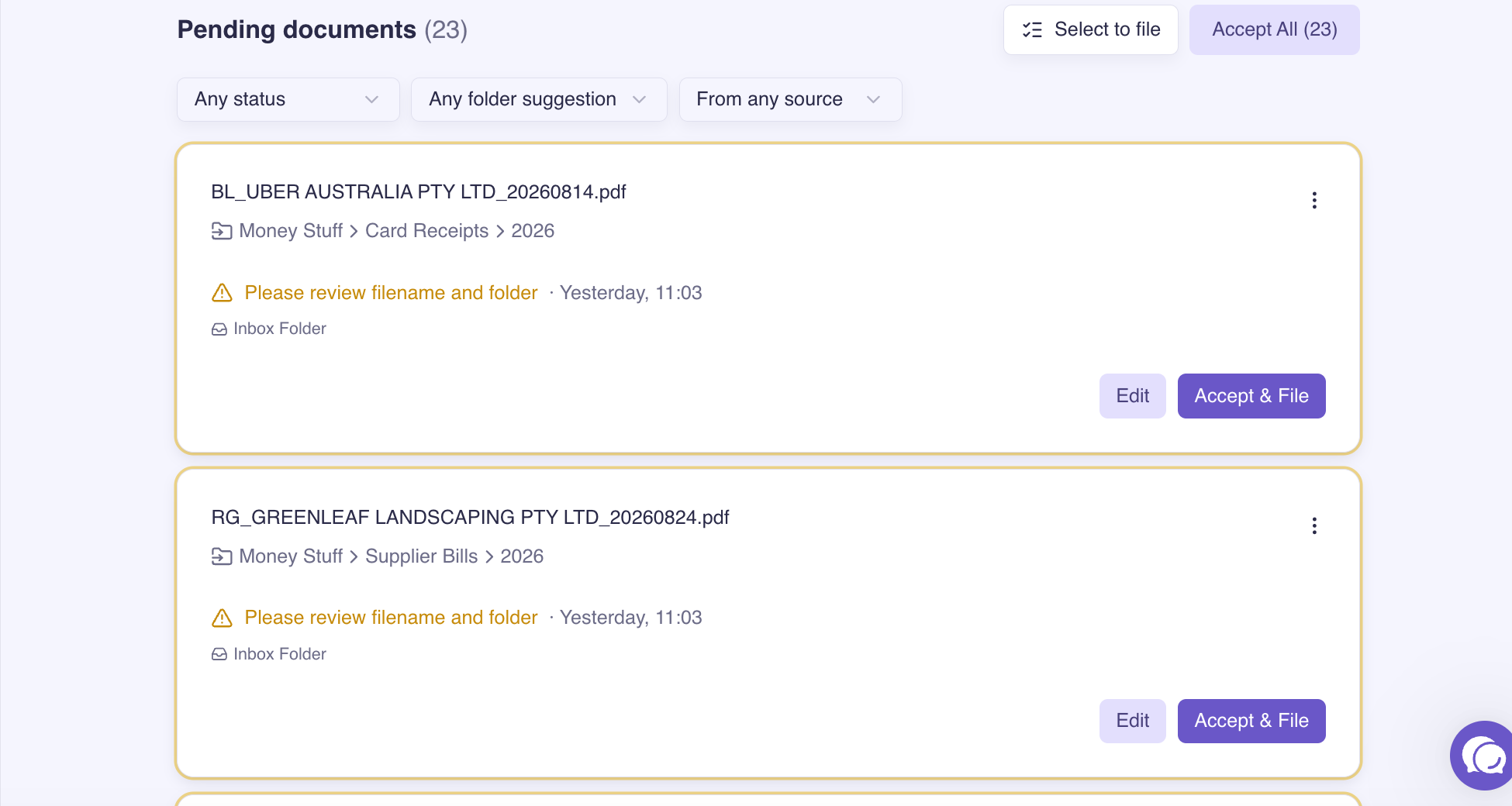
Handing your filing to software takes trust, and trust is earned. So Filently starts by showing you every decision before it acts. You switch on auto-filing when you’ve watched it be right often enough — not because a setup wizard told you to.

Filently review queue
Filently review queue: 23 documents waiting for approval, each with its suggested filename and the existing Drive folder it would be filed into

It asks first

Every document waits for your OK before it moves — that’s the default. renamed.to’s watched folder acts on its own once configured.

Confident, or it waits

Turn auto-filing on and it still only acts when it’s sure. Anything uncertain waits for your review.

Revert in bulk

Every move is logged before it happens and can be undone — the move and the name, one file or all of them at once.

Comparison

A fair comparison.

renamed.to is a good tool. Where it's ahead, we say so.

renamed.toFilently
File renamingAdvantage. Excellent — content-based names, templates, 20+ languagesAdvantage. Excellent — content-based names, your naming convention: set your own, or let Filently learn it from your existing files
Files into your existing folders~Only one: point it at a single folder (no subfolders) and it files there. Asked to use a whole structure, it duplicated every folder — leaving two of each, the originals emptyAdvantage. Yes — Filently knows your entire folder tree and works inside it. Every document lands in its own right folder, exactly where it belongs
Destinations it can address~One per configuration — invoices or receipts, not bothAdvantage. Any folder in your structure, per document
Setup before the first document~Nine decisions, plus sharing each folder with their automation accountAdvantage. Connect Drive, grant permissions, then upload files, drop them in the inbox or forward them by email
Approval~A configured watched folder acts automaticallyAdvantage. Your choice: manual review or auto-filing — and it only auto-files when confident
Undo~Per file, filenameAdvantage. Move and name, single or bulk
Security audit~Not externally audited by their own account — their security page says a third-party audit is on the roadmap. No CASA assessment is known to usAdvantage. CASA Tier 2, assessed by a Google-authorized lab
CloudsAdvantage. Google Drive, Dropbox, OneDrive — all live~Google Drive (deepest integration); others on waitlist
Free tierAdvantage. 50 documents per month, renewing~25 documents, once — into your real Drive
Developer toolsAdvantage. REST API, CLI, MCP server, local watcherNone — Filently is set-and-forget, not a toolkit
Old archivesAdvantage. Renames them where they sit — placing them is where we saw the duplicated foldersAdvantage. Upload them or move them into the inbox and they are renamed and filed into your existing structure. Reorganising the structure itself is coming soon

* Feature comparison as of September 2026, based on both products' documentation and our own hands-on tests in Google Drive. Details may change — check both products' current docs.

On price

Yes, they are cheaper. Here’s what you’re actually comparing.

renamed.to is genuinely cheaper per document, and per rename, that's a fair price. But renaming was never the expensive part of your paperwork. The expensive part is deciding where everything goes, and finding it again later.

The rename is cheap. The rest stays yours.

With a renamer, every document still needs a decision and a move by you, one at a time, forever.

Rules are a running cost.

Strategies, templates and prompts have to be written, maintained and rewritten every time your structure changes. Filently has nothing to maintain. It works from what’s already there.

The costliest document is the one you can't find.

A misplaced invoice at tax time costs more than a year of filing software. Where things land is the whole point.

So compare the cost per document: renamed, filed and found.

Who it's for

Filently is for you if…

You'd rather run your business than file paperwork

Invoices, receipts and contracts land in your inbox and get filed while you work. No Sunday-evening sorting sessions, no backlog guilt. Your documents simply end up where they belong.

Your Drive is already organized the way you like

You’ve spent years building that structure, and your accountant knows it. You want documents to land in it, not next to it, not in a generated copy of it. That’s exactly what Filently does.

You want set-and-forget, not another tool to manage

No strategy to pick, no template to write, no prompt to maintain. Connect your Drive once, then upload documents, drop them in the inbox or forward them by email. Done.

You're nervous about AI touching your files

Filently ships with auto-filing off, so nothing moves until you accept it. When you turn it on, it only acts when confident, and every move is logged and reversible in bulk.

Google Drive is where your business lives

Filently does one cloud, deeply, rather than three broadly. It understands your Drive’s folder patterns, even the language you use for them, and works entirely inside it.

Your procurement team needs an audit trail

Filently is CASA Tier 2 audited by a Google-authorized lab. For procurement, that distinction can matter.

Coming soon

Deep Clean: when your folders are the mess

Sometimes there’s no structure worth keeping. Deep Clean builds you a clean, new folder structure from what your documents actually are — then moves every file into it and names it properly. One pass, your whole archive. Join the waitlist and we’ll tell you when it ships.

Trust

What business owners say.

4.9/5G2 Average rating on G2
55,000+ Files renamed and filed
1,000+ Google Workspace users
"My bookkeeper prefers receipts named in a specific format and saved into folders by year and month. I simply typed into Filently what I wanted it to do, and it does it."
Raeleen M. Business owner · G2
"The customer support is hands-down some of the best I have ever experienced. Support jumped into the chat right away, pinpointed the issue and got me completely back on track within minutes. You rarely see this level of human, helpful service anymore."
Theo K. Director, small business · G2
"I love how Filently reads what is inside my files to rename them without me having to set up rules or remember to run anything.It uses my existing folder structure instead of forcing a new one."
Carly R. Small-business owner · G2
CASA Tier 2 audited
Security assessed by a Google-authorized lab
GDPR compliant
Built and operated in Switzerland
We never store your documents
Filently renames and files in place, in your own Drive
Already using renamed.to?

250 bonus documents when you switch.

There’s nothing to migrate. Your files are already in your Drive. Just connect Filently and let it start filing into the structure you already use. Start with 25 free documents, then get 250 bonus documents when you switch to a paid plan.

Want the 250 bonus documents? Just send us a short message in the chat after you switch — we’ll unlock the bonus credits for you.

FAQ

Fair questions.

renamed.to is cheaper. Why pay more for Filently?

It is, and if all you need is AI-powered file renaming, that's a fair price. Filently goes further: it renames your documents and files them into the Google Drive structure you already use. No duplicate folders, no filing rules to maintain, no new structure to clean up later.

You're paying for the filing, not just the filename.

Can Filently organize files into my existing Google Drive folders?

Yes. That's the core difference.

Filently recognizes your existing Google Drive folder structure and identifies where different documents belong. Invoices go where your invoices already live, receipts where your receipts already live, and contracts where you keep contracts.

You don't have to rebuild your Drive for Filently. Filently works with the structure you already have.

Does Filently rename files too?

Yes. Filently identifies what's in each document and creates useful, consistent filenames based on your filing context.

You can let Filently learn your existing naming convention or use your own preferred convention.

Renaming and filing happen together, so documents are easier to find later.

Do I have to create rules, prompts or templates?

No.

There is no filing strategy to design, no template language to learn and no prompt to maintain. Filently recognizes the structure already in your Google Drive and uses it to determine where documents belong.

Connect your Drive once, then upload documents, drop them into the inbox or forward them by email. Done.

Can I describe my folder structure to Filently instead?

You can, but you don't have to.

With a prompt-based system, you're responsible for describing your filing logic and keeping that description up to date when your structure changes. Filently recognizes the structure that's already there.

Your folders are the instructions.

Does Filently create new folders?

Yes, when needed. Filently primarily works with the folder structure you already have and uses existing folders whenever there is a suitable place for a document.

If no suitable folder exists, Filently can create one. What it doesn't do is clone your existing folder structure or create duplicate folders next to the originals.

Your existing Drive stays your source of truth, while new folders are only created when your filing system actually needs them.

Will Filently move my files automatically?

Not unless you want it to.

Auto-filing is off by default, so documents wait for your approval. If you enable auto-filing, Filently only files documents when it is sufficiently confident. Uncertain documents wait for review.

Every move is logged and can be reverted, including in bulk.

What happens if Filently files something incorrectly?

You stay in control.

You can review proposed filing actions before they happen, and Filently keeps an activity log so you can see what changed. Files can also be reverted, individually or in bulk.

Nothing is filed behind your back.

Where are my documents stored?

In your Google Drive, where they already are. Filently renames and files them in place — we never store the document itself, and there is nothing to export if you stop using us.

Identifying what a document is does require its content to be processed, which is true of every AI filing tool. That content is never used to train AI models.

How is Filently different from renamed.to?

Both tools can rename documents using AI. The bigger difference is where they file them.

renamed.to is built around configuring where files should go. Filently recognizes the folder structure that already exists in your Google Drive and files documents into those existing folders.

Same goal, different approach: build a filing system vs. work with the one you already have.

When is renamed.to the better fit?

If you mainly want clean filenames, need to send files to one defined destination, or want to work across multiple cloud storage providers, renamed.to may fit your workflow well.

Filently is built for a different use case: you already have a Google Drive structure and want documents automatically renamed and filed into the right places within it.

Does Filently work with Dropbox or OneDrive?

Filently is currently focused on Google Drive, where it has its deepest integration. Dropbox and OneDrive support are on the roadmap.

If working across several cloud storage providers is essential to your workflow, this is an important difference to consider.

I'm not technical. How much do I have to learn?

Very little.

There are no rules to build, no prompt language to learn and no filing strategy to design. Connect your Google Drive, upload documents, put them in the inbox or forward them by email, and review the results when you want to.

Your folder structure does the explaining.

Can Filently organize documents I already have?

Yes. Upload your existing documents or move them into your Filently Inbox and Filently processes them just like new ones: each document is renamed and filed into the folder where it belongs.

And if your existing Drive needs a bigger reset: Deep Clean will go one step further and reorganize the folder structure itself. Coming soon.

Try it on your real Drive

25 free documents, filed into your existing folders. See for yourself whether each document lands where you'd have put it.

Get started, free Get a demo

Filed in your own Drive · Auto-filing off by default · Every move logged and reversible