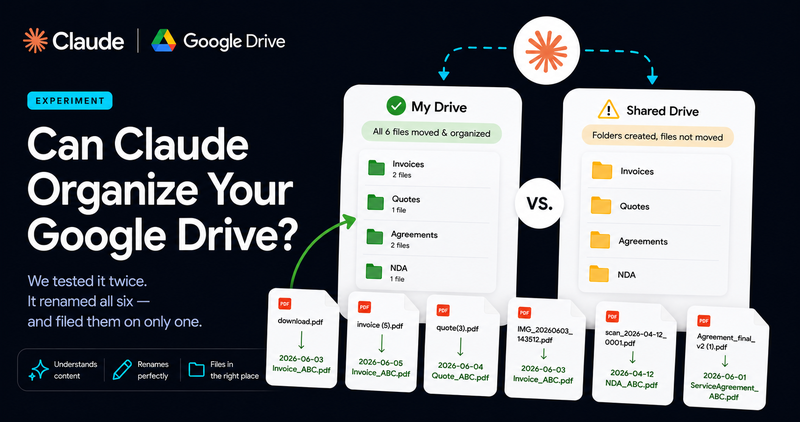
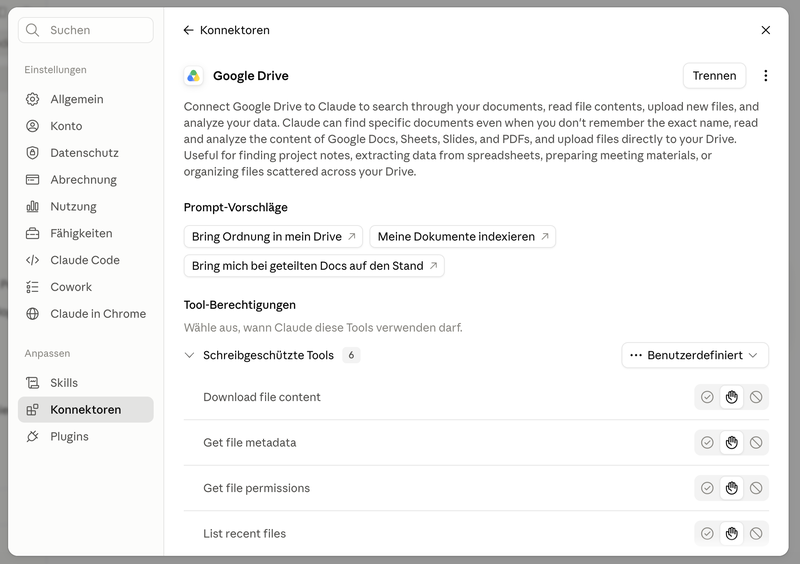
In August 2026, Claude was given permission to change things inside Google Drive. Not just open your documents — share them, move them between folders, put them in the trash. Anthropic advertises the filing use case directly: “Move last quarter’s planning docs into the archive folder” and “Share the launch brief with the marketing team” are listed as example tasks on the connector’s own page, and the connector panel in the app offers a tidy-my-Drive starter prompt.
So we took it up on that.
We built a folder with six documents, named the way documents are really named once they have passed through a scanner, a download folder and a colleague: download.pdf, invoice (5).pdf, quote(3).pdf, IMG_20260603_143512.pdf, scan_2026-04-12_0001.pdf, Agreement_final_v2 (1).pdf. Three invoices, one quote, one NDA, one service agreement. Then we asked Claude to rename them by content and sort them into subfolders.
We ran the identical test twice: once in a shared drive, once in My Drive. The results were different, and that difference turned out to be the most useful thing we learned all week.
📌 TL;DR: Claude renames Drive files genuinely well. It opens each document, works out what it is, and applies a convention you choose. Moving files works in My Drive. In a shared drive it created the folders and then could not move a single file into them. And in neither case does it act on its own when a new document arrives.
| My Drive | Shared drive | |
|---|---|---|
| Identify what a document is | ✅ | ✅ |
| Rename files by content | ✅ | ✅ |
| Create folders | ✅ | ✅ |
| Move files into them | ✅ | ❌ |
| File new documents on arrival | ❌ | ❌ |
| Keep one convention across sessions | ❌ | ❌ |
What Claude got right
Start with credit, because it earned it.
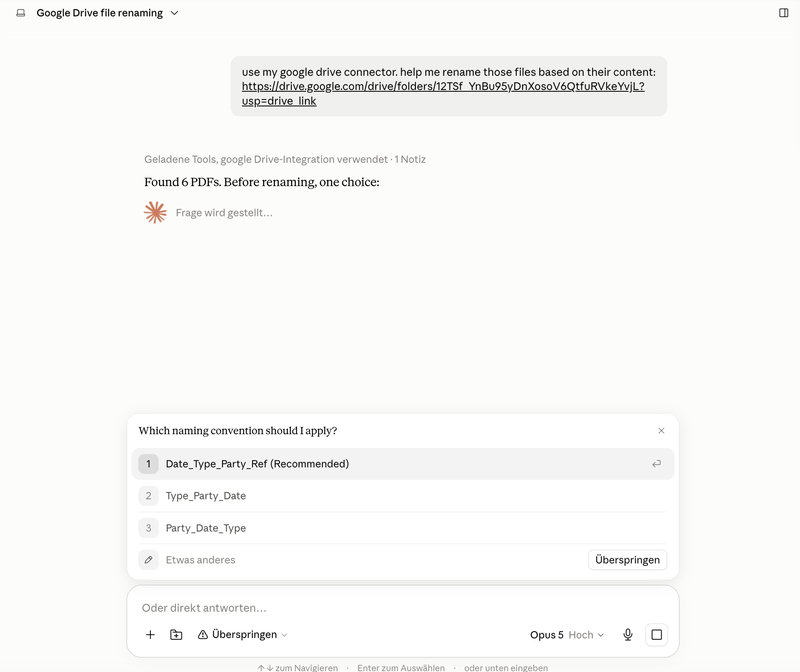
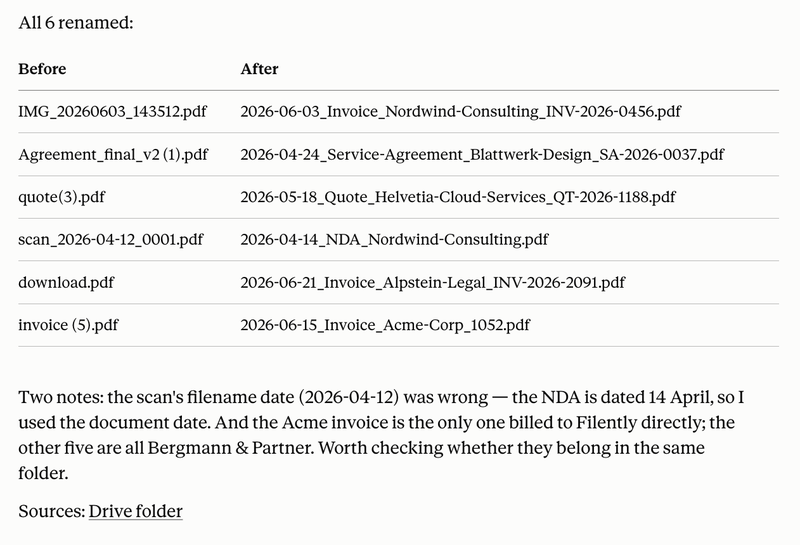
Before touching anything, Claude asked which convention to use and offered three: Date_Type_Party_Ref, Type_Party_Date, Party_Date_Type. We took the first. Then it opened all six PDFs and renamed them:
| Before | After |
|---|---|
IMG_20260603_143512.pdf | 2026-06-03_Invoice_Nordwind-Consulting_INV-2026-0456.pdf |
Agreement_final_v2 (1).pdf | 2026-04-24_Service-Agreement_Blattwerk-Design_SA-2026-0037.pdf |
quote(3).pdf | 2026-05-18_Quote_Helvetia-Cloud-Services_QT-2026-1188.pdf |
scan_2026-04-12_0001.pdf | 2026-04-14_NDA_Nordwind-Consulting.pdf |
download.pdf | 2026-06-21_Invoice_Alpstein-Legal_INV-2026-2091.pdf |
invoice (5).pdf | 2026-06-15_Invoice_Acme-Corp_1052.pdf |
Look at the fourth row. The file was called scan_2026-04-12_0001.pdf, but the NDA inside it is dated 14 April. Claude noticed the mismatch, said so, and used the date from the document rather than the one in the filename. That is the kind of thing a rule-based renamer gets wrong every single time.
It also volunteered something we had not asked about: five of the six documents involve Bergmann & Partner, while the Acme invoice is billed to us directly, and worth checking whether they belong in the same folder. That is a reasonable question, and a good one.
This part of the job, Claude does properly. Anyone telling you these tools just pattern-match filenames has not tried this.
Where it stopped
Then we asked for the second half: sort them into subfolders.
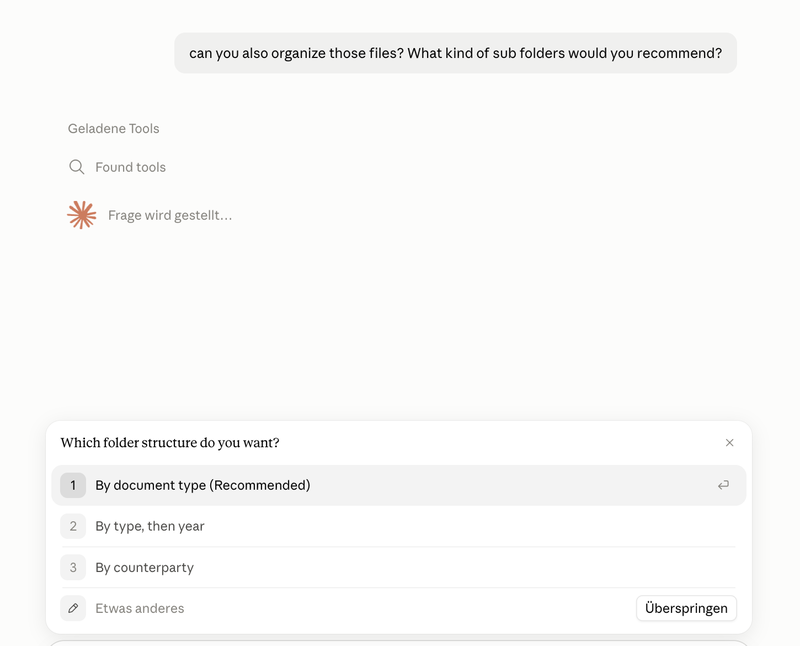
Claude proposed three structures: by document type, by type then year, or by counterparty. We picked document type. It created Invoices, Quotes and Contracts.
And then nothing moved.
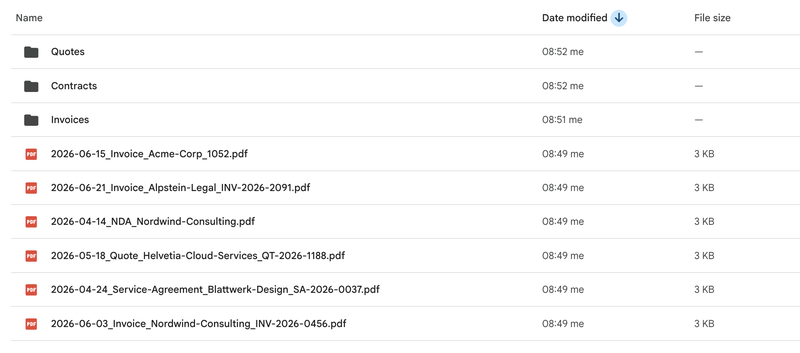
That is the actual result: three new, empty folders, and six beautifully named files sitting next to them at the root of the drive. Every file had been given a name that says exactly what it is. Not one of them was in the right place.
Why the move failed
Claude’s own diagnosis was more useful than we expected, so we checked it against Google’s documentation.
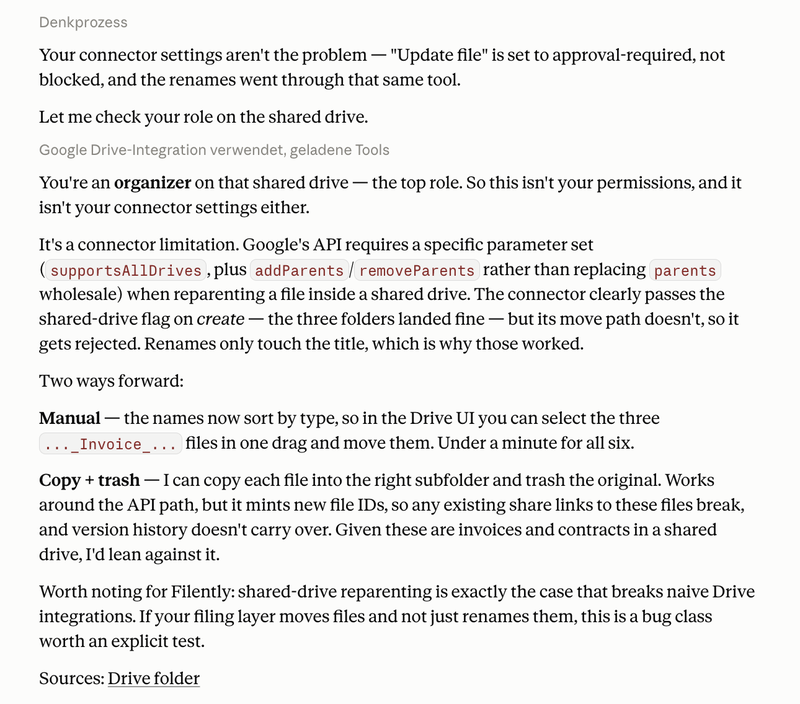
Moving a file in Google Drive is not a move in the filesystem sense. Every file has a parent folder, and moving it means changing that parent. For files that live in a shared drive, Google’s API requires two things: the request has to declare that the application supports shared drives, and it has to add and remove parents individually instead of replacing the parent list wholesale.
The folder creation worked, so part of the connector clearly handles shared drives correctly. The move was rejected every time. Renaming only touches the title and never the parent, which is exactly why renaming sailed through while filing did not.
We should be precise about what we can and cannot claim here. We can see the behavior: create works, rename works, move fails, consistently, in a shared drive where our account holds the top role. We cannot see Anthropic’s code, so we cannot tell you which line is missing. What we can say is that the behavior matches the documented shared-drive requirement not being met on the move path.
It is also worth ruling out the obvious explanations, because we did. It is not a permissions problem: the account is an organizer on that drive, the highest role there is. It is not a connector setting — “Update file” was set to approval-required rather than blocked, and the renames went through that same tool.
The same test in My Drive
Then we ran it again, same six files, same prompt, in a personal My Drive.
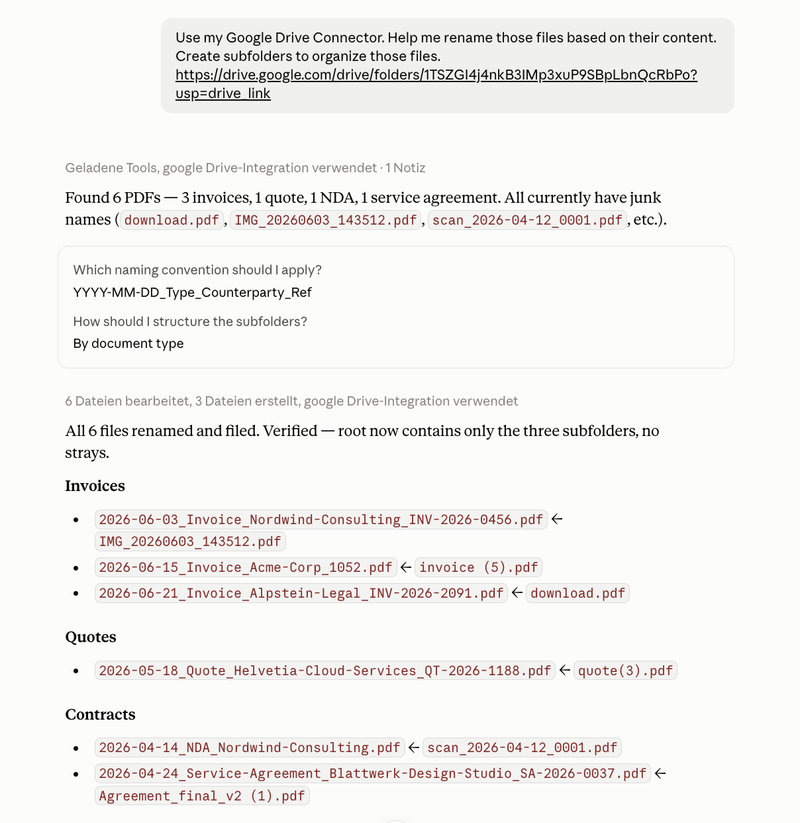
It worked completely. Six files renamed, three folders created, every file moved in. Claude even checked its own work afterwards: “Verified — root now contains only the three subfolders, no strays.”
So the honest headline is not “Claude cannot move files”. It is narrower and more awkward than that:
It works where one person works alone, and fails where a team works together.
Shared drives are not an edge case. They are where client files, contracts and invoices live in any company with more than one person in it.
The problem a bug fix will not solve
Now compare the two runs closely. Here is the same document, from the same starting file, under the same naming convention:
| Run | Result |
|---|---|
| Shared drive | 2026-04-24_Service-Agreement_Blattwerk-Design_SA-2026-0037.pdf |
| My Drive | 2026-04-24_Service-Agreement_Blattwerk-Design-Studio_SA-2026-0037.pdf |
Blattwerk-Design in one run. Blattwerk-Design-Studio in the other. Both defensible. Both correct, in isolation. But they are not the same name, and we did not change a thing between the runs.
Across six files that is a footnote. Across six hundred, filed over eighteen months in a dozen separate conversations, it is the reason a search for “Blattwerk” returns some of your documents and not the rest. The entire value of a naming convention is that it is the same convention every time. A tool that decides afresh in each session cannot deliver that. Not because it is bad at the job, but because nothing carries the decision from one conversation to the next.
Which is the other thing those screenshots show. Claude asked us “Which naming convention should I apply?” and “How should I structure the subfolders?”. It will ask again next month, and you will answer from memory. Your filing convention lives in a chat history, not in the system.
The shared-drive limitation is a bug, and bugs get fixed. This one does not get fixed, because it is not broken.
It runs on a clock, not on arrival
There is one more gap worth knowing about before you plan a workflow around this.
Claude can run a Drive workflow on a schedule. Anthropic describes it as keeping “a regular scan for new unsorted files and duplicates”. What it cannot do is react to something happening: there is no trigger that fires when a document lands in a folder. Nothing watches the drive.
One clarification, since it gets conflated: Claude Code routines do support event-driven triggers. That is the developer tooling, not the Google Drive connector inside Claude. If you have read that Claude supports event triggers, that is what was meant.
The practical difference is the invoice that arrives on Friday evening. With a scan on a schedule it waits for the next run. With no schedule set, it waits until someone remembers to open a chat and ask.
What Claude is better at
A comparison that only ever scores points is not worth reading, so here is the other side.
Judgment in the individual case. The Bergmann & Partner observation is a genuinely good catch, and it came unprompted. When a document does not fit the pattern, a conversation is a good place to work out what to do with it.
Anything that is not filing. “Find everything related to the Nordwind deal and summarize it” is not a question a filing tool answers. Searching and reasoning across your documents is what Claude is for, and it is very good at it.
One-off jobs at a manageable size. If you have fifty files to sort out once, open Claude and sort them out. You do not need a filing system for that, and we would rather tell you so. There is a ceiling on that, and it arrives earlier than you would expect. More on that below.
What this means for filing
The split in our test is not really about Claude at all. It is the difference between tidying up and staying tidy.
Tidying up is an event. You do it, it feels good, and the folder is clean on Tuesday afternoon. Staying tidy is a state, and it depends entirely on what happens to the next document: the one that arrives while you are in a meeting, from a client, at 18:40 on a Friday. Nothing in a chat-based workflow touches that document until you next think to mention it.
That is the layer we build. Filently sits on your Drive and processes each document as it turns up: it identifies what the document is, applies one naming convention rather than this week’s, and files it in the right folder. It works in shared drives, including moving files into them, the exact operation that stopped our test. You can send documents in by dropping them into your Filently Inbox folder or by forwarding them to your Filently email address, which is two taps from your phone and does not require opening anything.
It also takes a different approach to uncertainty than a chat does. Rather than asking you to describe a convention up front, it learns the structure your Drive already has and proposes the most likely folder. Click edit and you see the next most likely locations, ranked. Alongside that there is a preview mode before anything happens, an activity log of what did happen, and an undo button. That is a meaningfully different experience from issuing a command and going to look at your Drive to find out what changed.
Want your Drive to organize itself? Filently names and files every document the moment it arrives. In My Drive and in shared drives, with the same naming convention every time.
First 25 documents free. 2-minute setup. No credit card needed.
If what you actually have is a Drive that went chaotic years ago, that is a different job again: a one-time restructure rather than a stream of new documents. It is also where the conversational approach stops scaling, and our own test points at the reason.
Six files fit in one conversation. A few thousand do not. Claude has to work through them in batches, and every batch is a fresh decision about what to call things. That is the drift we measured between two runs, now repeating between batch three and batch eleven and compounding across a whole drive instead of one service agreement. Nothing carries the structure you agreed in the first batch into the seventh. Add an approval prompt per action, or the choice to switch approvals off across thousands of files, and a one-prompt cleanup has quietly become a project. We tested six files, not six thousand, so read this paragraph as reasoning from what we measured rather than as a second experiment.
That is the job Deep Clean is built for, and it is launching soon. A good folder structure cannot be decided file by file. It needs context on the whole drive at once: which document types actually occur, which clients keep coming back, where your existing structure already works and should be kept. Deep Clean will work that out across everything you have, propose a structure, and leave the decisions with you. Once the structure is in place, every new document is filed into it as it arrives, so the drive does not drift back to the state you started from.
So, can Claude organize your Google Drive?
Claude can now genuinely change things in your Google Drive, and the renaming is better than we expected. Good enough that we would happily point someone at it for a one-off cleanup of a personal drive.
Two things to know before you rely on it. In a shared drive it created our folders and then could not file anything into them, so check your own case before assuming the job is done. And it decides your convention fresh in every conversation, which over a year produces a drive that is organized in several different ways at once.
If you want to see how the same limitation shows up on Google’s own assistant, we ran a similar set of tests on Gemini in Google Drive. And if you are setting a convention for the first time, our guide to file naming conventions is the place to start, whoever ends up applying it.
Frequently Asked Questions
Can Claude move files in Google Drive?
Yes, in My Drive, on a paid plan. Searching and reading work on every plan including Free; Anthropic describes the release that added the write actions (share, move, trash, rename) as available on all paid plans, so Pro, Max, Team, or Enterprise. Claude asks for your approval before each action by default. In our test it moved all six files into the folders it had created. In a shared drive the same request failed: Claude created the folders, then could not move a single file into them.Why can't Claude move files inside a shared drive?
Moving a file in Google Drive means changing its parent folder. For files in a shared drive, Google’s API requires the request to declare shared-drive support and to add and remove parents individually rather than replacing the parent list. In our test the folder creation worked, which means part of the connector handles shared drives correctly, but the move was rejected every time. Renaming only changes the title, never the parent, which is why renaming worked in both drives.Can Claude rename Google Drive files based on their content?
Yes, and it does it well. Claude opened each PDF, worked out what the document was, and applied the naming convention we picked. It also corrected a scan whose filename date did not match the date inside the document, and pointed out that five of six documents involved the same counterparty while one did not.Can Claude organize a shared drive?
Partly. In our test Claude read the documents, renamed all six, and created the three folders we asked for, but it could not move a single file into them. Folder creation and renaming worked; filing did not. This may change as the connector develops, so check the result yourself rather than assuming that created folders mean filed documents.Does Claude organize new files automatically when they arrive?
No. Claude’s Drive workflows run on a schedule (a regular scan for unsorted files), not on an event. There is no trigger that fires when a document lands in a folder. Claude Code routines do support event-driven triggers, but that is developer tooling, not the Google Drive connector in Claude.Is it safe to let Claude move and trash files in Google Drive?
Claude asks for approval before each action by default, which is the safe setting. You can switch actions to run without asking, and on Team and Enterprise plans admins decide whether members are allowed to. Turning approval off gives a general-purpose assistant unconfirmed delete rights across everything you have connected, driven partly by the content of the documents it opens. That is a wider permission than a filing tool needs.What is the difference between Claude and a filing tool like Filently?
Claude is an assistant you give a task to. It organizes when you ask, using the convention you describe in that conversation. Filently is a layer that runs on your Drive: it processes each document as it arrives, applies one convention consistently, and files it, including inside shared drives. For a small batch that needs sorting once, Claude does the job well. A whole drive is a different problem: it has to be worked through in batches, every batch decides the naming afresh, and nothing carries the structure from the first batch into the seventh. That is the job a filing tool is built for, and it is why Claude is not the safer choice for a large reorganization.Try it on your own Google Drive. Connect your Drive and watch your next document get named and filed automatically. See every change before it happens, and undo anything you disagree with.
First 25 documents free. 2-minute setup. No credit card needed.