You ask Gemini in Google Drive what your current rate is, and it tells you the rate varies across the documents in your files. Or it can’t find a file you are looking straight at in the same window. Neither is random. There is a documented list of reasons a file never makes it into an answer, and a second, undocumented set of rules that decides what happens when two files disagree.
This is worth understanding now because the feature stopped being optional. Ask Gemini and AI Overviews in Drive went generally available in April 2026, the overviews reached mobile in June, and searching a Shared Drive now often puts a generated answer above the list of files. People are already acting on those answers.
Five documented reasons a file doesn’t make it into the answer
It’s too big. Drive extracts 1 MB of text from a file to make it searchable. Anything past that point isn’t searchable, so it isn’t available to an answer either. There are per-type size caps on top: roughly 10 MB for most formats, 20 MB for XLSX, 30 MB for PDF. Google documents these as the conditions for a file being searchable at all, and files over the limit “are not searchable and won’t appear in your search results.”
It’s a long PDF. Drive doesn’t index any PDF larger than 50 MB or longer than 80 pages. A 120-page scanned lease, a full loan package, a year of bank statements merged into one file: normal documents in real estate, legal, and bookkeeping work, and all of them past the line.
It’s a scan, past page 80. Optical character recognition in PDFs stops at 80 pages. Before that point a scan is text. After it, the pages are pictures as far as search is concerned. Nothing tells you where the cutoff landed in your document.
It’s the wrong file type. When you attach sources to a question, Google supports Docs, Sheets, Slides, and PDFs. The .docx a client emailed, the .zip of scans, the .eml exports, the CAD drawings: not sources. Summaries in Drive reach a little further, into videos and images, but the sources feature is the narrow one.
Gemini can’t reach it, even though you can. This is the one that surprises people. Gemini has exactly your access, so files nobody shared with you are out. Beyond that, Google is explicit: if a file’s owner doesn’t allow you to download, copy, and print it, Gemini can’t access it even when the file is shared with you. Files carrying Information Rights Management protection aren’t retrieved to generate a response, and Data Loss Prevention rules can apply that protection automatically. Content under client-side encryption is, in Google’s own words, indecipherable to generative AI assistants.
There’s a sixth cause that isn’t about the file at all. Google states that Gemini analyzes only one folder at a time, and that “the response that Gemini provides might not include every file in your selected folder.” The context window adds another edge: with too many sources, or sources with too much text, “Gemini might base its response on some, but not all, of the content.” No warning appears when this happens. You get a complete-looking answer built from part of the material.
These are the AI-specific limits, sitting on top of the ordinary ones. Plain Drive search comes up empty for its own reasons, and the two overlap more than you’d expect: a file that search can’t match is usually a file an answer can’t use either.
An answer is only as good as the files behind it. Filently names and files every document as it arrives.
Runs inside your existing Google Drive. No migration.
What happens when two of your files disagree
The limits above explain a file that’s missing. They say nothing about the more common situation: Drive finds several documents, and they contradict each other. Which one becomes the answer?
Google doesn’t document this, so we tested it.
The setup. Three versions of a consulting price list in one folder: Price List 2024, Price List 2025, Price List Current. Every figure appears exactly once across the three documents, so any answer identifies the file it came from. We asked two questions, each in a fresh conversation, with Gemini scoped to that folder:
- What is our current implementation day rate?
- What is the rush delivery surcharge?
Then we varied two things independently. Whether the documents stated their own validity in the text (“Effective: 1 January 2026 until further notice. Supersedes: Price List 2025”), and whether the filenames carried any meaning, by renaming them to Price List, Price List (1), and Price List copy. In every run we also opened the outdated 2024 list and typed a character, making the wrong document the most recently modified file in the folder.
What came back:
| Documents state their validity | Filenames say something | Result |
|---|---|---|
| Yes | Yes | Correct answer, current list cited |
| Yes | No | Correct answer, current list cited |
| No | Yes | Correct answer, current list cited |
| No | No | No answer |
All three of those rows produced a correct answer, for different reasons. When the text carried the date, the filenames made no difference at all: with the files called Price List, Price List (1), and Price List copy, Gemini still answered correctly and explained that the current rate was “effective as of Jan 01, 2026 … superseding the 15% rate applied in previous years.”
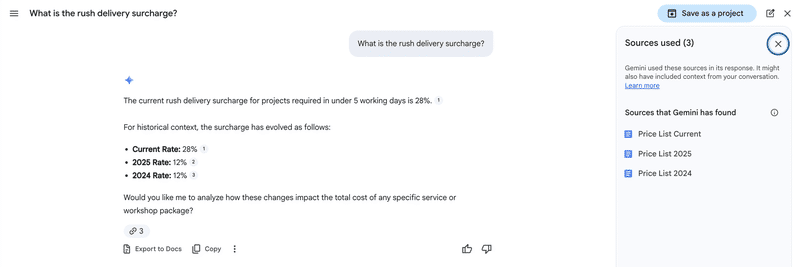
Row three is where it gets interesting. We stripped every date and year out of the documents, leaving the filenames as the only signal. Gemini still answered correctly, and then gave itself away: asked about the surcharge, it broke the values down as “Current Rate,” “2025 Rate,” and “2024 Rate.” Those years existed nowhere in the text. It had read them off the filenames.
The fourth row is the one worth sitting with. No dates in the documents, no meaning in the names. Gemini stopped answering:
The current implementation day rate varies across the different price list versions available in your files: Price List (1): EUR 1,860. Price List: EUR 1,540. Price List copy: EUR 1,310.
Would you like me to help draft an email to the Commercial Operations team to clarify which of these price lists is currently active?
On the second question it reported a range from 12% to 28% and noted “a notable conflict between the documents.”
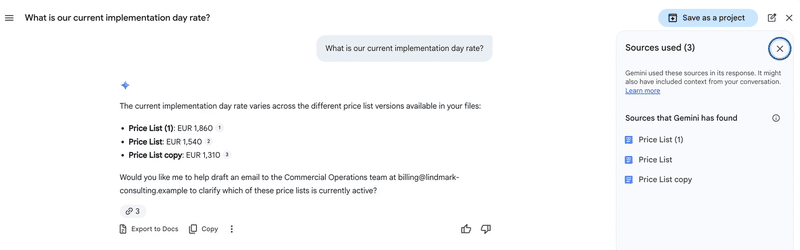
Credit where it’s due: Gemini recognized the conflict and said so, rather than inventing a number or quietly picking one. But look at what it offers instead of an answer. Ask a colleague. That is the exact problem an assistant over your documents is supposed to remove, handed back to you with a citation list attached.
One more result, and it surprised us. In all four runs the outdated 2024 price list was the most recently modified file in the folder. It never once won. “Most recently edited” is the instinct nearly everyone has about how these systems decide what’s current, and it was the single signal that did nothing.
This was four runs over three documents in one folder on one account. It’s a small test, not a study, and it’s reproducible in twenty minutes if you want to check it. What it establishes is a plain order of precedence: Gemini resolves which version is current from the document text first, from the filename second, and from nothing else.
What that means for how you file things
There’s a tidy story going around that AI makes file naming urgent: name things properly and the AI understands your business. Google’s own guidance points away from it. Drive’s help on searching with Gemini makes the point that “you can search with everyday phrases instead of exact file names or keywords,” and nowhere does Google claim that naming improves answer quality.
Our test says something narrower and more useful. What a filename supplies is the fallback signal the model reaches for when a document doesn’t date itself, and most documents don’t. The reasoning behind the answer is unchanged either way. A signed contract rarely says which agreement it replaces. A price list exported from a billing system carries no supersession line. A scanned invoice says nothing about which of the three copies in your Drive is the one you sent.
That leaves three things worth doing, in order of effect:
Put the validity in the document where you can. For anything you author, a line saying what it is and when it takes effect is the strongest signal there is, and it survives every rename, copy, and download. It’s also the cheapest to add.
Name files so the name carries the date and the subject. For everything you receive rather than write, the filename is the only lever you have, and our third run shows Gemini uses it. 2026-03-14_Meyer_Invoice.pdf tells the model, and you, what document (7).pdf does not. Which pattern you pick matters far less than applying the same one every time, and a handful of conventions cover most cases.
Keep one current version findable. Gemini works on one folder at a time, so scoping a question to the right folder is the single most effective thing you can do for answer quality. That only works if a folder holds what its name promises, with superseded copies moved somewhere else.
None of those three is about Drive’s own tooling. If the question is which tool does the filing rather than how you write the file, seven approaches compared is the wider view.
A reasonable week of work
- Pick the three questions your team actually asks. “What did we agree with this client?” “What’s the current price list?” “Where is the signed version?” Those decide what has to be findable.
- Give each one a folder that means something, and put the current documents in it.
- Deal with duplicates in those three areas only. Superseded versions go into an
Archivesubfolder. Don’t attempt your whole Drive. - Check the outliers. Scans over 80 pages, PDFs over 50 MB, anything with download restrictions. Those files won’t behave the way you expect, and now you know why.
- Ask Gemini your three questions and open every citation. You’ll learn more about your Drive in twenty minutes than from any audit.
- Then decide what happens to new documents, because steps 2 and 3 undo themselves within a quarter otherwise.
That last point is the whole trouble with one-time cleanups. The Drive you tidy in August drifts back by November, and the drift comes from ordinary work: a scan, a download, a forwarded attachment, each landing with whatever name the sender gave it.
Filently handles that layer. It watches where documents land in your Drive, works out what each one is from the content, applies the naming rules you set once, and puts the document where it belongs. My Drive and Shared Drives both, practically any language, and nothing ever leaves Drive. Whatever it can’t place with confidence waits in Pending Documents until you confirm it.
Gemini’s reasoning stays exactly the same either way. What changes is whether it has anything to go on: a folder you can aim a question at, a name that carries the date, and one version per document that is clearly the current one. Our fourth run is what the alternative looks like, and it ends with an offer to email a colleague.
Google will keep making Drive somewhere you ask rather than somewhere you browse. The AI features already run across every Workspace app, and Google’s own file-organizing feature shows where this is going. What those answers are built from stays your job.
Common Questions About Gemini and Your Google Drive Files
Why can't Gemini find a file that's clearly in my Google Drive?
There are five documented causes. The file is bigger than Drive’s searchability caps (around 10 MB for most types, 20 MB for XLSX, 30 MB for PDF). It’s a PDF over 50 MB or longer than 80 pages, which Drive doesn’t index at all. It’s a scan past page 80, where OCR stops. It’s a file type that isn’t supported as a source, since only Google Docs, Sheets, Slides, and PDFs count. Or you can reach it but Gemini can’t, because the owner switched off download, copy, and print, or an IRM or DLP policy protects it. Being visible in Drive and being available to an answer are two different things.Does renaming my files change what Gemini answers?
It can, in one specific situation. We tested this with three versions of the same price list. When each document stated its own validity period in the text, Gemini answered correctly no matter what the files were called. When we removed those dates, the filename became the only remaining signal, and Gemini used it: asked about a surcharge, it labelled the values “2025 Rate” and “2024 Rate,” years that appeared nowhere except in the filenames. With neither dates in the text nor meaning in the names, it stopped answering and listed all three conflicting values instead. The filename works as a fallback signal rather than as an upgrade to the model’s reasoning.Does Gemini pick the most recently edited file?
Not in our test. Across all four runs we made the outdated 2024 price list the most recently modified file in the folder, and it never once won. Gemini resolved which version was current from the document text where it existed, and from the filename where it didn’t. The modification date never decided an answer. This matters because “most recently edited” is the instinct most people have about how these systems work, and it’s the one signal that did nothing.Why does Gemini give me outdated information about my documents?
Google says it can. The Gemini Apps help page lists among the known limitations that Gemini “can hallucinate responses or provide outdated information, like from an older email when there’s a more recent one.” Google’s guidance on sources adds that Gemini “might miss a source it used, or it may cite a document that is not directly used,” and in some cases “can make up a source, presenting it as factual.” In our own testing the failure looked different: rather than confidently citing an old version, Gemini declined to choose and handed the question back. Both outcomes leave you without an answer.Can Gemini read my scanned PDFs?
Only within limits. Google documents that optical character recognition in PDFs stops at 80 pages, and that Drive doesn’t index any PDF larger than 50 MB or longer than 80 pages. Drive also extracts only the first 1 MB of text and formatting from a file to make it searchable, so content past that point isn’t searchable either. A long scanned lease can be perfectly readable to you on screen and largely invisible to an answer generated across your Drive.Does Gemini in Drive work on Shared Drives?
Yes. Shared Drives are supported as sources, which sets Ask Gemini apart from Organize My Files, the folder-suggestion feature that covers My Drive only. When a Shared Drive file doesn’t appear in an answer, the cause is usually permissions, an IRM or DLP policy, or one of the size and page limits, rather than the drive itself.Want the documents behind your AI answers named and filed without doing it yourself? Filently goes through each one as it lands in your Drive, applies your naming rules, and puts it in the folder it belongs in.
Try Filently free → First 25 documents free. No credit card needed.