
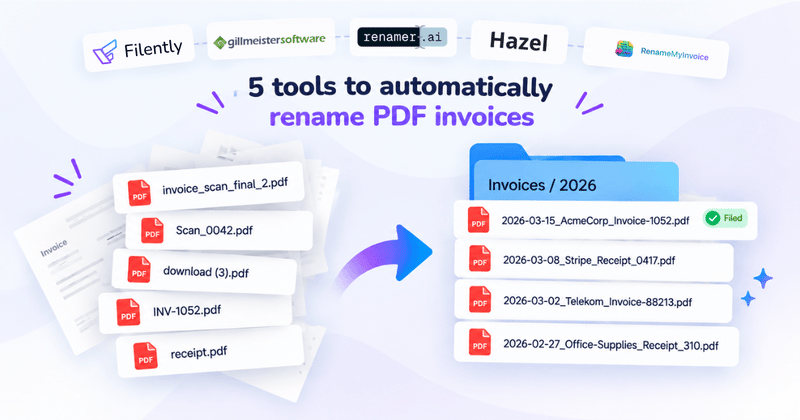
Every freelancer and small business owner knows this moment: you download an invoice, it arrives as invoice_scan_final_2.pdf, you tell yourself you will rename it later, and three months later you are searching your Downloads folder before a tax deadline.
The solution is to rename invoices automatically, the moment they arrive, before they pile up. This guide covers 5 tools that do exactly that: what each one is good at, who it is for, and what it costs. If you rename more than invoices, the same file naming tools handle any document type.
📌 TL;DR: To rename PDF invoices automatically, use a tool that identifies the vendor, date and invoice number inside each PDF instead of relying on the original filename. For invoices in Google Drive, Filently names and files every invoice as it arrives, with no rules to set up. For invoices on your computer, Renamer.ai renames them by content with AI. Hazel (Mac) and Automatic PDF Processor (Windows) rename them by rules you define, locally. For a one-time batch without a subscription, RenameMyInvoice renames up to 10 invoices a day for free.
Quick answer by job:
| What you need | Best fit |
|---|---|
| Invoices in Google Drive, named and filed as they arrive | Filently |
| AI renaming for invoices on your computer | Renamer.ai |
| Mac, local rules and scripts, scans included | Hazel |
| Windows, local rules, splitting and e-invoices | Automatic PDF Processor |
| A one-time batch, no account | RenameMyInvoice |
Still opening every PDF just to figure out what it is? Filently identifies each document and renames it automatically. Inside your Google Drive.
First 25 documents free. 2-minute setup. No credit card needed.
What “automatically rename PDF invoices” actually means
Before comparing tools, it helps to understand the three approaches:
Content-based renaming: the tool works out what the PDF is, finds the vendor name, date and invoice number, and builds the filename from them. Works on any invoice format without manual rules.
Rule-based renaming: you define patterns (“if the text contains ‘Acme’, take the number after ‘Invoice no.’”), the tool applies them. Reliable for predictable invoice formats, but every new layout needs a rule.
Position-based renaming: you draw a box around the invoice number on one sample, and the tool takes the text from that exact spot on every PDF. Fast for invoices that always share one layout, useless when they don’t.
All three usually run on a watch folder (also called a hot folder): a folder the tool monitors, so every new PDF dropped into it is renamed automatically.
Scanned invoices are a special case. A scan is an image with no text layer, so a tool needs text recognition (OCR) to find anything in it. Check this before you choose, if your suppliers send paper or photos.
Once documents are renamed automatically, automating the full document filing workflow is the logical next step.
5 Tools to Rename PDF Invoices Automatically
Here are the tools that rename PDF invoices automatically, from zero-touch cloud automation to rule-based desktop apps.
1. Filently: Best for Google Drive users who want zero-touch automation
Platform: Web / Google Drive
Price: First 25 documents free, then from $6/month
Best for: Freelancers, small businesses and accountants receiving invoices regularly
Filently connects to your Google Drive and renames incoming documents automatically. It identifies the vendor name, date, invoice number and amount in each PDF and applies your naming convention to every file, without you touching it.
The naming convention is fully configurable. Filently can adopt the pattern your existing files already follow, keep its default convention, or follow rules you describe in plain words. Want the invoice amount in the filename? You can include it. Prefer a different date format or separator? That is up to you.
What that looks like in practice: a supplier sends invoice.pdf. You drop it into the _ Filently Inbox folder in your Drive, Filently’s watch folder, upload it, or forward the email to your Filently address (Professional plan). It appears in your Finance folder as 2026-03-15_AcmeCorp_Invoice-1052_480USD.pdf, or whatever format you have configured. No rule to write, no tool to open.
The difference from every other tool on this list: Filently doesn’t only rename, it files. Each invoice lands in the right folder of your existing structure, in My Drive or in shared drives, as it arrives, whether you are at your desk or not. Existing files work the same way: drop them into the inbox folder and they are renamed and filed in one pass. For reorganizing a whole Drive that is already chaotic, Deep Clean is launching soon, and a first beta is running now.
AI organizers differ mainly in what they do once they have identified a document: some only suggest, some actually file.
| Pros | Cons |
|---|---|
| Fully automatic, no manual triggers | Google Drive only for now |
| Names and files into your existing folders | One invoice per PDF (no splitting) |
| Recognizes text in scanned PDFs and photos of documents | Email forwarding on Professional only |
| Files stay in your Google Drive, CASA Tier 2 assessed | Free tier limited to 25 documents |
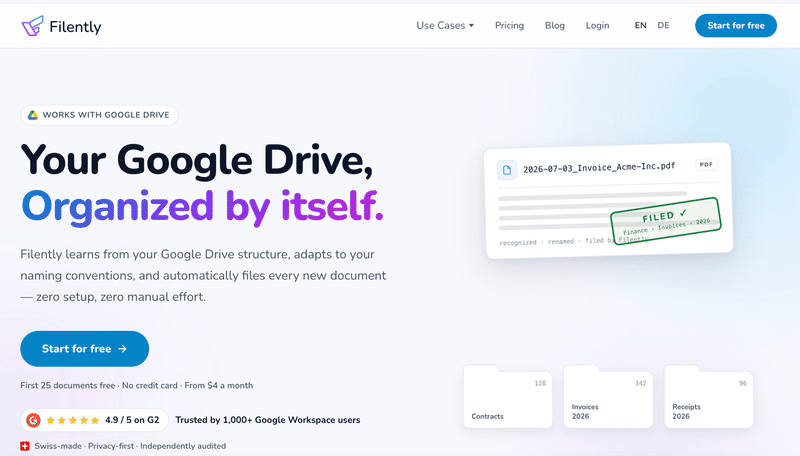
Website: filently.com
Your invoices live in Google Drive? Filently is ready. Connect once and every PDF invoice gets renamed and filed automatically. Forever.
First 25 documents free. No credit card. 2-minute setup.
2. Renamer.ai: Best for AI renaming of invoices on your computer
Platform: Windows, Mac and web
Price: Free for 25 files a month, then from $9.95/month (200 files)
Best for: Freelancers whose invoices live in folders on their own computer
Renamer.ai renames files by what is in them. You drop invoices into its desktop or web app, and it names each one from its content, using OCR for scans and a naming template you choose. Its Magic Folders are watch folders: new files in a folder are renamed as they arrive.
It works on files on your computer, not inside Google Drive. To use it with Drive, you go through Google Drive for desktop: the files are renamed on your computer and then synced.
Renamer.ai processes files on its own servers, even from the desktop app. According to its privacy policy, files are deleted after analysis, and its AI subprocessors may keep inputs for up to 30 days for abuse monitoring.
| Pros | Cons |
|---|---|
| Names files by content, including scans | Files are processed on its servers |
| Magic Folders rename new files automatically | Not built for filing into a Google Drive structure |
| Windows, Mac and web | Monthly file limits on every plan |
| Free tier of 25 files a month | Google Drive only via Drive for desktop |
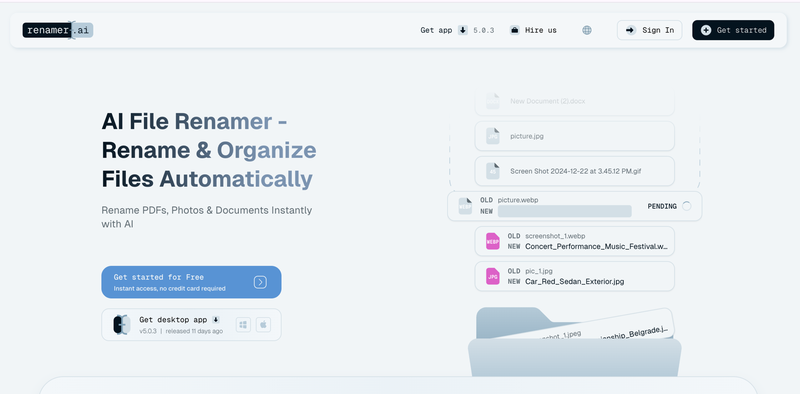
Website: renamer.ai
3. Hazel: Best for Mac users who want rule-based automation
Platform: macOS 13 (Ventura) or later
Price: $42 one-time purchase
Best for: Mac users who want a flexible, scriptable automation tool
Hazel watches folders on your Mac and applies rules to new files, including matching text inside PDFs to build the new filename. Its strength is deep macOS integration and scriptability: you can trigger AppleScripts or Shortcuts as part of a rule.
If your invoices are scans rather than text PDFs, Hazel 6 recognizes the text in them directly, with no separate OCR tool needed.
A typical setup: Hazel watches your Downloads folder. When a PDF arrives that contains the word “Invoice”, it finds the client name and invoice number, renames the file to [ClientName]-[InvoiceNumber].pdf, and moves it to the correct client folder. You can extend this with an AppleScript that logs the invoice in a spreadsheet at the same time.
| Pros | Cons |
|---|---|
| One-time purchase, runs locally | macOS only |
| Highly scriptable and flexible | Rules require setup and maintenance |
| Built-in text recognition for scans (Hazel 6) | AppleScript knowledge needed for advanced rules |
| Large community and documentation |
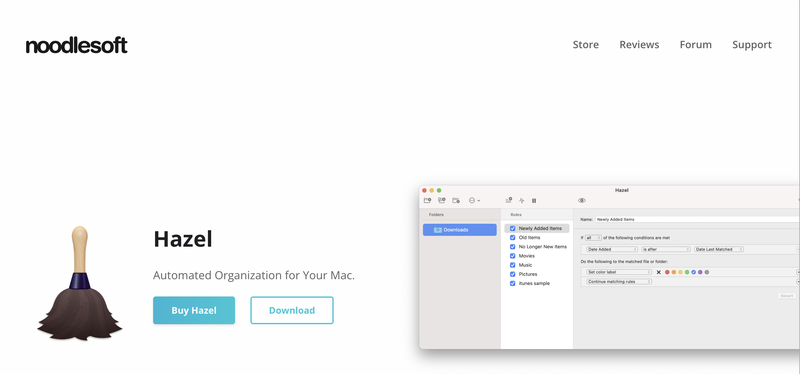
Website: noodlesoft.com
4. Automatic PDF Processor: Best for Windows users who want rule-based automation
Platform: Windows 10, 11 and Windows Server
Price: €89.95 a year, €199.95 for three years or €595 without time limit (single user), 30-day trial
Best for: Offices on Windows that process many invoices with known layouts
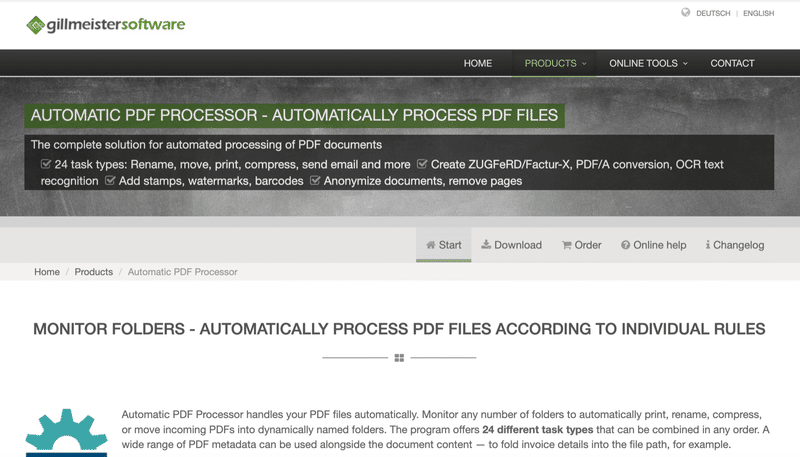
Automatic PDF Processor by Gillmeister Software watches any number of folders and runs a chain of tasks on every new PDF: rename it, move it into a folder whose name is built from the invoice details, split it, run OCR, and more. It can run as a Windows service, so it keeps working without anyone logged in.
You tell it where to find each value: after a search term such as “Invoice no.”, in a box you draw on the page, or in a QR code or barcode. That makes it precise for suppliers whose layouts you know, and it needs a new extraction rule for each new layout. It can also create ZUGFeRD and Factur-X e-invoices, which matters if you invoice businesses in Germany or France.
| Pros | Cons |
|---|---|
| Renames, sorts into folders and splits PDFs | Windows only |
| OCR built in | Extraction rules per invoice layout |
| Runs as a Windows service | Setup takes some practice |
| ZUGFeRD and Factur-X e-invoices | Licence from €89.95 a year |
Website: gillmeister-software.com
5. RenameMyInvoice: Best for one-time batch renames without a subscription
Platform: Web (any browser, any device, no installation)
Price: 10 files free per day, no account needed. Paid plans from €9.99/month.
Best for: Anyone with a backlog of invoices to clean up, without committing to a monthly subscription
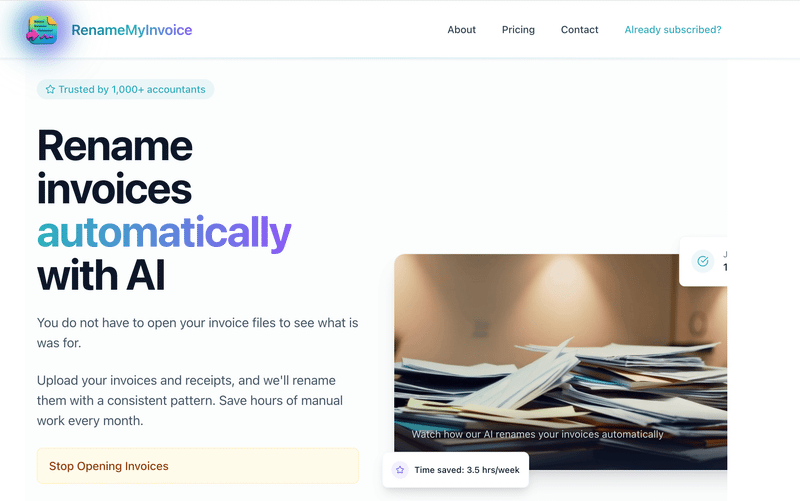
RenameMyInvoice is a web-based tool that renames invoice PDFs in bulk. You upload your files, it takes the date, vendor name and amount from each document, and you download a ZIP with consistently named files. No installation, no account required for the free tier.
The output follows a clean, sortable structure: 2026-01-20_ACME_1234.56EUR.pdf. You can choose which fields to include and in what order. It often handles scanned invoices too, depending on scan quality.
The key limitation is that there is no ongoing automation. You upload a batch, download the result, and repeat the next time invoices arrive. For clearing out a folder of old invoices before a tax deadline, or for occasional use without a subscription, it gets the job done cleanly.
RenameMyInvoice processes your documents on its own servers. Uploaded files are deleted after roughly 24 hours, per its privacy policy. For occasional batches of non-sensitive invoices, that is a reasonable tradeoff.
| Pros | Cons |
|---|---|
| No account needed for up to 10 files per day | No ongoing automation, manual upload every time |
| Works on any device including Mac, Windows and mobile | Files are processed on its servers |
| No installation required | No Google Drive integration for automatic filing |
| Often handles scanned invoices | Renames files only, no folder organization |
Website: renamemyinvoice.com
Also Worth a Look
- NameQuick (Mac and Windows): AI renamer with watch folders and rules that also move files into folders; from $12/month, or $69 once if you bring your own AI key or run a local model.
- Evermap AutoSplit (Windows, Adobe Acrobat Standard or Pro): plug-in that splits and renames PDFs by text at a page position, by search or by regular expression, fully offline; from $99 one-time.
- File Juggler (Windows): rule-based folder automation that moves and renames files by words in their content; scanned PDFs need OCR from another tool first.
- autorename-pdf (free, open source): renames PDFs by content with OpenAI, Claude, Gemini or an offline Ollama model, with optional OCR; a Windows app plus a command line for macOS and Linux.
- Dext (dext.com): not a renamer, but if your goal is invoice data in Xero, QuickBooks or Sage rather than named files, Dext captures the data and pushes it to your books, from $25.21/month billed annually.
Quick Comparison
| Tool | Platform | Price | Where files are processed | Best for | Setup |
|---|---|---|---|---|---|
| Filently | Web / Google Drive | First 25 free, from $6/mo | Switzerland and the EU, files stay in Drive | Naming and filing as invoices arrive | Very low |
| Renamer.ai | Windows, Mac, web | 25/month free, from $9.95/mo | Its servers | AI renaming on your computer | Low |
| Hazel | macOS | $42 one-time | Your computer | Scriptable Mac automation | Medium |
| Automatic PDF Processor | Windows | From €89.95/year | Your computer | Rules, splitting, e-invoices | Medium |
| RenameMyInvoice | Web (any device) | 10/day free, from €9.99/mo | Its servers (about 24h) | One-time batch cleanup | Very low |
Which tool is right for you?
If you use Google Drive and want it to just work: Filently is the right starting point. No rules to configure, no batches to run. Invoices are renamed and filed as they arrive. See how automatic Google Drive file management fits into a broader filing setup.
If your invoices live on your computer and you want AI naming: Renamer.ai renames them by content and watches folders for new ones; with Google Drive, it works through Drive for desktop.
If you are on a Mac and want maximum control: Hazel gives you more control than any other tool, especially if you are comfortable with scripting.
If you are on Windows and your suppliers’ layouts are predictable: Automatic PDF Processor renames, sorts and splits invoices by rules, and creates e-invoices.
If you have a backlog to clean up: Filently handles this too. Drop your existing files into the inbox folder and they are processed in bulk, the same way new files are. For a one-time cleanup without a subscription, RenameMyInvoice renames up to 10 files a day without an account.
If you use Xero, QuickBooks or Sage and want invoice data in your books: that is Dext’s job, not a renamer’s. Many freelancers use both: Filently for clean filenames and filing in Google Drive, Dext for pushing the data into the books.
Verdict: For freelancers and small business owners with invoices arriving every week, Filently removes the most friction: nothing to configure, nothing to remember to run, and every invoice ends up named and in the right folder. Invoices are the obvious starting point; the same tools handle contracts, receipts and statements.
For renaming beyond invoices, like photos, project documents or any file type, Windows, Mac and AI each solve it differently.
Frequently Asked Questions
How do I rename a PDF invoice file automatically?
To rename a PDF invoice automatically, use a tool that identifies the vendor, date and invoice number inside the PDF and builds the filename from them, instead of relying on the original filename. Filently does this in Google Drive as each invoice arrives, with no rules to set up. Renamer.ai does it for files on your computer. Hazel (Mac) and Automatic PDF Processor (Windows) rename invoices by rules you define, and RenameMyInvoice handles a one-time batch of up to 10 invoices a day without an account.What is the fastest way to process a folder of invoice PDFs?
The fastest way to process a folder of invoice PDFs is a content-based tool that renames the whole folder in one pass. Filently renames and files every invoice you drop into its inbox folder in Google Drive, in the same pass as new ones. Renamer.ai renames a batch on your computer, and RenameMyInvoice renames an uploaded batch and returns a ZIP. Rule-based tools like Hazel and Automatic PDF Processor are fast once their rules exist, but each invoice layout needs its own rule first.Can I rename multiple PDF invoices at once with different names?
Content-based tools give every invoice in a batch its own name, built from that invoice’s vendor, date and number. Filently, Renamer.ai, RenameMyInvoice, Hazel and Automatic PDF Processor all do this. Each PDF needs readable text, or a tool that recognizes text in scans, so the details can be found in every file.What is the best Mac app for automatically renaming invoices and receipts?
For invoices and receipts on a Mac, Hazel is the best-known local option: a one-time purchase of $42 that watches folders and renames files by rules, including text it recognizes in scans. Renamer.ai and NameQuick rename by content with AI and also run on a Mac. If your invoices and receipts are in Google Drive, Filently renames and files them by their content without rules, in the browser or through Google Drive for desktop.How can I automatically rename Stripe receipts and file them into monthly folders?
To rename Stripe receipt PDFs and file them into monthly folders, forward the receipt emails to a tool that names each PDF by its content and files it by date. With Filently’s email forwarding (Professional plan), each Stripe receipt is named, for example2026-03-15_Stripe_Receipt_1052.pdf, and filed into the matching month folder in your Google Drive. On a Mac, Hazel can do the renaming and sorting locally once you have saved the PDFs into a watched folder.How do I rename scanned invoices by supplier and date?
To rename scanned invoices by supplier and date, you need a tool that recognizes text in images, because a scan has no text layer. Filently, Renamer.ai and Hazel 6 recognize text in scans directly, Automatic PDF Processor has OCR built in, and RenameMyInvoice often handles scans, depending on their quality.Can Adobe Acrobat rename PDFs automatically based on their content?
Adobe Acrobat cannot rename PDFs by their content on its own; the “auto-rename” that people look for in the Action Wizard comes from Evermap’s AutoSplit plug-in. AutoSplit runs inside Acrobat Standard or Pro on Windows and renames PDFs by text at a page position, by text search or by regular expression, from $99 one-time.Can I split a PDF that contains several invoices and rename each one?
To split one PDF containing several invoices and rename each part, use a tool that splits by content: Automatic PDF Processor and Evermap AutoSplit both split a PDF when, for example, the invoice number changes, and name each part. Most renamers, Filently included, expect one invoice per PDF, so split a batch scan first or scan invoices one by one.What is the best naming convention for invoice files?
The best naming convention for invoice files isYYYY-MM-DD_VendorName_Invoice-Number.pdf, for example 2026-03-15_AcmeCorp_Invoice-1052.pdf. Date first ensures files sort chronologically. Vendor name and invoice number make individual files instantly findable. The same date-first pattern works for every other document type, not just invoices.How do I automate invoice naming for new client folders?
To automate invoice naming per client, set up a folder structure first (Clients > ClientName > Invoices), then connect a tool that names each invoice and files it into the right client folder. Filently does both as each invoice arrives, which is the typical setup for accountants and bookkeepers managing several clients.Is it safe to let a tool process my PDF invoices automatically?
How safe it is depends on where your invoices go during processing. Hazel and Automatic PDF Processor work on your computer, so your files don’t need to leave it.
Filently is built for Google Drive users. It identifies each invoice by its content to generate the right filename, processing it only in Switzerland and the EU. Your files stay in your Google Drive, and Filently doesn’t store copies of them on its servers. Filently is CASA Tier 2 assessed by a Google-authorized lab.
Renamer.ai and RenameMyInvoice process files on their own servers. Renamer.ai deletes them after analysis, though its AI subprocessors may keep inputs for up to 30 days; RenameMyInvoice deletes uploads after roughly 24 hours. Both are stated in their privacy policies. For confidential financial records on an ongoing basis, a Drive-native or local tool is the more careful choice.
Can software rename PDF files automatically based on their content?
Software can rename PDF files based on their content by finding the text inside each PDF, working out what the document is, and building the filename from details like vendor, date, invoice number or amount. Filently does this automatically inside Google Drive, and Renamer.ai and NameQuick do it on your computer. Hazel and Automatic PDF Processor apply content-based rules locally. For a free, technical option, the open-source autorename-pdf is covered below.Ready to stop renaming PDF invoices by hand? Connect Filently to your Google Drive and let it handle every invoice from now on.
First 25 documents free. 2-minute setup. No credit card needed.