
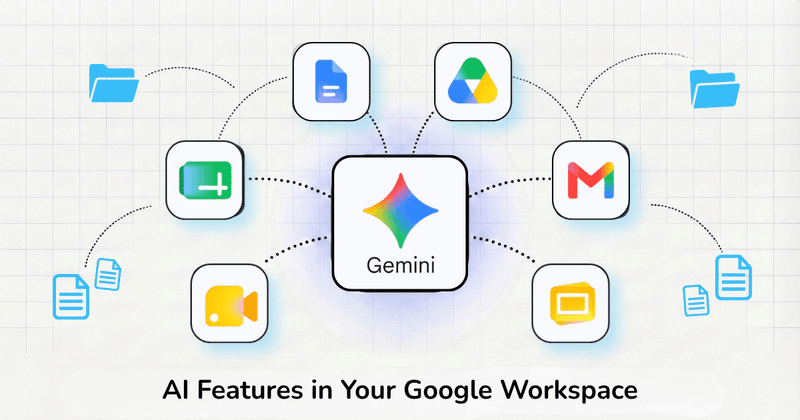
Google has quietly turned Google Workspace into one of the most feature-packed AI products most people use every day. The catch is that most of it stays hidden. The features live one menu deep, they arrived in a stream of monthly updates, and unless you follow the release notes, it’s genuinely hard to know what your plan already includes.
So here’s the current map: the AI features worth using across Gmail, Docs, Sheets, Slides, Meet, and Drive in 2026, who gets each one, and how to turn it on. And at the couple of spots where the native features run out, I’ll flag the tool that picks up the job.
One thing up front, because it saves confusion: nearly all of this is Gemini, Google’s assistant, showing up inside different apps. Since early 2025 it’s bundled into paid Workspace plans, so for most teams these features are already paid for.
Who actually gets these features
Before the tour, the short version of availability, because it decides what you’ll see:
- Business Starter: AI mainly in Gmail (Help me write), plus capped access to the standalone Gemini app. Not the full in-app suite.
- Business Standard and up: the full set across Docs, Sheets, Slides, Drive, and Meet. This is the plan where Workspace AI becomes genuinely useful.
- Business Plus and Enterprise: the same core, plus room for add-ons.
- AI Expanded Access (add-on): higher usage limits and the heavy generation features, like Veo video in Vids, advanced image generation, and richer outputs in Gemini Notebook (the research app formerly called NotebookLM).
Each feature below is tagged with the lowest plan that has it. Exact inclusions shift by edition, so Google’s overview of the Gemini features included per plan is the place to confirm what yours has.
Gemini in Gmail
Who has it: Help me write is on Business Starter and up; the rest need Business Standard and up.
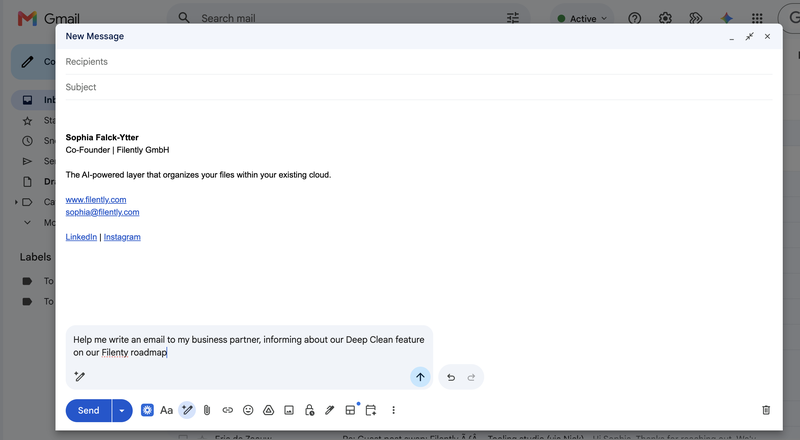
Help me write drafts and rewrites emails from a short instruction. As of the June 2026 update, you can also use the prompt bar to make targeted edits, like “add a deadline of Friday” or “make the second paragraph shorter,” instead of regenerating the whole thing.
How to use it: Open a new email or reply, click the Help me write pencil icon in the toolbar, type what you want to say, then use Refine or the prompt bar to adjust the tone or add a detail.
Thread summaries condense a long back-and-forth into a summary card at the top of the conversation, so you can catch up on a 30-message thread in a sentence or two.
How to use it: Open a long thread and tap Summarize this email in the Gemini side panel or the summary chip at the top.
Gemini in Google Docs
Who has it: Business Standard and up.
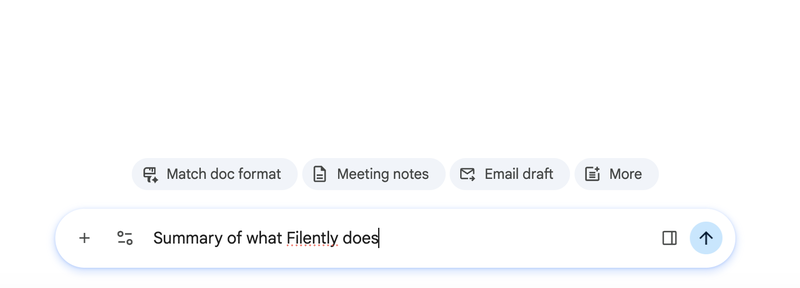
Help me write and first drafts generate a starting draft from a prompt, and Gemini can pull from your own Drive files so the draft reflects your real content, not a generic template.
How to use it: In a blank or existing doc, click the Help me write prompt that appears, or open the Gemini side panel and ask it to draft from a specific file by typing @ and the file name.
Match style and format keeps a document consistent. “Match writing style” unifies the voice across a doc; “Match doc format” makes a new document follow the layout of a reference file.
How to use it: Select the text, open Help me write, and choose Match writing style, or ask Gemini in the side panel to match a reference document.
Gemini in Google Sheets
Who has it: Business Standard and up.
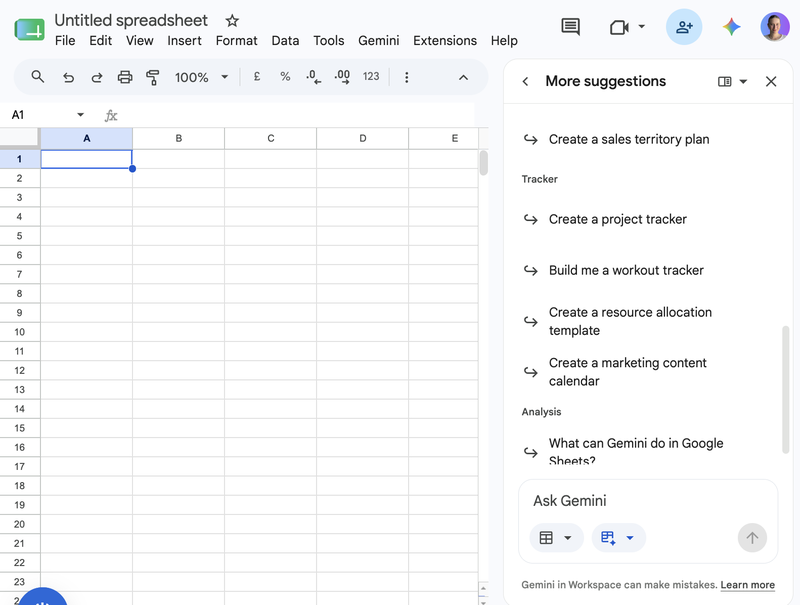
Fill with Gemini generates text down a column, categorizes data, summarizes it, or pulls real-time facts from Google Search, so you can label a list of companies by industry or draft descriptions in one pass.
How to use it: Add a column, describe what you want in the first cell, then use Fill with Gemini to extend it down the range.
Fix formula errors is the June 2026 addition that most people miss. When a formula throws an error, Gemini reads the surrounding data, explains what went wrong, and fixes it inline.
How to use it: Click the Fix button next to a formula error and review Gemini’s explanation before accepting the correction.
Build a sheet by describing it. You can now ask Gemini to create and organize an entire sheet from a plain-language request, and as of mid-2026 this works in 28-plus languages.
Gemini in Google Slides
Who has it: Business Standard and up; advanced image generation needs AI Expanded Access.
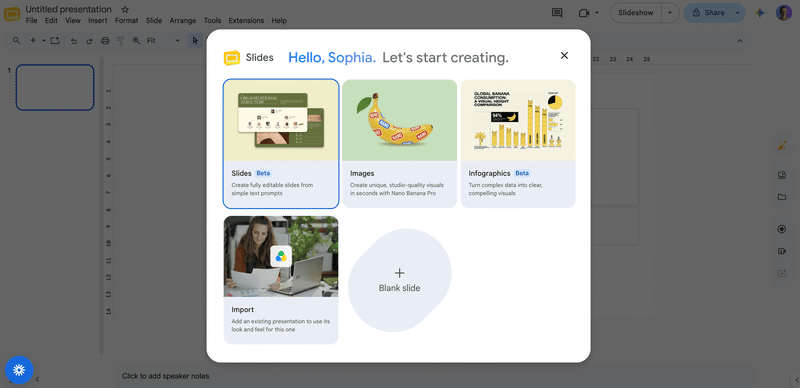
Build a deck from a prompt. Ask for something like “a five-slide deck summarizing our Q1 results” and Gemini assembles a presentation that matches your theme.
How to use it: Open the Gemini side panel in Slides and describe the deck you want, then refine slide by slide.
Generate images creates custom visuals inside Slides with Imagen, so you’re not hunting for stock photos. The higher-quality image models sit behind the AI Expanded Access add-on.
Gemini in Google Meet
Who has it: Business Standard and up; expanded translation needs AI Expanded Access.
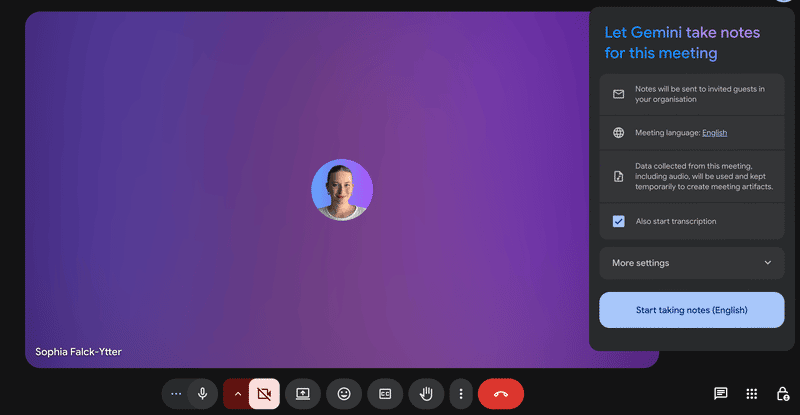
Take Notes for Me is the one to turn on first, and over 110 million people already have. Gemini watches the call and emails you a summary with action items afterward, so you can actually pay attention. The April 2026 update lets you toggle which sections you get: Summary, Decisions, Next steps, and Details. The Decisions section even tags outcomes as Aligned, Needs Further Discussion, Disagreed, or Shelved.
How to use it: In a Meet call, click the Take notes for me icon at the top, or set it to run automatically for your meetings in Meet settings. The notes arrive in Gmail and Drive after the call.
Translated captions remove the language barrier, translating speech in real time across 60-plus languages. Note-taking itself supports seven languages, though fully multilingual meetings aren’t covered yet.
One gap worth flagging here: those notes land in Gmail and Drive as a doc, not on a task board with owners and due dates. If your team wants meeting outcomes to become tracked tasks, a Gmail-native layer like Tooling Studio turns emails and action items into tasks on a shared board. Through its MCP for project management, an AI assistant can even work with your live project data, so “extract the action points” becomes “create and assign the tasks.”
Gemini in Google Drive
Who has it: Business Standard and up.
Ask Gemini answers questions about your files without opening them. You can ask it to compare two catering proposals and surface the cost differences, or pull the key clauses out of a contract.
How to use it: Open the Gemini side panel in Drive, or right-click a file and choose Ask Gemini, then ask your question in plain language.
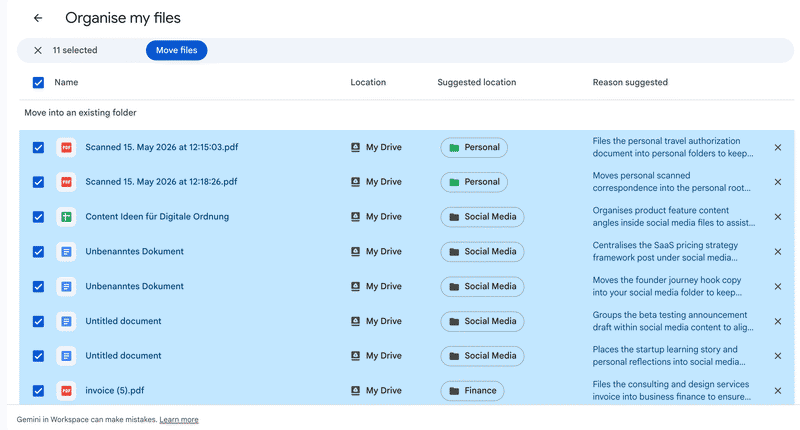
Organize My Files is the June 2026 feature that suggests folders for your loose files, either moving them into existing folders or creating new ones for related groups. You review and approve each suggestion.
How to use it: In My Drive, open the Suggest File Moves entry point, review the suggestions, and approve them file by file or in bulk. It is one of seven ways to get Drive organised, and the only one Google builds itself.
It’s a real help for a personal tidy, with three limits worth knowing: it works in My Drive only, it never renames files, and nothing runs automatically. For the same tidy on a Shared Drive, you need a layer that renames every incoming document to a consistent convention and files it on its own as it arrives. A dedicated tool like Filently does exactly that on top of Drive, in practically any language, and your files stay in your Drive. I dug into where Google’s version stops in our breakdown of Organize My Files.
Beyond the core apps
Who has it: Business Standard and up; the heavy generation features need AI Expanded Access.
A few AI features live outside the individual apps and are easy to miss:
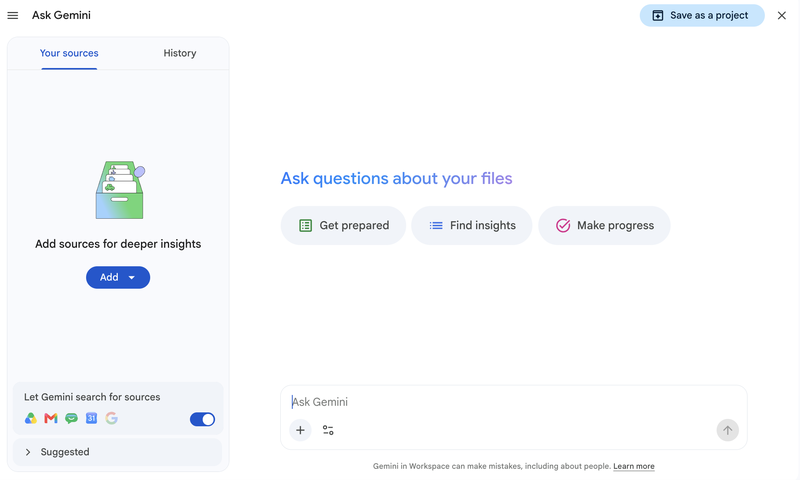
- The Gemini app and side panel run across Workspace and can pull from your files, so you can ask one place a question that spans an email, a doc, and a sheet.
- Gems are custom versions of Gemini you configure once for a repeatable job, like a “meeting follow-up writer” or a “brand-voice editor,” then reuse.
- Notebooks in Gemini (synced with the Gemini Notebook app) give you a persistent project space that grounds answers in sources you add, with outputs like audio overviews and mind maps.
- Google Vids turns a script and your Drive materials into a finished video, using Veo for professional-grade clips and AI avatars.
- Workspace Studio lets you build multi-step automations in plain English, such as labeling incoming emails or creating a follow-up task doc after a call, without any code. Since September 2026 it can also move and copy files in Drive, which finally makes automatic filing buildable — though it still can’t rename anything.
Common Questions About Google Workspace AI Features
Which Google Workspace plans include the AI features?
Gemini is bundled into all paid Workspace plans, but the depth varies. Business Starter includes AI mainly in Gmail (Help me write). Business Standard is the first plan with Gemini across Docs, Sheets, Slides, Drive, and Meet, and it covers the everyday features most teams want. Business Plus and Enterprise add the same core plus optional add-ons. The AI Expanded Access add-on unlocks higher limits and the heavier generation features, like Veo video in Vids and advanced image generation.Do I need to pay extra for Gemini in Google Workspace?
Not for the core features. Since early 2025, Google folded Gemini into the price of paid Workspace plans and retired the old standalone Gemini add-ons, so writing help, summaries, meeting notes, and the rest come with Business Standard and up at no extra cost. You only pay more if you want higher usage limits or the advanced generation features, which sit behind the AI Expanded Access add-on.What is the difference between Gemini and the AI features in Workspace apps?
They’re the same engine in different places. Gemini is the assistant; the “AI features” are Gemini showing up inside specific apps, like Help me write in Gmail, Fill with Gemini in Sheets, or Take Notes for Me in Meet. There’s also a standalone Gemini app and side panel that can pull from your Workspace files, plus Gems, which are custom versions of Gemini you set up once for a repeatable task.Can Google's AI organize and rename my Drive files automatically?
Partly. Drive’s Organize My Files suggests folders for loose files, but it works in My Drive only, it doesn’t rename anything, and you approve each move by hand. For automatic filing that also renames documents to your convention, covers Shared Drives, and works in any language, you need a dedicated layer like Filently on top of Drive.The fastest way to get value from all of this is to turn on one feature per app this week: Help me write in Gmail, Take Notes for Me in Meet, and Fill with Gemini in Sheets. Then, for the jobs Google’s AI leaves half-done, add a dedicated layer. Filently keeps your Drive named and filed on its own, so the one place all these documents pile up stays organized without you.
Google's AI still won't name or file your Drive. Filently does it automatically.
First 25 documents free. 2-minute setup. No credit card needed.