
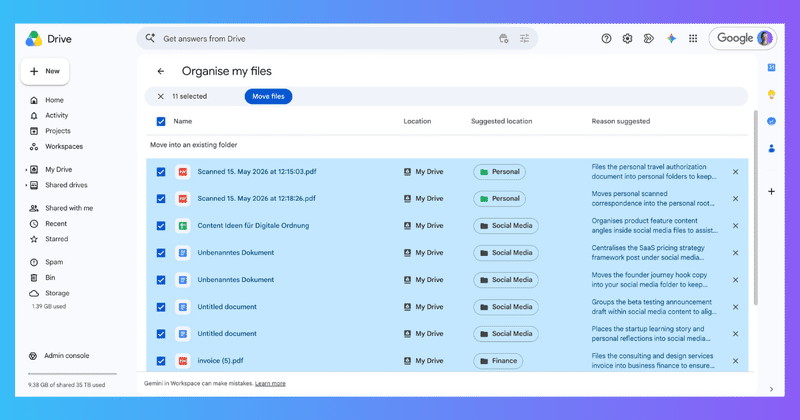
If your Google Drive is a pile of loose files you keep meaning to sort, Google just shipped something aimed straight at you. In June 2026, a feature called Organize My Files went generally available: Gemini looks at your unsorted files and suggests where each one should go. The real question is whether it fixes the mess or just nudges it around.
Having spent a while building in this exact space, I went through the release closely and tested what it does. Here’s the honest picture: what it does well, the limits worth knowing before you lean on it, and how to tell whether it’s enough for you or whether you need something more.
What Organize My Files does
You’ll find it in My Drive as an entry point called Suggest File Moves. Gemini looks at your loose, unsorted files and proposes two kinds of moves: dropping files into folders you already have, and creating new folders for groups of related files. Nothing moves until you say so. You review each suggestion and approve or reject it, and a pairing you reject won’t come back for 30 days. It handles PDFs, Google Docs, Sheets, Slides, Microsoft Office files, images, and videos with transcripts.
To try it, open My Drive, look for Suggest File Moves, and walk through the recommendations, approving the ones that make sense. If loose downloads have piled up in your My Drive, it’s a real help for sorting them, and it costs nothing extra on eligible paid plans.
The useful thing to understand is where its edges are, so you know what it will and won’t keep on top of for you.
Four limits worth knowing before you rely on it
It suggests, you approve. Nothing happens on its own. You open the tool, go through the recommendations, and click, every time you remember to. It’s a manual tidy you run on demand, and it won’t stay on top of new files as they arrive. If your problem is the steady trickle of new downloads, this won’t keep ahead of it for you.
It doesn’t rename anything. This is the big one for actually finding things later. Organize My Files suggests a better folder, but once you approve the move, the file keeps its original name. Invoice (16).pdf lands in a tidier folder still called Invoice (16).pdf, so it’s no easier to find by name or in search. Naming is half of being organized, and the feature leaves that half untouched — see which tool renames as well as files.
It works in My Drive only. Shared Drives, where teams keep the work that matters, aren’t covered. So the messiest, highest-stakes case, a drive several people add to all day, is exactly the one it skips.
It’s English only, and metered. It rolled out in English for Business and Enterprise Standard and Plus, for consumer Google AI Pro and Ultra, and for Google AI Pro for Education, all with smart features switched on. If your team works in another language, it isn’t for you yet. Worth knowing too: the generous launch allowance ran out on July 15, 2026, and per-user usage limits have applied since.
Google suggests where a file could go. Filently just puts it there.
Runs inside your existing Google Drive. No migration.
Which one you need
Here’s the honest split, so you can decide without the marketing. If you want the wider field rather than these two, seven approaches compared side by side covers the free tools, the automations and the AI options together.
| Feature | Google Organize My Files | Filently |
|---|---|---|
| Renames files | No, keeps the original name | Yes, to your convention |
| Runs automatically | No, you approve each move | Yes, on each new file |
| Shared Drives | My Drive only | My Drive and Shared Drives |
| Languages | English only | Practically any language |
| What it does | Suggests folder moves | Names and files documents |
Google’s Organize My Files is the right call if you want suggestions for the loose files in a personal My Drive, you don’t mind approving each move, and you don’t need files renamed. On an eligible paid plan it costs nothing extra, and for that job it does well.
You’ll want a dedicated layer if you need files renamed to a consistent convention, filing that happens automatically as documents arrive, coverage for Shared Drives, or support in a language other than English. That’s the gap Filently fills. It runs inside your existing Google Drive, identifies each new document, names it to your convention, and files it into the right folder on its own, across both My Drive and Shared Drives and in practically any language. Your files stay in your Drive.
The two aren’t mutually exclusive, either. You can let Google’s feature sort the loose files in your My Drive, then use an automatic layer to keep new documents named and filed so the pile never rebuilds. If your whole Drive is a mess, Filently’s Deep Clean is built for that and launching soon. The naming half Google’s feature skips is where most of the searching problem lives, and automatic filing is what closes it.
Google has kept going since, too. In September 2026 it gave Workspace Studio a step that moves Drive files automatically, so filing can now run without you approving anything — as long as you build the flow yourself, and as long as you can live with the files keeping their original names.
The bigger shift is worth noticing whichever tool you land on: Google just made “my Drive should sort itself” a normal expectation rather than a nice-to-have. Less manual filing is becoming the baseline, and that’s good news for anyone who has ever lost twenty minutes hunting for one file.
Common Questions About Google’s Organize My Files
What is Google Drive's Organize My Files feature?
Organize My Files is a Gemini-powered feature in Google Drive that went generally available in June 2026, one of several AI features spread across Workspace. From a “Suggest File Moves” entry point in My Drive, it looks at your loose, unsorted files and suggests where to put them, either into existing folders or into new folders it proposes for related groups. Nothing moves until you review each suggestion and approve it.Does Organize My Files rename your files?
No. It suggests a better folder for a file, and once you approve the move, the file lands there with its original name unchanged. A file calledInvoice (16).pdf ends up in a tidier folder still called Invoice (16).pdf, so it’s no easier to find by name or in search. Renaming files to a consistent convention is a separate job the feature doesn’t do.Does Organize My Files work on Shared Drives?
No, it works in My Drive only. Shared Drives, where teams keep their shared work, are not covered at launch, so the drive several people add to every day is the one the feature currently skips. If that’s where your mess lives, a tool like Filently handles the organizing and renaming on Shared Drives, which Google’s feature doesn’t reach yet.Is Organize My Files automatic?
No. It’s a manual, on-demand tool: you open it, review the suggestions, and approve each move. Nothing happens on its own when a new file arrives, so keeping your Drive tidy still depends on you remembering to run it. If you reject a suggestion, Gemini won’t propose that same file-and-folder pairing again for 30 days.What's the best alternative if I need renaming or Shared Drive support?
If you want files renamed to your own convention, filing that happens automatically as documents arrive, coverage for Shared Drives, or support beyond English, you need a dedicated organizing layer rather than the native feature. Filently does this inside your existing Google Drive: it identifies each new document, names it to your rules, and files it in the right folder on its own.Want your Drive named and filed without approving anything by hand? Filently runs inside your Google Drive, names each new document to your convention, and files it in the right folder on its own, across My Drive and Shared Drives.
Try Filently free → First 25 documents free. No credit card needed.