Ask most people how they spend their day in Google Workspace and you get a shrug. Busy, they say. In meetings. In Drive. Catching up on email. The feeling is real. The map usually is not.
Solo operators and small teams who live in Google Drive know the surface version already: unclear names, folders that never settled, final_v3_REALLY_final sitting next to last week’s share link. That friction shows up every time you hunt for a document.
The quieter version is harder to see. Hours disappear between Drive, Docs, Sheets, Gmail, Meet, and Chat without anyone pointing at where they went. Storage reports say the Drive is full. Seat reports say nobody cancelled a license. Neither answers the question teams actually ask: where does our time go?
Usage data can help here, not by reading email or document content, but by looking at patterns in how people already work inside Workspace. Below is what those patterns typically reveal, and what you can do about them this week whether or not you use any analytics tooling.
Five patterns account for most of the loss, and read together they double as a snapshot of how your team actually works:
- Create, view, and edit imbalance: lots of files made and opened, few genuinely owned or finished. A sign ownership is unclear.
- Recurring file hunts: the same documents searched and re-downloaded before deadlines. A sign the structure isn’t trusted.
- Meetings standing in for documents: calls cluster around files that have no clear home. A sign the calendar is covering for Drive.
- A single communication hub: one person fields every “where is…?” A sign the team runs on memory instead of structure.
- After-hours catch-up: the focused work happens late at night. A sign daytime attention is lost to interruptions.
If two or three of those feel familiar, you already have a hunch where the time goes. The sections below take each one in turn, with a fix you can try this week.
Why time vanishes in plain sight
In practice, it adds up from small, ordinary moments over the course of a week:
A new file lands without a clear owner. Someone creates a Meet “just to walk through the doc.” Three people leave comments and nobody renames the file. An assistant downloads the same PDF four times because search keeps returning the wrong version. After dinner, someone finally finds an unbroken hour, outside the hours they meant to protect.
None of those moments looks dramatic. Over a month they stack into something expensive: somewhere between a few hours and a full workday per person, depending on volume, team size, and how messy the shared Drive has become. The waste is rarely spread evenly. It clusters into a handful of repeatable patterns.
Five patterns usage data usually surfaces
Each one is a proxy for a frustration people already describe out loud, like “I can never find anything,” “I’m in meetings all day,” and “everything waits on one person,” translated into a signal you can actually check.
1. Create / view / edit imbalance on shared Drive files
When a team creates many documents but few get meaningful edits, or a small set of files is viewed endlessly while almost nothing gets owned or updated, you usually have a structure problem rather than a writing problem. High view counts on the same handful of files often mean people are hunting. Low edit rates on “working” documents often mean ownership is unclear, so people open, skim, and leave.
What to do this week: Pick your ten most-viewed Drive files from the past month. For each one, ask: who owns it, where does the current version live, and what would someone outside the deal search for? If you can’t answer in under a minute, rename or refile before you create anything new. A consistent naming convention fixes the recurrence, and a single cleanup session, one sweep through the old files to rename and refile them, fixes the backlog.
2. Recurring file-hunt behavior
Downloads of the same document over and over, search bursts right before deadlines, and frequent opens of old folders are all hunt proxies. Somebody needed a specific contract, disclosure, or spreadsheet and didn’t trust the structure enough to go straight to it. That’s the same Drive-chaos complaint, now measurable as a habit.
What to do this week: For active projects, enforce one rule: every inbound file gets a destination before the day ends. A template folder with numbered subfolders (listing, offers, contract, inspections, correspondence, or whatever your work needs) beats a beautiful system nobody uses. Consistency beats cleverness, and thirty seconds to copy a template beats twenty minutes of searching next Tuesday. The step that tends to slip is assigning that destination in the first place, and that’s the filing an organizer like Filently handles for you, reading each new file and routing it to the right folder.
3. Meeting load that exists because the docs failed
Not every meeting is waste. Plenty of short syncs exist only because the written work is hard to find, incomplete, or owned by nobody. When Meet activity spikes around the same document clusters, look at the files first. Often the calendar is compensating for Drive.
What to do this week: Before you schedule a walkthrough call, ask whether a clearer file, a named owner, and a one-paragraph status note would remove the need for it. After the ownership and naming cleanup from the first two patterns, try cutting or shortening two recurring document-status meetings.
4. Communication bottlenecks
In almost every small team, one person becomes the human search index. They know where everything is, they field every passing question, and they forward the right Drive link for the twentieth time this month. Usage patterns show that as a hub: heavy mail and chat, high sharing, and constant interruptions around a few shared folders. The problem there is structural: the team leans on one person’s memory instead of on shared structure, and that catches up with everyone eventually.
What to do this week: For the two or three folders people ask about most, pin a short README doc: the naming convention, who owns what, where “current” versions live, and what belongs in Correspondence. Redirect “where is X?” questions there for two weeks. If the questions keep coming, the note is incomplete rather than the people.
5. After-hours catch-up and fragmented focus
When deep work only shows up late in the evening, or daytime looks like thin bursts across Gmail, Drive, and Chat, the calendar and notifications are usually eating focus. For most people, late night is simply the only slot where the interruptions stop, so that’s when the real work gets done.
What to do this week: Protect two 90-minute blocks on the days your team actually handles files, and make “file intake and naming” part of that block rather than an afterthought. If the after-hours activity concentrates on the same people who also own all the shared Drive paths, treat it as a capacity and structure problem rather than a motivation one.
A practical audit without new software
You can surface a surprising amount of this with tools you already have: Admin reports, Drive activity insights on your plan, calendar exports, and an honest team conversation. Thirty minutes, once a week, for three weeks is enough to separate anecdotes from patterns.
Run this each week:
- List the ten most-opened or most-downloaded Drive files. Who owns each, and are the names searchable?
- Count recurring meetings that exist only to “go through a doc.” Which two can end after a cleanup?
- Name the communication hub person or people. What questions should a folder README answer instead?
- Scan for after-hours spikes. Same people every week? Same folders?
- Ship one structural fix before next week: a template folder, a naming rule, a pinned README, or killing one redundant meeting.
A simple scorecard keeps the conversation concrete:
| Signal | Healthy-ish | Worth digging into |
|---|---|---|
| Top Drive files | Clear owners; names match how people search | Same untitled or “final” files reopened weekly |
| Meetings around docs | Occasional walkthroughs for complex work | Recurring status Meets for files with no owner |
| Hub people | Tribal knowledge is documented or rotated | One person is the standing answer to “where is…?” |
| After-hours | Rare exceptions | Same names, same Drive paths, every week |
Organizing Drive, with templates, naming, and consistent intake, removes a huge share of the hunt. That’s the part Filently automates, and a years-deep backlog is worth clearing in one focused pass before you automate anything. Seeing the patterns above tells you which parts of the system are still quietly regenerating the mess.
An audit shows you where the time goes. Filently stops it going there.
Nothing gets deleted, nothing leaves your Drive.
When manual audits stop scaling
The weekly audit works well when you’re solo or a handful of people. It gets noisy with multiple roles, several shared drives, or a volume nobody can hold in their head. At that scale, the useful move is to read the usage and audit signals Workspace already produces, without touching anyone’s messages: app activity over time, file create, edit, and view trends, meeting load, communication concentration, and when work actually happens.
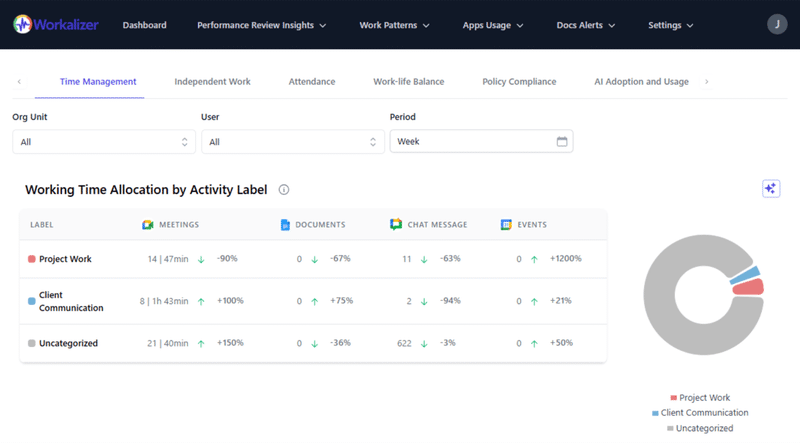
This is where usage-analytics tooling comes in. Tools like Workalizer turn Google Workspace usage logs, from Drive, Docs, Sheets, Gmail, Meet, and Chat, into work-pattern views for teams and managers, without accessing email or document content. Workalizer, for instance, is admin-installed through the Google Admin Console and works only from audit-log metadata, so the boundary between “operations data” and “reading people’s work” stays clear. The payoff is concrete: you stop arguing from vibes. You can see whether Drive hunt behavior improved after a naming cleanup, whether meeting load dropped once ownership got clearer, or whether the same bottleneck still owns every shared path.
None of that replaces a good folder structure. What analytics add is pressure to actually fix it: once you can see the hunt, you stop tolerating it.
Frequently Asked Questions
What can Google Workspace usage data show, and what can it not?
Usage and audit signals are strong for patterns: which apps people lean on, how files move through create, edit, and view, meeting volume, and when activity clusters. They can’t tell you whether a document was well written or whether a client call went well. Treat the logs as a map of friction, not a judgment of quality.Is looking at usage data the same as reading people's work?
No. Reading content, like email bodies, document text, or chat messages, is a different layer from summarizing activity, like opens, edits, invitations, and app use. A logs-only approach is closer to looking at road traffic than reading the letters inside the cars. Be explicit with your team about that boundary, because it’s the difference between useful operations data and surveillance theater.Should I organize Google Drive first, or look at usage patterns first?
If your Drive is painful day to day, organize first: templates, naming, and disciplined intake remove hours of hunting immediately. Then use usage patterns to confirm the cleanup stuck and to find the next leak, usually meetings-about-docs or a single human bottleneck. Structure and visibility reinforce each other, and neither fully substitutes for the other.What is the first metric worth watching?
Start with your most-opened Drive files and whether each has a clear owner and a searchable name. That single list usually exposes more recoverable time than a dozen vanity charts. Once it stabilizes, look at meeting load around those files and after-hours spikes on the same people.The goal is simple: fewer evenings spent searching, fewer meetings that exist only because a file had no home, and a shared Drive that still makes sense three months into a busy season. Fix the structure you touch every day, then look at the patterns that tell you whether the time you thought you saved actually came back.
Want to see Workspace usage patterns without reading message or file content? Explore Workalizer for usage-log insights across Drive, Meet, Gmail, and Chat.