
I collect productivity hacks the way other people collect kitchen gadgets. So when Google announced four new steps for Workspace Studio on September 2, I put the rollout date in my calendar and blocked an hour to play with it.
Two of those steps are the interesting ones: Move Drive file or folder and Copy Drive file or folder. That sounds modest written down, and it really isn’t. It’s the first time Google’s built-in Workspace automation can pick a file up and put it somewhere else. No Apps Script, no third-party connector, no developer. If you’ve ever wished your Google Drive would file itself, that’s the hinge the whole idea was missing.
So I built it. A folder I drop documents into, and a flow that works out what each one is and files it where it belongs. It took two false starts and a round of prompt debugging, and then it worked, on a photographed receipt, in a Shared Drive.
And the file is still called IMG_9762.pdf.
That’s the whole story, and it’s worth walking through properly, because what Studio can do here is more than the announcement suggests, and where it stops is stranger than I expected.
What actually landed
Workspace Studio is Google’s no-code automation builder for Workspace. It shipped as Google Workspace Flows, and plenty of people still call it Google Flows, until the rename at general availability in December 2025. Four new steps were announced, in two waves:
- Move Drive file or folder — moves a file or folder to a destination you pick at build time, or one a previous step hands it.
- Copy Drive file or folder — makes a copy, optionally under a different name.
- Reply to email — replies inside an existing Gmail thread.
- Send a Chat reply — posts into a Chat space or thread, now with Markdown.
Drive and Chat steps began a full rollout on September 8, 2026, the Gmail step follows on September 14. It covers Business Starter, Standard and Plus, Enterprise Standard and Plus, and the Education tiers, and the steps are on by default wherever Gemini for Workspace steps are allowed.
One thing the announcement doesn’t prepare you for: the two Drive steps did not arrive together.
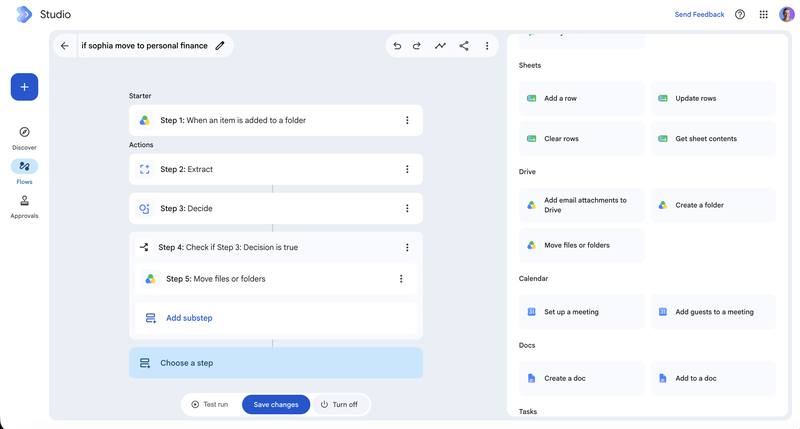
That’s my step picker on September 10, with the Sheets section above and Calendar below, so the Drive group is all there. Three steps. Move files or folders has landed. Copy a file or folder has not, despite being in the same announcement and already listed in the Help Center step reference. If you’re waiting on Copy for a template-duplication flow, you may be waiting on something different from the people waiting on Move.
If it’s not in your account yet
Three reasons this happens, and only one of them fixes itself:
The rollout is still moving. Google allowed “1–3 days for feature visibility” from September 8, and Scheduled Release domains sit behind Rapid Release ones. A few extra days is normal, and as Copy shows, the waves can split.
Your admin controls Gemini steps. The new steps ride along with Gemini for Google Workspace steps. If that’s off in the Admin console, they never appear at all. And for the organizations that switched Gemini off deliberately, often on legal advice, this isn’t a wait. No rollout wave is coming.
Someone turned them off individually. The per-step admin toggles landed a week ahead of the features, on September 1, so a company can have the capability and still not offer it.
The flow I built, and the two ways it failed first
The goal was the simplest useful thing: a Drive inbox folder, and documents addressed to me landing in my finance folder without my help.
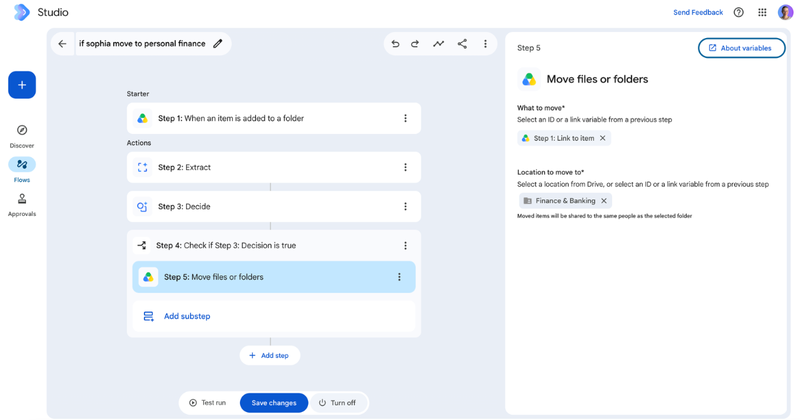
Attempt one. Starter When an item is added to a folder pointed at a Shared Drive folder called Workspace Inbox, then Check if Name of item contains “sophia”, then Move to Finance & Banking. I dropped in a photographed hospital receipt and ran it.
Green tick. IMG_9762.pdf was added to Workspace Inbox. Then: Conditions weren't met. Then: Run Completed. The flow ran successfully.
It had, technically. Name of item is the filename, and the filename is IMG_9762.pdf. That the document itself is addressed to me in full, first name, both middle names and surname, is invisible to Check if. The only thing a Drive trigger exposes is metadata: link to item, name of item, link to folder, name of folder. No file type, no size, no owner, no date. If you want to branch on what a document says, you have to ask Gemini first.
So, attempt two: an Extract step. Content set to Step 1: Link to item, and five custom fields with a plain-English description each — addressee, document type, vendor, document date, total amount.
This is the part that genuinely surprised me.
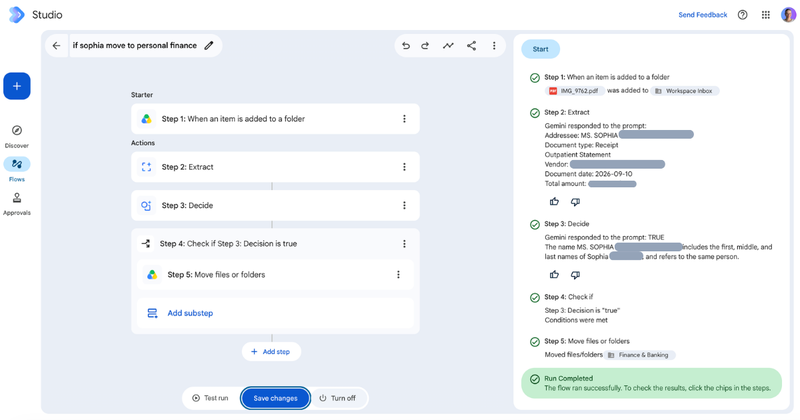
Extract read the scan. From a 19 MB photograph of a paper receipt saved as a PDF, it came back with the addressee’s full name including both middle names, the document type, the issuing institution, the date in the format I asked for, and the total with its currency. All correct. No OCR step, no preprocessing, no prompt engineering. I described five fields in ordinary English and Gemini filled them in.
Then I tried to branch on that, and hit the second wall. Check if cannot see AI output. Open its variable dropdown and it offers the four trigger variables, nothing else. The Extract fields aren’t there.
The bridge is the Decide step, and Google explains it in the panel: “After Decide, use a Check if step to set which actions to take based on the result.” Extract pulls fields, Decide turns a question into true or false, Check if branches on that. So the flow grew to five steps.
Decide failed too, at first. I gave it the addressee variable plus the sentence “Move the file if this document is addressed to Sophia”, and got back:
Defaulted to FALSE because Gemini didn’t have enough information to check the condition. Try editing the prompt.
The document content is not provided, making it impossible to determine whether the document is addressed to Sophia.
It had fixated on the word “document”, gone looking for one it didn’t have, and ignored the name sitting right there in the prompt. Rephrasing it as a question about the name alone fixed it, and Decide came back TRUE with its reasoning: the extracted name includes the first, middle and last names of the person I asked about, and refers to the same person.
Worth pausing on two things there. Google’s own error message tells you to edit your prompt, inside a product sold as no-code. And Decide defaults to FALSE when it’s unsure, which produces exactly the same green “Run Completed” as my first failure. A flow that silently does nothing is the failure mode to design around.
Then Check if passed, Move ran, and the file landed in Finance & Banking. Five steps, two failed runs and one prompt rewrite, for the rule “if it’s addressed to me, put it with my finances.”
Two things I learned from the Move step itself, both of which correct assumptions I had going in:
The destination doesn’t have to be a folder you picked in the editor. Both fields say so: “Select a location from Drive, or select an ID or a link variable from a previous step.” I used a fixed folder, so I can’t tell you how far that stretches, and Check if had already taught me not to assume: its variable list offers the trigger’s four fields and nothing from the AI steps at all.
If Move’s location field does take a value an earlier step worked out, one flow could route to many folders. The shape would be a lookup rather than a branch per supplier: Extract the vendor, Get sheet contents from a supplier-to-folder table, Repeat for each row until one matches, then Move. Which is still a table you maintain, and one that has to stay unshared, or the Sheets steps stop working.
Shared Drives work. Google’s documentation is silent on this, and I’d written that it was untested. My inbox folder and my destination folder were both in a Shared Drive, and Move completed without complaint. Note the small print under the field, though: “Moved items will be shared to the same people as the selected folder.” Filing a document can change who can see it.
What else the same bricks get you
Studio isn’t a Drive feature with extras bolted on. It’s a set of pieces across the whole of Workspace, and Move was the one missing from the Drive corner. Alongside the Drive starters and the AI steps, you get Sheets (Add a row, Update rows, Get sheet contents), Chat (Post in a space, Notify me in Chat), Docs (Create a doc, Add to a doc), Tasks, Calendar and a full row of Gmail actions including Add labels with Gemini.
Four combinations worth an afternoon:
The invoice inbox. Item added to a folder → Extract the vendor, date and amount → Add a row to your bookkeeping sheet → Move to the year’s invoice folder. Every invoice you drop in files itself and logs itself on the way past. This is my flow with a spreadsheet bolted on, and it’s the one I’d build first.
Contract triage. Item added to Contracts/Incoming → Summarize → Create a doc with the summary → Create a task for the reviewer → Move the original to Under review. The reviewer opens a one-page brief instead of a forty-page PDF.
Email attachments, end to end. New email arrives → Filter to the ones with attachments → Add email attachments to Drive → Extract what the document is → Move it → Reply to email in the thread with “received, filed”. That last step is new this month, and it turns a filing automation into something the sender actually notices. It’s the automated version of saving Gmail attachments to Drive, with the filing decision included.
The quarterly archive. Scheduled trigger → Get sheet contents listing closed projects → Repeat for each → Move each project folder into the archive. Housekeeping everyone intends to do and nobody does.
None of that is trivial, and it costs nothing on top of your plan. Now look at all four and notice what none of them do.
The wall
Every document in every one of those flows arrives at its destination carrying the name it turned up with. Workspace Studio has no step that renames a file. Both of Google’s filing features, side by side with a layer that does rename. Copy can name a copy differently, which hands you two files where you wanted one, and Copy hasn’t shipped anyway.
That’s what makes this strange rather than merely unfinished. The understanding is demonstrably there. Gemini read a photograph of a paper receipt and correctly pulled five fields out of it, including a three-part name. Studio then took that understanding, made a routing decision with it, and moved the file across a Shared Drive into exactly the right folder. And then it put it down next to my bank statements under the name my phone had given it.
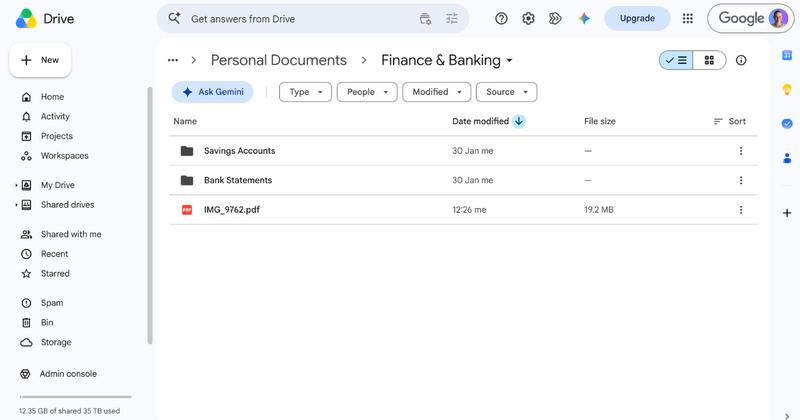
Perfectly filed. Completely unfindable. Naming is half of being organized, and it’s the half you cannot touch here.
Gmail got the sorting brain. Drive didn’t. Scroll the Gmail steps and you’ll find Add labels with Gemini: a real AI classification action that decides on a label and applies it, in one step. There’s no Drive equivalent. Gmail is allowed to categorize itself; Drive gets a Move step and a five-step assembly to tell it where to go.
And you own the rule set. Five steps for one condition, within a ceiling of 25 flows at 20 steps each and a daily run limit Google doesn’t publish. Each new kind of document is another branch or another flow, and when a supplier changes their invoice layout and Extract starts returning something else, that’s your afternoon, not Google’s.
Two smaller things worth knowing before you build:
Anything shared outside the company pauses the flow. The step reference says it plainly for both new Drive steps: “this step requires your approval if the run includes people outside your organization.” Sensible security, and quietly fatal to the use case. If your project Shared Drive has a client or a contractor in it, the flow stops and waits for you. An automation that asks permission isn’t one.
Logging to a shared sheet breaks. Add a row, Update rows and Clear rows only work with spreadsheets private to you, so the moment you share the bookkeeping sheet with your accountant, the invoice flow starts failing. The restriction is written for the Sheets steps specifically; the Drive steps carry no such rule.
And flows only ever look forward. Triggers fire on what arrives from now on, so the four thousand loose files already in your Drive aren’t covered by any of this. That’s usually the actual problem, and it needs a cleanup pass rather than an automation.
Studio moved my receipt to exactly the right folder. It's still called IMG_9762.pdf.
Filently names each document before it files it. No flow to build.
Studio, Organize My Files, or a dedicated layer
Google now has two answers to “sort out my Drive” and they do different jobs. Organize My Files went generally available in June and suggests where loose files should go, one approval at a time. Studio automates a path you built. Neither renames anything.
| Workspace Studio | Organize My Files | Filently | |
|---|---|---|---|
| Renames files | No | No | Yes, to your convention |
| Decides the destination | Yes, if you build for it | Gemini suggests, you approve | Learned from your Drive |
| Runs automatically | Yes, on your triggers | No, on demand | Yes, on each new file |
| Scans & phone photos | Understood, but not renamed | Not renamed either way | Recognized, converted, named |
| Files already in your Drive | Not covered, triggers only | Yes, one approval at a time | Yes, structure proposed for you |
| Shared Drives | Yes, tested | My Drive only | My Drive and Shared Drives |
| Setup | Build and maintain flows | None | Connect Drive |
| Accounts | Work/school only | Business/Enterprise Standard+, consumer AI Pro & Ultra | Personal and Workspace |
Build it in Studio if you have repeatable document paths, you’re on a Workspace plan with Gemini steps enabled, and you can live with files keeping the names they arrived with. The flows above are real value and they’re included in what you already pay.
Use Organize My Files if you want a one-off tidy of a personal My Drive backlog and don’t mind approving each move by hand.
You’ll want a dedicated layer if you need documents renamed to a consistent convention, filing that keeps up without a flow and a prompt per document type, or you’re on a personal Google account.
The difference is where the work sits. In Studio you assemble the judgment yourself, step by step, and you maintain it. Filently works the other way round. Connect your Drive and your existing folders and naming habits are the brief. Nothing to teach it, no conventions to write down, no prompt to debug. It identifies each new document, names it the way you already name things, and files it where that kind of document already lives, without you building anything. Documents reach it by forwarding address, Gmail label, an inbox folder in Drive, or direct upload, and your files stay in your Drive.
What the gap is really telling us
Between Organize My Files in June and Move in September, Google has spent 2026 turning “my Drive should file itself” from a wish into an expectation. That shift matters more than any single step.
But notice what Google still won’t do, twice now, deliberately enough that it reads as a choice: change the file. Suggesting a folder is unbinding. Moving a file is reversible. Renaming somebody’s document is a decision that sticks, and decisions that stick are where the work actually is. My flow proved the understanding is there. It read a receipt it had never seen, in a format it wasn’t given any help with, and got every field right.
Then it filed it as IMG_9762.pdf, and in six months I won’t find it.
Common Questions About Workspace Studio’s Drive Steps
What are the new Drive steps in Google Workspace Studio?
In September 2026, Google announced four automation steps for Workspace Studio: Move Drive file or folder, Copy Drive file or folder, Reply to email, and Send a Chat reply. The Drive ones matter most, because they’re the first time Google’s built-in Workspace automation can put a file somewhere else without a script. Drive and Chat steps rolled out from September 8, 2026, the Gmail step from September 14. Note that as of September 10, Move had arrived while Copy had not, even though both were announced together.Why can't I see the Move Drive file step in Workspace Studio?
Most likely the rollout hasn’t reached you. Google listed the Drive and Chat features as a full rollout from September 8, 2026 with one to three days for the feature to become visible, and Scheduled Release domains land behind Rapid Release ones. Two other things can hide it: the steps depend on Gemini for Google Workspace steps being allowed by your admin, and admins can disable each of the four individually. The Help Center already lists both Move and Copy, so the documentation runs ahead of the interface.Can Workspace Studio rename a file in Google Drive?
No. There’s no rename step in Workspace Studio. The Copy step can give a copy a different name, but that leaves you with two files instead of one renamed file, and Copy hadn’t reached my account at all as of September 10. So a flow can classify a document perfectly and move it to exactly the right folder, and the file still carries whatever name your scanner or phone gave it. Renaming to a convention remains something you do by hand or hand to a dedicated layer.Can Workspace Studio sort documents into folders by what they contain?
Yes, and I tested it. The chain is Drive folder starter, then Extract to pull fields out of the document, then Decide to turn those fields into a true or false, then Check if to branch, then Move. That’s five steps for one rule, because Check if can only read the trigger’s metadata and cannot see AI output directly, so Decide has to sit between them. The destination may be flexible too: both Move fields say they accept a link or ID variable from a previous step. I used a fixed folder, so I haven’t tested how far that stretches.Does Workspace Studio work with Shared Drives, or only My Drive?
It works with Shared Drives. Google’s documentation doesn’t say either way, so I tested it: the watched inbox folder and the destination folder were both in a Shared Drive, and the Move step completed. Two caveats. Drive’s own permissions still apply, and the Move step warns that “moved items will be shared to the same people as the selected folder”, so a file can change audience by being filed. And both new Drive steps require your approval when a run involves people outside your organization, which is exactly the Shared Drive that has a client or contractor in it.Can Workspace Studio handle scanned documents or phone photos?
Yes, better than I expected. I dropped a photographed receipt saved asIMG_9762.pdf into a watched folder, and the Extract step came back with the addressee’s full name including both middle names, the document type, the issuing institution, the date and the total, all correct. What Studio can’t do is act on that understanding at the file level: there’s no rename step and no conversion step, so the receipt lands in the right folder still called IMG_9762.pdf and still a photo rather than a PDF like everything around it.Why did my Workspace Studio flow run successfully but do nothing?
Two common causes, and both report success. First, Check if on “Name of item” tests the filename, not the document, so a condition likecontains "sophia" fails on a file called IMG_9762.pdf no matter what the document says. Second, the Decide step defaults to FALSE whenever Gemini doesn’t have enough information to judge, which then fails your Check if. Both end with a green “Run Completed” and an untouched file, so check the run history step by step rather than trusting the summary.What's the alternative if I need automatic renaming and filing?
A dedicated organizing layer on top of Drive. Filently identifies each new document, names it to your convention, and files it into the right folder on its own, with no flow to build, no prompt to debug and no rules to maintain. It works with a personal Google account as well as Workspace, across My Drive and Shared Drives, and in practically any language.Want your documents named and filed without building a single flow? Filently runs inside your Google Drive, identifies each new document, names it to your convention, and files it in the right folder on its own.
Try Filently free → First 25 documents free. No credit card needed.