
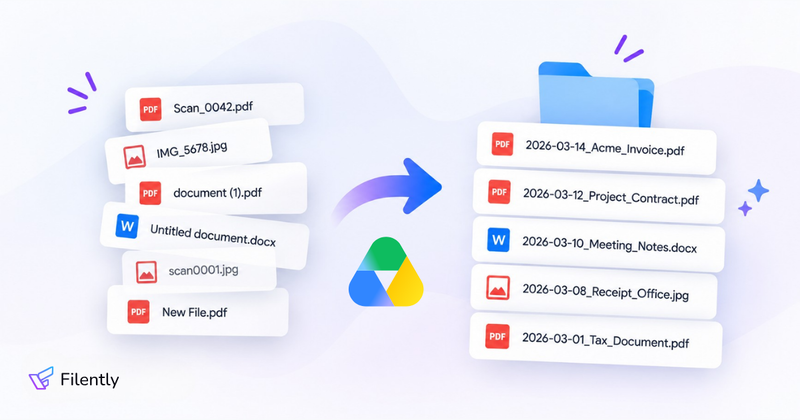
📌 TL;DR: Google Drive has no built-in way to rename multiple files at once. For find-and-replace or a prefix, the free Multiple File Rename for Google Drive add-on is the quickest fix. For numbering photos, rename them on your computer through Google Drive for desktop. For a repeatable job, use Apps Script. And if you want names built from what’s inside each document, like 2026-03-14_Acme_Invoice.pdf instead of Scan_0042.pdf, you need an AI tool such as Filently, which also files each document into the right folder.
Quick answer by job:
| Your job | Pick |
|---|---|
| Replace text or add a prefix, for free | Multiple File Rename add-on |
| Rename in Shared Drives or subfolders | Bulk Rename Files add-on |
| Number photos or use EXIF dates | Smart Bulk Renamer or Drive for desktop |
| A rename you’ll run again and again | Apps Script |
| Name documents by their content and file them | Filently |
Why Google Drive Can’t Rename Multiple Files
In Google Drive you can select many files at once, but only to move, share, download or delete them. Rename stays a one-file action: right-click a file, choose Rename, type the new name. People have asked Google for bulk renaming since at least 2014, and as of October 2026 it still isn’t built in.
One thing works in your favor: renaming a file inside Drive doesn’t break anything. The file keeps its ID, so every shared link, sharing setting and version stays as it was. That’s true for all the methods below that rename files in place. It’s not true for downloading files, renaming them and uploading them again, which is why that method sits at the end under “avoid”.
1. Use a Free Add-on: Multiple File Rename for Google Drive
Add-ons from the Google Workspace Marketplace work inside Drive and rename files in place. Multiple File Rename for Google Drive is the one to start with: it’s free, has more than 500,000 installs, and asks for the narrowest permission, access only to the files you use with it.
- Install Multiple File Rename for Google Drive from the Google Workspace Marketplace.
- Open it and pick the files or the folder you want to rename (subfolders included, if you like).
- Set a rule: find and replace text, add text at the start or end of each name, or use a regular expression.
- Check the preview, then run the rename.
It covers find-and-replace and prefixes well. For other jobs, two paid add-ons are worth knowing:
| Add-on | Good for | Price |
|---|---|---|
| Multiple File Rename | Find and replace, prefix and suffix, regular expressions | Free |
| Bulk Rename Files | Files and folders, Shared Drives, subfolders, numbering, case | 14-day trial, then £4/month |
| Smart Bulk Renamer | Numbering, EXIF and date metadata, saved presets | Free up to 200 files per run, then $29/year |
Check the permissions before you install. Add-ons that rename across your whole Drive need broad access to it. Multiple File Rename only asks for the files you use with it; Bulk Rename Files and Smart Bulk Renamer ask for access to all your Drive files.
2. Rename Files on Your Computer with Google Drive for Desktop
Google Drive for desktop shows your Drive as a folder on your computer. Rename files there with your computer’s own tools, and Drive syncs the new names back. This needs no third-party access at all.
- Install Google Drive for desktop and sign in.
- Open your Drive folder in Finder (Mac) or File Explorer (Windows).
- Select the files and rename them in one go: on a Mac, right-click and choose Rename to replace text, add text or number the files; on Windows, use PowerRename from Microsoft PowerToys, or select the files and press F2 for a simple numbered series.
- Wait for the sync to finish and check the names in Drive.
Try it with one shared file first, and confirm that its link and sharing are unchanged after the sync, before you rename hundreds. This method is the best fit for numbering photos or renaming files from a camera. Our guide to renaming multiple files on Windows and Mac has the steps for each tool, and our comparison of file renaming software covers the more powerful desktop renamers.
3. Write an Apps Script
If you rename the same way regularly, a short Apps Script does it for free, inside Drive, and you can run it again whenever you need to.
- Go to script.google.com and create a new project.
- Paste the script below and replace
FOLDER_IDwith the ID from your folder’s address (the part after/folders/). - Change the rule in the marked line: this example swaps
Scan_for2026_Receipt_. - Click Run, allow access to your Drive, and check the log.
function renameInFolder() {
  const files = DriveApp.getFolderById('FOLDER_ID').getFiles();
  while (files.hasNext()) {
    const file = files.next();
    const oldName = file.getName();
    const newName = oldName.replace('Scan_', '2026_Receipt_'); // or: 'ClientA_' + oldName
    if (newName !== oldName) {
      Logger.log(oldName + ' -> ' + newName); // keep the log: it's your undo list
      file.setName(newName);
    }
  }
}
Two limits to know: a script run stops after 6 minutes, which is roughly a few hundred files, so run it again for bigger folders. And for folders in Shared Drives, Google recommends the advanced Drive service, so test the script on a Shared Drive folder before relying on it.
4. Rename Files by Their Content with AI: Filently
The first three ways change names by pattern. They can turn Scan_ into Receipt_, but they can’t tell that Scan_0042.pdf is a March invoice from Acme. For names built from what’s inside a document, you need AI.
Filently connects to your Google Drive, identifies each document by its content, scans and photos included, and names it to your convention, for example 2026-03-14_Acme_Invoice.pdf. Then it files it into the right folder in the structure you already have, in My Drive and in Shared Drives.
- Connect your Google Drive and choose the folder Filently should work in.
- Choose how files should be named: let Filently adopt the naming pattern your existing files already follow, keep its default convention, or describe your own in plain words.
- Move the files you want renamed into the _ Filently Inbox folder in your Drive. Filently renames each one and files it into the right folder. You can review every suggestion first or let it run automatically.
- From then on, new documents are renamed as they arrive, whether you drop them into the inbox folder, forward them by email or upload them.
To rename everything already in your Drive where it is, without moving it through the inbox folder, Deep Clean is launching soon, and a first beta is running now. The first 25 documents are free, no credit card needed.
When Filently isn’t the right tool: images without text, like holiday photos, because there’s nothing in them to build a name from, and files outside Google Drive. For those, the free add-on, Drive for desktop or a desktop renamer does the job.
Tired of renaming files in Google Drive by hand? Filently renames your documents by their content and files them where they belong.
First 25 documents free. No credit card needed.
5. Other AI Assistants and Tools
A few other AI assistants and tools can rename Drive files too, each with a catch:
- Claude can rename files in Google Drive on paid plans and asks for your approval before each action by default. In our test it renamed all six documents correctly, but it filed them on only one of two drives, and it only acts when you ask, not when new files arrive.
- Gemini can rename Drive files through its task agent, which needs Google AI Pro or Ultra on a personal account and isn’t available in the EU, the UK or Switzerland. Organize My Files, the Gemini feature inside Drive, suggests folders but doesn’t rename, and Workspace Studio can move files but has no rename step.
- Renamer.ai names files by their content in a desktop app for Windows and Mac. It reaches Google Drive only through Drive for desktop, so the files are renamed on your computer and synced back. Renamer.ai is free for 25 files a month, with paid plans from $9.95 a month.
- The Drive AI renames files as a step you add to a workflow, with a preview and undo. Connecting your own Google Drive needs its Max plan at $999.99 a year or Team at $79 per seat per month. Our comparison of Filently and The Drive AI shows the difference in practice.
Avoid: Downloading, Renaming and Uploading Again
You can download files, rename them on your computer and upload them again, but you shouldn’t. The uploads are new files: they get new links, lose the old sharing settings, comments and version history, and Google Docs, Sheets and Slides come back as Word, Excel or PowerPoint files. Use any of the five ways above instead, which rename the files in place.
Comparison: All Five Ways at a Glance
| Way | Cost | Names by content? | Effort | Best for |
|---|---|---|---|---|
| Multiple File Rename add-on | Free | No, by rules | Low | Find and replace, prefixes |
| Drive for desktop | Free | No, by rules | Low | Numbering photos |
| Apps Script | Free | No, by rules | Medium | Repeatable renames |
| Filently | First 25 free, then from $6/month | Yes, and files into your folders | Low | Documents, ongoing |
| Other AI assistants and tools | Mostly paid | Yes | Medium | Renames on request or in built workflows |
For naming rules that hold up over time, see our file naming conventions. For invoices specifically, our guide to renaming PDF invoices automatically goes deeper.
Frequently Asked Questions
Can you rename multiple files at once in Google Drive?
Google Drive itself can’t rename multiple files at once: you can select several files to move, share or delete them, but renaming works one file at a time. To rename many files by a pattern, use a Marketplace add-on such as the free Multiple File Rename for Google Drive, rename them locally through Google Drive for desktop, or run an Apps Script. To rename files by what’s inside them, use an AI tool like Filently, which also files each document into the right folder.Does renaming a file in Google Drive break its link?
Renaming a file inside Google Drive doesn’t break its link: the file keeps its ID, so shared links, sharing settings and version history stay as they are. That applies to renaming in the browser, through an add-on, an Apps Script or a tool connected to Drive such as Filently. Downloading a file and uploading a renamed copy is different: the copy is a new file with a new link and without the old sharing.How do I add a prefix to multiple files in Google Drive?
To add a prefix to multiple files in Google Drive, use a rename add-on or a short Apps Script. In Multiple File Rename for Google Drive you add text to the start of each name with a find-and-replace rule; in Apps Script you loop over a folder and set each name to the prefix plus the old name. Both rename the files in place, so their links keep working.Can Gemini rename files in Google Drive?
Gemini can rename Drive files only through Gemini’s task agent, which needs a Google AI Pro or Ultra plan on a personal account and isn’t available in the EU, the UK or Switzerland. Organize My Files, the Gemini feature in Drive, suggests folders for loose files but doesn’t rename anything, and Workspace Studio has no rename step. Filently renames Google Drive files by their content without a Google AI plan, in My Drive and Shared Drives, and files each one into the right folder.How do I rename files in Google Drive by their content?
To rename Google Drive files by their content, use an AI tool such as Filently, because add-ons and scripts only change names by pattern. Filently identifies each document, including scans, names it to your convention and files it into the right folder, in My Drive and Shared Drives. Claude can rename Drive files by content too, but one approval at a time and without filing them.Is there a free way to rename multiple files in Google Drive?
Yes, there are three free ways to rename multiple files in Google Drive: the Multiple File Rename for Google Drive add-on, Google Drive for desktop together with your computer’s own renaming tool (Finder on Mac, PowerRename on Windows), and an Apps Script. Filently, which renames files by their content, is free for the first 25 documents, no credit card needed.Ready to bring order to your Google Drive? Connect Filently once, and every new document gets the right name and folder automatically.
First 25 documents free. No credit card needed.