A customer told us recently that they had tried The Drive AI before they found Filently, and that our approach suited them better. That was nice to hear, and slightly uncomfortable, because I had never tested The Drive AI myself.
So I did, for eleven days: a free account, a set of deliberately messy Australian invoices and receipts, and a folder structure with names no AI would invent on its own.
What I found was more nuanced than I expected. The Drive AI can file documents well — but using its chat agent and using its workflow builder are two very different experiences, and which one you meet first will decide what you think of the product.
TL;DR: The Drive AI can file documents accurately into an existing folder structure, but you need to set up a workflow for it. Filently takes a simpler approach: connect your existing Google Drive and let Filently handle the filing. Connecting your own Google Drive to The Drive AI starts at $999.99 a year.
What the eleven days showed:
- The Drive AI’s workflows filed accurately into existing folders: four of four in one test, and three of four then four of four on the deeper structure below, with ambiguous pairs like Clients and Supplier.
- Its chat agent, when asked to “organize these files”, created four new folders beside my existing ones and left mine untouched. In another run, it filed documents one level above their intended destination.
- Renaming is possible too: the workflow The Drive AI creates does not include a Rename step by default, but you can add one and define your naming convention. With Filently, naming is already part of the filing process.
- Google Drive requires the Max plan at $999.99 a year (or Team at $79 per seat per month). On Free and Premium, Google Drive isn’t available as a connected storage integration.
- On the free plan you get 10 AI steps a day and 20 workflow files a month. The two budgets are separate, so workflows can keep running after the AI-step budget is exhausted.
Can The Drive AI work with Google Drive?
That was the first thing I wanted to know. I already had a Drive with a folder structure in it, and no intention of moving everything into another workspace to automate filing.
On a free account I could not connect it at all. The product stops you before Google’s sign-in screen:
Cloud storage integrations (Google Drive, OneDrive & Dropbox) require a Max subscription.
Max is $999.99 a year, and Team $79 per seat per month with a three-seat minimum. Premium, at $199.99 a year, does not change this: their pricing page lists cloud storage connections as a Max feature, so the middle plan cannot reach a Drive either. Below Max your documents live in The Drive AI’s own storage — one gigabyte and fifty files on the free plan, twenty gigabytes and five hundred files on Premium.
On Max and Team, Google Drive works three ways, according to their documentation: import, which copies files into The Drive AI; export, which copies them back; and file in place, where a workflow watches a Drive folder or sweeps it on a schedule and renames and moves files where they already are. Import and export are, in their own words, “not a live sync”. I tested on the free plan, so that last mode is their description rather than something I watched happen.
So yes, The Drive AI works with Google Drive — as part of its higher tiers.
I started with the AI agent
The interface leads you to the chat panel and its agent. The onboarding shows it, the welcome document teaches it, so that is where I began: nineteen documents at the workspace root, my folder structure beside them, and the most natural instruction I could think of.
Government Post/
Money Stuff/
├── Card Receipts/
│   └── 2026/
└── Supplier Bills/
    └── 2026/
Signed Things/
└── Insurance/
Organize these files.
It created four new folders next to mine — Invoices, Receipts, Scans & Photos, Misc PDFs — and filed everything into those. My own folders stayed empty.
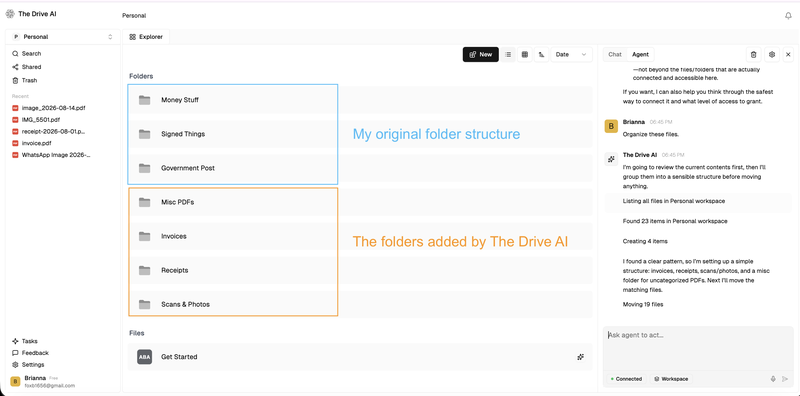
The filenames seem to have done most of the work. Files called IMG_ and scan_ ended up together, anything containing “invoice” went to Invoices, and the rest landed in Misc PDFs. I had put two byte-identical files in the set under different names, as a check: they ended up in different folders. Identical content cannot produce two answers.
A second run with an explicit instruction — open each file and sort by what it actually is — classified much better. What it still did was file one level short: documents that belonged in Money Stuff/Supplier Bills/2026 stopped at Money Stuff. And when I asked it to rename rather than file, it did that accurately, turning doc(7).pdf into a fully identified Lululemon invoice.
Then the run stopped with “Daily AI step limit reached”. On the free plan you get ten steps a day, and a step is a single action — each file opened, each file moved, each question asked. Nineteen documents do not fit inside that. Neither does undoing the result, because undo is something you ask the agent to do, and that costs steps too.
So the honest summary of the agent is not “it does not work”. It understood individual documents perfectly well. What I could not get it to do reliably was respect the structure that was already there.
Then I found the workflow builder
The standing auto-organization feature has been replaced. The settings screen says so plainly:
Auto-organization has been replaced by workflows. Files are no longer filed automatically as they arrive.
Underneath sits a button — Build the workflow for me — and it does exactly that. What it wrote was simple:
File Uploaded → Move. No Rename.
I ran the same kind of documents through it, and the difference was immediate. Four out of four went into the correct existing folder — mine, not new ones built beside them. One of those folders was completely empty, with nothing inside to copy from, so it had to go on the folder’s name alone. And it filed an Adobe invoice called receipt-2026-08-01.pdf as an invoice: the filename says receipt, the document does not, and that is exactly where the agent had gone wrong.
So I made the test harder.
A deeper, more ambiguous structure
Four folders deep at the furthest point, a folder per supplier under each year, and everywhere pairs a document could plausibly belong to either half of.
Government Post/
├── ASIC/
└── ATO/
    └── BAS 2026/

Money Stuff/
├── Card Receipts/
│   └── 2026/
└── Supplier Bills/
    └── 2026/
        ├── Bunnings/
        ├── Nova Digital/
        └── Reece/

Signed Things/
├── Contracts/
│   ├── Clients/
│   └── Supplier/
└── Insurance/
    ├── Business Liability/
    └── Vehicle/
Every pair is a trap. A signed agreement could be a client contract or a supplier one. A policy could be Business Liability or Vehicle. ASIC and ATO are both Australian government bodies that send official-looking post.
The first batch of four went three for three on the invoices, the insurance renewal and the tax notice — including ATO/BAS 2026, three folders down. The one it placed wrongly was a services agreement: my company is the provider and the other party is the client, so “client contract” or “supplier contract” depends on knowing whose Drive this is. It chose Supplier.
A second batch of four, after I had changed the naming instruction, went four for four — the agreement included.
The Drive AI’s workflows are good at filing into an existing folder structure. The interesting question is not whether it can file documents. It is how much you have to build first.
The Drive AI can file documents. Naming is a separate step.
The workflow put the documents in the right places and left their names alone:
Money Stuff/Supplier Bills/2026/
├── 2026-07-15 - Bunnings Trade - INV TRD-0092841.pdf
└── Untitled document.pdf
Both are invoices. Both are in exactly the right place. One of them is findable.
That is not a limitation of the product — there is a Rename action in the node list. It simply was not part of the workflow that got built for me. So I added one and gave it the convention from the invoices already in the folder: date, supplier, invoice number.
It followed that instruction exactly, which is how I learned what a single naming rule does to a mixed pile of documents. The invoices came out right. The insurance renewal became 2026-09-01 - Allianz Australia Insurance Limited - INV MOT-44820917.pdf. The tax notice picked up INV NO-INV-NUMBER. A signed client agreement became 2026-09-10 - Coastal Plumbing Pty Ltd - INV UNKNOWN.pdf — filed correctly, described as an invoice from my own company.
So I replaced the rule with one sentence: name the file in the same style as the files already in the folder it was moved to. That worked, and it worked per folder — Allianz - Vehicle Policy - Renewal 2026.pdf in the insurance folder, date-and-invoice-number style in the supplier folders. Three of four matched their neighbours exactly; the fourth took the right shape and the wrong party.
Getting there took three things: the generated workflow, the Rename step, and the sentence. The Drive AI gives you the building blocks to assemble the filing system you want.
What eleven days on the free plan taught me
A few things you only learn by living in a product rather than reading its feature list.
The uploads stopped at twenty files, though the plan advertises fifty. The on-demand organizing behind ⌘K showed me a counter reading 0 / 5 and then refused with “Folder organize limit reached”. And asking the agent whether I could connect my Google Drive got me “typically” and “usually yes”, which is a strange answer for a product to give about its own plans.
Two things went the other way. Workflows draw on their own allowance, so they kept working on days when the agent had no steps left — a sensible split, and the reason the later tests were possible at all. And their Activity Log is genuinely good: agent, workflow and user actions separated, before and after values recorded, exportable as CSV.
The one that cost me an afternoon: a workflow that is switched off does not catch up. I had paused mine while building the folder tree, uploaded the test documents, and waited. Nothing happened, and nothing would have. Files that arrive while a workflow is inactive are never processed, not even once it is running again.
Where Google Drive’s own AI tools fit
Partway through I stopped and checked what Drive already gives you, because it seemed unfair to judge a paid product against nothing.
Gemini can answer questions about your files. Its Organize my files goes through the loose files in My Drive, proposes a folder for each and waits for your approval — Drive on the web only, English only, and your filenames stay exactly as they were. It is a one-off tidy-up rather than something running in the background. I wrote about what Gemini finds and misses here .
Workspace Studio can move a file once you have built the flow, and has no rename step at all. I built one of those flows when the Move step arrived
and ended up with a perfectly filed receipt still called IMG_9762.pdf.
That is the pattern this test kept running into. Gemini moves files. Workspace Studio moves files. The Drive AI’s generated workflow moves files. The Drive AI is the one that will also name them — once you add the Rename step and write the instruction.
Then I ran the same documents through Filently
It would have been a strange test not to. Same folder tree, same eight documents, our factory settings: auto-filing off, no custom instructions, no naming-pattern learning.
It proposed the correct existing folder for eight of eight. No new folders, and the decoy folders stayed empty. I ran it again with auto-filing on and got the same eight destinations, this time filed straight away: each one cleared the confidence threshold, so none of them needed a manual check. The two service agreements — the case The Drive AI’s first batch got wrong — both landed in Clients.
This does not prove Filently has better AI. The tests do not establish that, and the results are close enough that I would not claim it. What it shows is narrower: Filently did not need a workflow to get started. You connect your Google Drive; each document arrives with a proposed name and the folder it belongs in; you accept it, or change it, or switch on automatic filing for confident cases.
Naming has three settings, and you choose one. Out of the box it follows a consistent format you can adjust — where the date sits, which separator, how it capitalises. If your folders already carry a convention, “learn from existing files” picks it up once there are enough files in a folder to show a pattern, around fifteen. Or you describe what you want in plain language in the filing instructions. In this test we left all of that alone, so the names came out in our default format rather than in each folder’s style. The piece we are building next, Deep Clean, goes further and rebuilds a structure that has already gone wrong.
The real difference: build or connect
After eleven days, this is how I would describe the two.
The Drive AI is a broader AI workspace — chat and search over your files, agents, workflow automation with conditions, approvals and schedules, e-signatures, file requests, apps on every platform. For filing it gives you a flexible builder, and you decide what happens.
Filently is narrower. It is a filing layer for the Google Drive you already have. The structure is already there, so there is no workflow to design for each scenario: it recognises the document, proposes a name and a destination, and by default waits for you before anything moves.
So the question is not which AI is smarter. It is whether you want to build an AI workspace around your files, or automate filing in the one you already work in.
How much does The Drive AI cost?
Premium is $199.99 a year, and your files live in The Drive AI’s storage, capped at five hundred. Connecting Google Drive means Max at $999.99 a year, or Team at $79 per seat per month with a three-seat minimum. Filently starts at $48 a year and files into the Drive you already have.
That is not an apples-to-apples comparison — The Drive AI is a much broader product, Filently solves one problem. Which is why I would not choose on price alone, but on whether you need the workspace in the first place.
So, who is The Drive AI for?
The Drive AI may fit if you want a broader AI workspace, like building your own automations, need e-signatures or file requests, work across several storage systems, or handle very high document volumes — its Max plan includes two thousand automatically filed documents a month.
Filently may fit if you already work in Google Drive, already have a folder structure, do not want to build and maintain filing workflows, want documents named as part of being filed, and want to see what the AI proposes before anything moves.
Neither is right for everyone. They approach the same problem from different starting points.
My takeaway after eleven days
I expected a straightforward competitor test and did not get one. The Drive AI’s workflow automation is genuinely good: once I found the builder, it filed my documents into the correct existing folders, several levels deep, in an ambiguous structure. The agent gave me a different experience — it built its own folders, and stopped partway when the daily budget ran out. That distinction matters, because the agent is what a new user meets first.
And then there is the product difference underneath. The Drive AI hands you a toolkit for building an AI workspace around your files. Filently keeps the Google Drive you already have and takes over the filing.
Want the two side by side? The Drive AI vs Filently, from this test.
Filing, setup, naming, control, privacy and price — and what each one does beyond filing.
And if you would rather see it on your own files, twenty-five documents are free , filed into your real folders, no card.
I tested The Drive AI between 10 and 21 September 2026 on a free account, and Filently on the same documents and folder structures. Prices and plan limits were checked on 21 September 2026 and may have changed since.